Dev Playbook: Standards Mapped Chatbot Accessibility, Who Owns What
Developer playbook mapping MITRE and W3C to concrete tests, clarifying vendor vs site owner duties. Includes a 10 minute accessibility checklist and...

A chatbot that ignores accessibility isn’t a minor gap. It’s a broken product for keyboard users, screen reader users, and anyone with motor or cognitive disabilities. Building one that works means treating the widget as first-class web content: keyboard operability, live-region announcements for new messages, multimodal alternatives to voice or video, session state that survives navigation, and a short testing checklist run before every release.
TL;DR:
- Most accessibility failures stem from keyboard traps, missing live-region announcements, low contrast, and session timeouts that erase context, all fixable in under ten minutes.
- Vendors rarely provide current conformance reports or demonstrate real accessibility, so testing a demo with keyboard navigation and zoom at 400% is essential before deployment.
- Crafting concise, clear messages with self-contained actions and providing text equivalents for all non-text outputs greatly improves chatbot inclusivity.
- Proper ARIA roles, focus management, and respecting reduced motion settings are critical, especially when opening, closing, and updating the chat widget for keyboard and screen reader users.
- Accessibility must be integrated from the start, as a chatbot that mishandles focus or resets sessions mid-conversation often becomes completely unusable for those relying on assistive technology.
Table of Contents
- What Is Chatbot Accessibility and Why Does It Need Its Own Rules?
- A 10-Minute Chatbot Accessibility Checklist
- How Do You Evaluate a Chatbot Platform for Accessibility?
- How Should You Write Accessible Chatbot Conversations?
- What ARIA and Focus Management Does the Widget Need?
- Should Chatbots Offer Voice, and How Do You Keep Text Users Included?
- How Do You Keep Chatbots Accessible Across Pages and Handoffs?
- What’s the Right Testing Workflow for Chatbot Accessibility?
- Where Can You Go Deeper on Chatbot Accessibility Standards?
- Why Most Teams Get Chatbot Accessibility Backwards
- Test Chatbot Accessibility Before You Deploy
- Sources
- FAQ
What Is Chatbot Accessibility and Why Does It Need Its Own Rules?
Chatbot accessibility means a conversational interface, text, voice, or hybrid, works for people using screen readers, keyboards, switch devices, or assistive tech of any kind. It sits inside the broader field of inclusive chatbot design, but it isn’t just “apply WCAG to a chat box.” A MITRE review of 17 sources identified 157 distinct recommendations and grouped them into five development plays: platform selection, content design, interface design, integration, and testing. That structure exists because standard web accessibility rules weren’t written with turn-taking dialogue in mind.
WCAG informs page-level design but doesn’t fully address chatbot-specific interaction patterns: how fast messages should appear, when to move focus, how to sequence a multi-turn exchange without disorienting someone using a screen reader. That gap is exactly why playbook-style guidance exists, and why this article is built around five concrete plays instead of a single compliance checklist. Get all five right and you’ve covered the vast majority of real-world failures. Skip one, usually testing, and you’ll ship a widget that passes a quick glance but fails the first person who tries to use it with a keyboard alone.
A 10-Minute Chatbot Accessibility Checklist
Before you commission a full audit, run this pass. It surfaces the failures that break the experience for the most people, fastest.
- The launcher button is a real
<button>element, keyboard-focusable, with an accessible name like “Open chat” and a visible focus indicator. - Incoming bot messages are wrapped in an
aria-liveregion so screen readers announce them without a manual refresh. - You can complete an entire conversation, open, type or select a quick reply, close, using only Tab, Shift+Tab, Enter, and Escape, with no keyboard trap.
- Chat bubbles and quick-reply chips meet WCAG contrast minimums, and tappable targets meet the 2.5.8 target-size guidance in WCAG 2.2.
- The conversation persists when a user navigates to another page, or the widget clearly warns before a timeout and offers a way to extend the session. A path to a human agent exists and doesn’t require finishing a bot flow first.
Pro Tip: Run this checklist with your mouse unplugged. If you can’t finish a full conversation without touching it, neither can a keyboard-only visitor.
Practitioner audits consistently flag the same handful of failures across otherwise accessible sites: keyboard traps inside the widget, missing live-region announcements, low-contrast themed bubbles, and session timeouts that erase context mid-conversation. Those four issues alone account for most of the support complaints accessibility specialists hear about chat widgets, and every one of them is catchable in the ten minutes this checklist takes.
How Do You Evaluate a Chatbot Platform for Accessibility?
Vendor claims about “accessible AI” rarely survive contact with a screen reader. Ask for proof before signing anything.
- Request a current VPAT or conformance report. A documented accessibility conformance report is a critical procurement artifact, and a vendor who can’t produce one, or who hands you a two-year-old document, is telling you accessibility wasn’t part of their build process.
- Ask how the widget handles live regions. Does it use
aria-live="polite"for routine messages and reserveassertivefor urgent updates? A platform with no live-region strategy will force screen reader users to hunt for new content manually. - Test keyboard navigation and focus trapping directly. Open the demo widget, unplug your mouse, and try to complete a full exchange. If you get stuck, so will your visitors.
- Check zoom and reflow behavior at 400%. Chat interfaces that clip text or hide quick replies under browser zoom fail a core WCAG 2.2 requirement.
- Clarify the division of labor. Vendors typically own widget-level semantics and keyboard behavior. Site operators own theming, message content, and configured timeouts, so a platform being “accessible out of the box” says nothing about whether your custom theme wrecked the contrast ratio.
Bring a short demo script to every vendor trial: open the widget with Tab, send three messages by keyboard only, trigger a quick reply, then close it with Escape and confirm focus returns to where it started. Watching that thirty-second sequence tells you more than any sales deck.
Pro Tip: Ask the vendor to demo their widget on their own homepage, live, during the call. A platform that can’t show its own accessibility in real time usually can’t back up the claim in writing either.
How Should You Write Accessible Chatbot Conversations?
Interface accessibility gets developers halfway there. The other half is what the bot actually says, and how it says it. This is where accessible chatbot design and plain-language writing overlap most directly.
- Keep messages short and front-load the point. A screen reader user shouldn’t have to sit through three sentences of preamble to find out the bot needs their order number.
- Write quick-reply labels as self-contained actions. “Track my order” tells a screen reader user exactly what will happen; “Click here” tells them nothing once it’s read out of visual context.
- Give every non-text output a text equivalent. If the bot sends a rich card with an image or a chart, include a plain-text summary alongside it, not buried in alt text alone.
- Provide a short transcript whenever the bot delivers audio. Multimodal design works both directions: voice output needs a text counterpart, and text input needs to work without ever touching voice.
- Build in pacing controls. A “read more” toggle, stepwise reveals for longer answers, and adjustable timing all help people who process text more slowly, whether that’s a cognitive disability, a language barrier, or just someone reading on a phone in bad light.
There’s a real tension between helpfulness and noise here. Announce every typing indicator and status update through aria-live, and you’ll bury screen reader users in chatter they didn’t ask for. The better pattern reserves live announcements for genuinely new content and lets users request status updates rather than pushing every micro-event at them.
Pro Tip: Read your bot’s longest message out loud, at normal speaking pace, with your eyes closed. If you lose the thread before it finishes, a screen reader user will too.
Conversation design also affects retention more than most teams expect. Bots with a consistent voice and predictable pacing get used again; bots that ramble or bury the actual answer under filler get abandoned after one bad exchange, the same pattern Nielsen Norman Group documents across chatbot UX research generally.
What ARIA and Focus Management Does the Widget Need?
This is the section developers actually came for. Chatbot user experience lives or dies on a handful of implementation details, and most accessibility failures trace back to one of them.
The launcher button. Use a real <button> element, never a styled <div> with a click handler. Give it an accessible name (“Open chat” beats an icon with no label) and make sure your CSS doesn’t strip the browser’s default focus ring without replacing it with something equally visible.
Focus management on open and close. When the widget opens, move focus into it, typically to the first interactive element or the message input. When it closes, restore focus to whatever triggered it, usually the launcher button. Skipping this step is the single most common reason keyboard users report getting “lost” after closing a chat window.
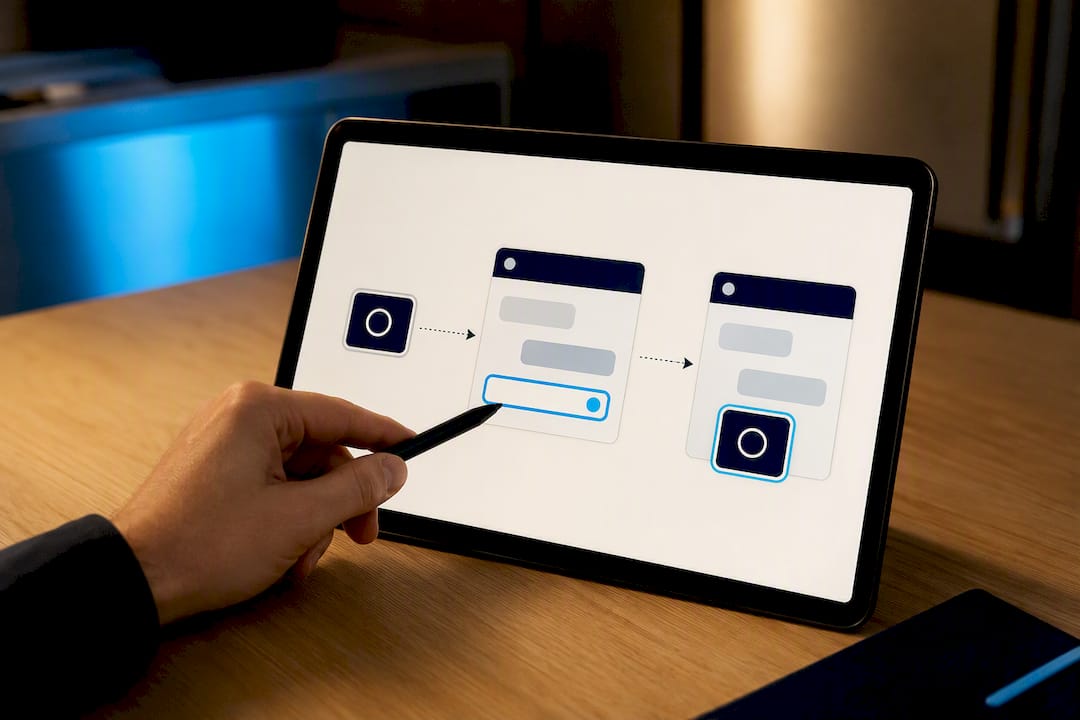
Live regions for incoming messages. Wrap the message stream in a container with aria-live="polite" so new bot replies get announced without stealing focus. Reserve aria-live="assertive" for something urgent, like a session-expiry warning. Quick-reply buttons need accessible names and a proper role="button" or native button markup, not a clickable <span>.
Reduced motion and reflow. Respect the OS-level prefers-reduced-motion setting for typing animations and message transitions. Test the widget at 400% browser zoom and confirm nothing truncates, quick replies especially tend to disappear off-screen at high zoom levels if the container isn’t built to reflow.
| Implementation area | What to check | Common failure |
|---|---|---|
| Launcher button | Native <button>, visible focus ring, accessible name |
Styled <div> with no keyboard support |
| Focus on open/close | Focus moves in on open, restores on close | Focus stays on page behind the widget |
| Live regions | aria-live="polite" on message stream |
No announcement; user must scroll to find new text |
| Quick replies | Native button markup, descriptive accessible name | Clickable <span> with no role or label |
| Zoom/reflow | Full function and visibility at 400% zoom | Chips or input field clipped off-screen |
| Motion | Respects prefers-reduced-motion |
Animated typing indicators with no override |
Microsoft’s guidance for agent design backs most of this directly: keyboard navigation, screen reader compatibility, and high-contrast/reflow support sit at the center of its inclusive AI recommendations, alongside a broader principle worth keeping in mind, build in a way that lets users flag and correct accessibility issues as they find them, rather than assuming the initial build got everything right.
Should Chatbots Offer Voice, and How Do You Keep Text Users Included?
Voice input feels modern, but it can’t be the only path in. Offer voice as one option among several, never as a requirement, and always pair spoken output with a visible text equivalent.
- Give users a text entry field alongside any voice trigger, and never gate core functionality behind speech recognition alone.
- Whenever the bot speaks a response, show the same content as text on screen, or provide an accessible transcript immediately after.
- Plan for recognition failure. Speech-to-text misfires constantly with accents, background noise, and speech differences, so build a clear fallback: a typed retry, a button-based menu, or a simple “type it instead” prompt.
- Keep spoken menus short. A voice interface that reads out seven options in a row asks a lot of working memory; break it into two or three choices at a time instead.
- Design for cognitive load generally, not just blindness or motor impairment. Stepwise voice prompts, one decision per turn, help people with attention or processing differences as much as they help anyone multitasking on a phone call.
Multimodal support, letting users move between voice, text, and visual input without losing context, is one of the more consistently cited chatbot-specific accessibility recommendations, precisely because so many teams build voice as a bolt-on rather than a genuine option. If you’re evaluating a dedicated voice layer for a storefront bot, look at how voice agent vendors document fallback behavior before assuming speech recognition alone will cover every visitor.
How Do You Keep Chatbots Accessible Across Pages and Handoffs?
A chatbot that resets every time someone clicks to a new page isn’t just annoying, it’s an accessibility failure for anyone who relies on the bot as their primary way to get information, since re-explaining a problem from scratch is a much bigger burden for someone using assistive tech than for a mouse user skimming past it.
- Persist conversation state across navigation, and give users an accessible way to view their conversation history rather than assuming they remember every prior exchange.
- Store session state server-side or in durable local storage, and offer an explicit “resume” control when someone navigates away mid-conversation and comes back.
- Mark the boundaries of the widget clearly, sometimes called “bumpers,” so keyboard and screen reader users get a signal when they’ve entered or exited the chat region, instead of losing track of where focus went.
- Make the human handoff path reachable at any point. Never force someone to finish a scripted bot flow before they can reach a person, that’s a barrier for anyone the bot’s script doesn’t fit.
Persistence isn’t a nice-to-have layered on top of accessibility. It’s part of it. UX research on chatbot retention shows bots that vanish between pages get abandoned more often, and that abandonment falls hardest on users who already spend more effort per interaction, exactly the population accessibility work exists to serve.
What’s the Right Testing Workflow for Chatbot Accessibility?
Skip the temptation to rely on an automated scanner alone. Run this sequence before every significant release.
- Keyboard-only pass. Unplug the mouse. Open the widget, complete a full conversation including a quick reply, and close it. Confirm focus lands somewhere sensible afterward.
- Screen reader pass. Run through the same flow with NVDA on Windows or VoiceOver on macOS/iOS. Confirm new messages get announced and quick replies read out a meaningful label.
- 400% zoom check. Confirm nothing clips, overlaps, or disappears.
- Contrast check. Run bubble backgrounds, text, and chip colors through a contrast checker against WCAG AA thresholds.
- Reduced-motion check. Toggle the OS setting and confirm animations respect it.
- Timeout and persistence check. Let a session sit idle, then navigate away and back, and confirm state survives or a clear warning appears first.
Practitioner checklists consistently point to these same manual passes as the highest-value, lowest-cost tests a team can run, and none of them require special tooling beyond a screen reader and a contrast checker.
For small user tests, recruit participants who represent a range of needs, at minimum someone using a screen reader daily, someone with a motor impairment who navigates by keyboard or switch device, and someone with a cognitive or attention difference who can flag pacing and clarity issues. Document each session with the specific step that failed, not just a general impression, so engineering can reproduce and fix it. Automated scanners catch contrast and missing labels quickly, but a full conformance audit or VPAT typically requires a manual review pass on top of any scanner output, since automated tools still can’t judge whether a live region announces at the right moment or whether a quick-reply label actually makes sense out of context.
Where Can You Go Deeper on Chatbot Accessibility Standards?
Each of the following sources covers different ground, and knowing which one to reach for saves time.
- The MITRE Chatbot Accessibility Playbook is the closest thing to a chatbot-specific rulebook, built from 157 recommendations across five plays.
- W3C/WAI’s preliminary research explains why standard web accessibility guidance falls short for conversational interfaces specifically.
- WCAG 2.2 remains the baseline success-criteria reference, especially its target-size and timing-adjustment criteria.
- Microsoft’s accessibility and inclusion guidance for agents covers AI-specific interaction patterns.
- For hands-on testing, pair a contrast checker with NVDA or VoiceOver, and add an accessibility linter to your build pipeline to catch missing labels before they ship.
Why Most Teams Get Chatbot Accessibility Backwards
Most teams treat chatbot accessibility as a feature to bolt on after launch, something for the “phase two” backlog once the bot answers questions correctly. That ordering is exactly wrong. A chatbot that mishandles focus or drops session state isn’t slightly worse for disabled users, it’s often unusable, and unusable products don’t get a phase two.
The other mistake is assuming a WCAG-compliant website automatically produces a WCAG-compliant chatbot. It doesn’t. W3C’s own research on the gap exists precisely because turn-taking dialogue, live updates, and conversational pacing weren’t in scope when most accessibility standards were written. A team that only runs its site-wide accessibility audit and never opens the chat widget with a screen reader will pass their audit and still ship a broken experience.
Konvuno was built around a simpler premise: a chatbot’s job is to answer real questions from a business’s own content, not to perform elaborate scripted flows that trap users in a decision tree. That design choice happens to make accessibility easier, fewer custom interaction patterns means fewer places for keyboard traps and focus bugs to hide. It doesn’t replace the testing work in this guide. Nothing does.
— Konstantin
Test Chatbot Accessibility Before You Deploy
Some AI website assistants install via a single script tag and answer visitor questions using FAQs, website content, and product catalogs, with a human handoff for unresolved issues. That matters for accessibility specifically: fewer custom flows means fewer places for keyboard traps and missing live regions to hide, and a support team that answers in seven languages covers more visitors than a single-language script ever could.
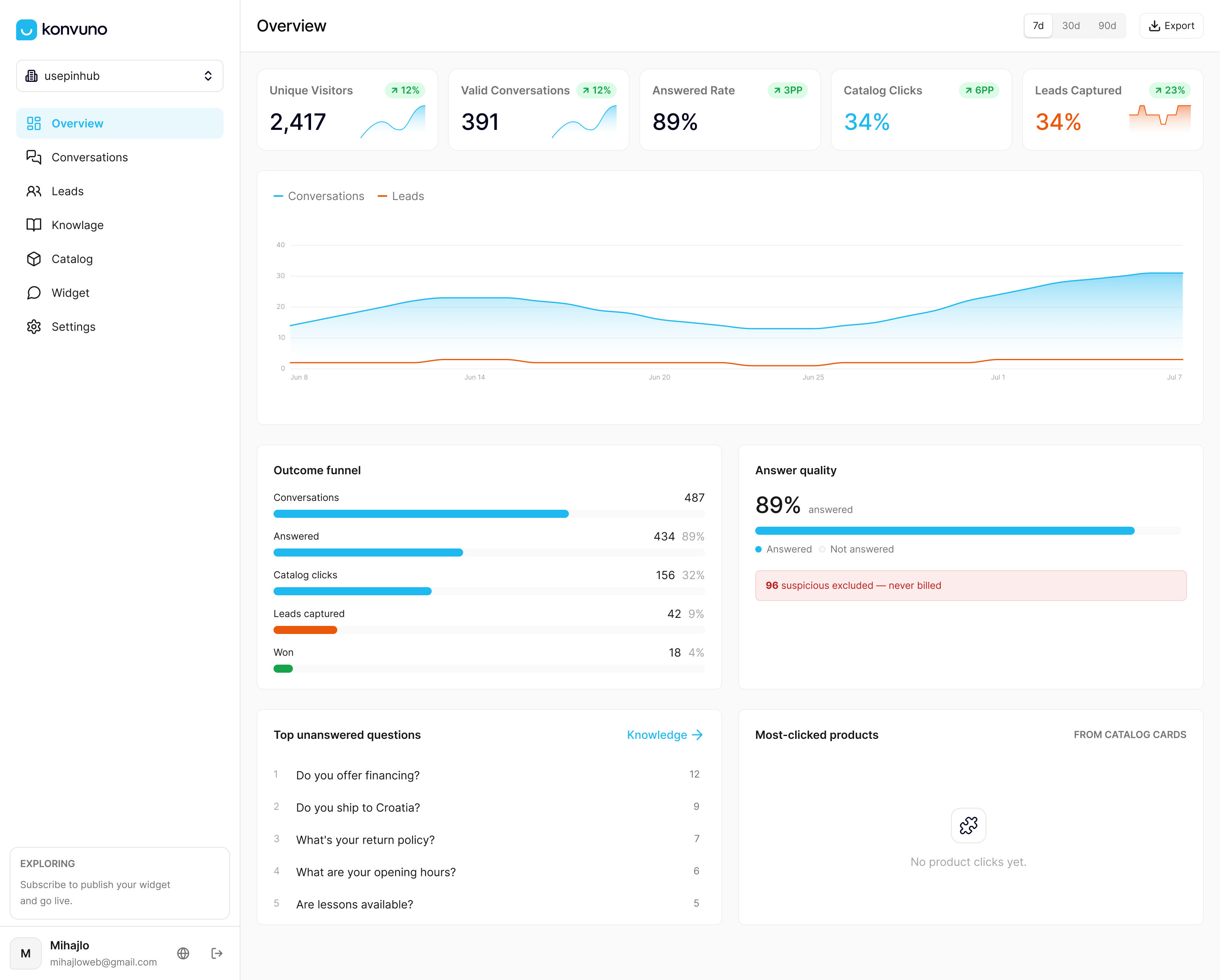
Before you deploy any chatbot, run the ten-minute checklist earlier in this guide, and ask your vendor for current accessibility documentation, a VPAT or equivalent conformance report, not a marketing claim. If you want to see how a FAQ-driven assistant handles keyboard navigation and screen reader announcements in practice, start a trial and run the same keyboard-only pass on your own site content.
Sources
- Chatbot Accessibility Playbook — MITRE (front matter)
- Preliminary insights from a chatbot accessibility playbook and Wizard-of-Oz study (W3C WAI)
- Accessibility and inclusion for agents — Microsoft
FAQ
Is Chatbot Accessibility Required Under the ADA or Section 508?
The ADA doesn’t name chatbots specifically, but courts and regulators generally treat inaccessible digital interfaces, chatbots included, as a barrier to equal access under existing accessibility law, and U.S. federal agencies and their vendors must comply with specific accessibility requirements. Following WCAG 2.2 AA and the chatbot-specific guidance in this article is the practical way to reduce that legal exposure.
What’s the Fastest Way to Check if a Chatbot Is Accessible?
Unplug your mouse and try to complete a full conversation using only Tab, Enter, and Escape, then repeat the flow with a screen reader like NVDA or VoiceOver running. Those two passes catch the majority of common failures in about ten minutes.
Does WCAG Fully Cover Chatbot Accessibility?
No. WCAG addresses page-level structure and content, but it doesn’t fully account for chatbot-specific needs like message pacing, live-region timing, and focus movement between turns, which is why playbook-style guidance from sources like MITRE exists to fill those gaps.
Should a Chatbot Require Voice Input?
No. Voice should always be optional alongside a typed input path, since mandatory voice input excludes users with speech differences, certain motor disabilities, and anyone in a noisy or public environment.
Can a No-Code Chatbot Platform Still Be Accessible?
Yes, if the vendor builds accessible semantics and focus behavior into the widget itself. Platforms like Konvuno remove the need for custom development work, but site owners still control theming, message content, and timeout settings, so running the accessibility checklist after setup remains necessary regardless of the platform.