Chatbot Analytics Setup: A Practical Guide for Small Sites
Set up chatbot analytics in five steps: define goals, name events, connect GA4 and your CRM, test, and review weekly so the numbers improve your answers.

Setting up chatbot analytics comes down to five jobs: decide which business outcomes the chatbot should influence, name the events that mark them, send those events to the analytics tool you already use, test that they record correctly, and review the results on a fixed schedule. Do those in that order and a small team can finish the technical part in an afternoon. The review habit is what turns the numbers into better answers and more leads.
TL;DR
- Start with outcomes, not metrics: a lead, a booked call, a purchase, a handed-off conversation. Everything you track should trace back to one of them.
- Track a short list of events with clear names: widget opened, question asked, lead captured, human handoff requested, product link clicked.
- Send events to Google Analytics 4 and compare them with your CRM or store orders, because analytics attribution alone is directional.
- Test every event before you trust it, and tell visitors what you collect.
- Review the questions the bot could not answer every week. That list is the cheapest content roadmap you will ever get.
Table of Contents
- What chatbot analytics should tell you
- Step 1: Define goals and conversion events
- Step 2: Choose the events and name them well
- Step 3: Connect the events to your analytics dashboard
- Step 4: Know which metrics matter and how to calculate them
- Step 5: Test that events record and attribute correctly
- Privacy, consent and retention
- Step 6: Review weekly and act on what you find
- Our perspective: measure the questions, not just the clicks
- Put it into practice with Konvuno
- FAQ
- Sources
What chatbot analytics should tell you
A chatbot on a small business site does three things: it answers questions, it collects contact details, and it passes hard cases to a person. Analytics should tell you how well it does each one, and what it costs you when it fails.
Most guides that rank for this topic open with a list of 9 or 13 metrics. That is useful as a reference, but a small site does not need thirteen numbers. It needs answers to four questions:
- Are visitors using the assistant at all?
- Does it answer correctly, or does it fall back to “I don’t know”?
- Do conversations end in something valuable, such as a lead or a sale?
- What are people asking that your site does not explain well?
Every metric below exists to answer one of those. If a number does not change a decision, leave it off the dashboard.
Step 1: Define goals and conversion events
Before you touch any tracking code, write down the outcomes that matter to your business. For most small sites the list is short.
| Business type | Primary outcome | Secondary outcomes |
|---|---|---|
| Service business | Contact form or quote request submitted | Phone number clicked, booking link opened |
| WooCommerce or feed-based shop | Purchase after a chat | Product page clicked from a chat answer, add to cart |
| Lead-driven B2B site | Demo or call booked | Email captured, resource downloaded |
| Agency managing client sites | Leads captured per client site | Handoffs, unanswered questions per client |
Then separate two kinds of numbers:
- Outcome events are the ones tied to money: a lead captured, a booked meeting, a purchase. Keep these few.
- Diagnostic events explain why outcomes rise or fall: widget opened, first question asked, fallback shown, handoff requested. Keep these for the review, not for the headline report.
A useful rule: if you cannot say what you would change when an event goes up or down, it is not worth tracking yet.
Pick a baseline before you launch
Write down your current numbers for the same outcomes without the assistant: monthly contact form submissions, orders, and the most common support emails. Without a baseline you will not know whether the chatbot added leads or just moved them from the contact form into the chat window.
If you are still choosing which outcomes deserve attention, this guide to choosing web analytics and running a short pilot walks through weighing analytics options against your actual needs before you commit.
Step 2: Choose the events and name them well
Naming is where small setups quietly fail. Six months from now, “event_1” and “chat_click_new” mean nothing to you or to the agency taking over your site. Use one pattern, lowercase with underscores, verb last or object last, and stick to it.
A practical starter set:
| Event name | Fires when | Type |
|---|---|---|
chat_opened |
The visitor opens the widget | Diagnostic |
chat_question_asked |
The visitor sends a first message | Diagnostic |
chat_answer_fallback |
The assistant cannot answer from its sources | Diagnostic |
chat_lead_captured |
Name, email or phone is submitted in chat | Outcome |
chat_handoff_requested |
The visitor asks for a human, or the bot escalates | Diagnostic and outcome |
chat_product_clicked |
A product link in an answer is clicked | Diagnostic |
purchase (existing) |
An order completes, tagged with whether chat was used | Outcome |
Add context to each event as parameters rather than creating new events. For example, attach the page the chat was opened on, the language, and the topic of the question. One chat_lead_captured event with a page_path parameter is easier to report on than twenty page-specific events.
If you want the assistant to behave differently on pricing pages than on blog posts, our guide to page targeting for a chat widget explains how rules work, and the page parameter then lets you compare results by page type.
Step 3: Connect the events to your analytics dashboard
There are two layers to think about: the dashboard your chatbot provides, and the general analytics tool you use for the whole site.
Layer one: the chatbot’s own dashboard
A good assistant dashboard already records conversations, captured leads, knowledge gaps and the questions visitors ask. With Konvuno, this is built in: you see conversations, leads in the built-in CRM, knowledge management and analytics on what visitors actually ask, all from the hosted dashboard with no code. This layer answers the diagnostic questions, such as what people ask and where answers fail.
Layer two: Google Analytics 4
The site-wide tool is where you tie chat activity to traffic sources, landing pages and purchases. The approach most guides recommend is the same: define the downstream outcome, then pass a clearly named event with context to GA4 so you can see which visits led to which results. The steps are:
- Make sure GA4 is installed on the site. If it is not, this walkthrough on setting up Google Analytics for a small business covers the basics in about half an hour.
- Send each chatbot event as a custom event, using a tag manager or the widget’s event hooks if your provider offers them. Use the names from your table above.
- In GA4’s admin area, mark only the outcome events as key events. Marking everything as a key event makes the conversion report meaningless.
- Build a simple report or exploration that compares visitors who opened the widget with visitors who did not, on the same outcome.
That last comparison is the one owners care about most. It will not prove the chatbot caused the difference, since people who open a chat are often more interested to begin with. But a large gap in lead rate, tracked over weeks, is a strong signal, and a gap that is absent is just as worth knowing.
Tying chat to e-commerce
For shops, the most informative chain is: question asked about a product, product link clicked, add to cart, purchase. If your assistant answers from a synced WooCommerce or product feed catalog, answers contain real products and live prices, so link clicks become measurable. Accurate answers depend on accurate data, so keep your feed healthy; our article on connecting your data to a website chatbot covers what to sync and how to keep it fresh.

Step 4: Know which metrics matter and how to calculate them
Here are the numbers worth computing, with plain formulas.
| Metric | Formula | What it tells you |
|---|---|---|
| Engagement rate | Visitors who open the widget ÷ total visitors | Whether the widget is visible and inviting |
| Conversation rate | Visitors who send a message ÷ visitors who open it | Whether the greeting and prompts work |
| Fallback rate | Answers the bot could not give ÷ total answers | How complete your knowledge sources are |
| Handoff rate | Conversations passed to a human ÷ total conversations | Which topics need a person |
| Lead capture rate | Leads captured ÷ conversations | How well chat turns interest into contacts |
| Chat-assisted conversion rate | Orders or bookings from chat users ÷ chat users | Business impact, to be compared with non-chat visitors |
| Top questions by volume | Count of questions grouped by topic | What your site fails to explain |
A worked example with invented round numbers, only to show the arithmetic: if 4,000 visitors come in a month and 400 open the widget, engagement is 10%. If 300 of those send a message, conversation rate is 75%. If 45 leave their email, lead capture is 15% of conversations. If the bot fell back on 60 of 600 answers, fallback is 10%. Your own figures will differ, and what matters is the trend after each change you make.
Fallback and handoff: read them together
A rising fallback rate means the knowledge is incomplete. A rising handoff rate can mean the same thing, or it can mean healthy escalation of complex cases such as custom quotes or complaints. Read the transcripts behind the numbers before you decide. A handoff on a refund dispute is correct behavior. A handoff on “what are your opening hours” is a content gap.
What not to over-read
Satisfaction scores from a thumbs-up button are useful but sparse, since few visitors rate. Conversation length is ambiguous: long chats can mean engagement or confusion. Treat both as clues, never as verdicts.
Step 5: Test that events record and attribute correctly
Never trust a tracking setup you have not tested. Do this before you review a single number.
- Open your site in a private window and perform each action yourself: open the chat, ask a question, trigger a fallback with a nonsense question, submit a test lead, request a human.
- Watch events arrive in GA4. The Realtime report and the DebugView tool show events as they fire, with their parameters. Confirm each event name is spelled exactly as planned and the parameters carry the values you expect.
- Check the dashboard and the CRM. The test lead should appear in your chatbot’s CRM with the right source page. If you use another CRM, confirm the record arrives once, not twice.
- Exclude your own traffic. Filter internal visits or delete test conversations, so your staff do not inflate the first week of data.
- Reconcile after a few weeks. Compare the number of
chat_lead_capturedevents with the number of leads actually in your CRM, and chat-assisted purchases with orders in your store. Small gaps are normal because of ad blockers and consent choices. Large gaps mean something is broken.
Treat attribution as directional. Analytics will tell you roughly where a lead came from, but your CRM or store records are the final word on whether a lead became a customer or an order was paid.
Before you go live, test the answers too, not just the events. A chatbot that tracks perfectly and answers wrongly is a well-measured problem. See how to test chatbot replies before visitors do.
Privacy, consent and retention
Chat conversations often contain personal details: names, emails, order numbers, sometimes things visitors should not have typed. Plan for that from the start.
- Tell visitors what you collect. Put a short notice in or near the widget and link your privacy policy. Say that conversations are stored and used to improve the service.
- Check which rules apply to you. Because your visitors may come from many countries, the rules differ: US state privacy laws, the EU’s GDPR and similar regimes set different expectations on notice, consent and deletion. If you have visitors in several regions, ask a privacy lawyer or your data protection contact to confirm your obligations, rather than guessing.
- Respect consent for analytics. If you run a consent banner, make sure the GA4 events only fire for visitors who have agreed where the law requires it. Expect your numbers to undercount in that case, and treat them as a sample.
- Minimize what you send to analytics. Send event names and categories, never message text, names or emails, into GA4 as parameters. Keep full conversation content in the chatbot dashboard and CRM, where access is controlled.
- Set a retention habit. Decide how long you keep transcripts and leads, and delete what you no longer need. Review the retention setting in GA4 as well, since its default for event data is limited and you may want to adjust it for your reporting needs.
- Control what the bot knows. Limiting its sources reduces the risk of it exposing internal material. See how to control chatbot sources.
Step 6: Review weekly and act on what you find
Data is only useful if someone looks at it on a schedule. A 20-minute weekly review is enough for most small sites.
- Read the unanswered questions first. Sort by frequency. The top five gaps are your to-do list: add an FAQ entry, update a page, upload a document, or fix a product feed.
- Skim ten handoffs. Decide whether each should have been answered by the bot. If yes, add the answer. If no, check that the person receiving it gets the context quickly.
- Check the top questions against your site. If many visitors ask about shipping time, your shipping information is hard to find. Fix the page as well as the bot. Our piece on chatbot top questions and how to answer them lists the usual suspects.
- Look at lead quality, not only volume. Open five captured leads. Did they give real details? Did sales follow up? A rising capture rate with falling quality means the prompt is asking too early.
- Change one thing at a time. Adjust the greeting, or a prompt, or a source, then wait a week or two before judging. Otherwise you cannot tell what worked.
- Log the change. A one-line note in a shared document, with the date, saves hours later.
Once your events are flowing, you can go a step further and examine traffic quality by source. This guide on checking AI-driven traffic in GA4 shows how to segment visits from AI tools and compare how they behave on your site, which is a useful lens when you want to know whether chat helps those visitors.
Common mistakes
- Tracking everything and reviewing nothing.
- Marking every event as a key event.
- Judging the bot on conversation count instead of outcomes.
- Ignoring the fallback list because it feels like criticism.
- Forgetting that your own staff testing skews early data.
- Mixing languages in one report. If your assistant serves several languages, segment by language, since a gap in one may not exist in another.
Our perspective: measure the questions, not just the clicks
We build Konvuno for owners who do not have a developer or a support team, so we see the same pattern often. Owners start by asking how many leads the bot captured. That matters, but the more valuable data is the list of questions visitors ask that the site did not answer. It is a free, unfiltered look at what your customers are confused about.
That is why the dashboard puts conversations, leads, knowledge management and visitor-question analytics in one place, with no per-seat pricing and no code to edit. You can change a source, preview how the assistant answers, and see the effect, all before you pay. Catalog answers stay current through feed sync from WooCommerce or any Google Merchant or Facebook product feed, so the product numbers you measure are not skewed by stale prices.
Our advice is simple: track a few outcomes, read the unanswered questions weekly, and fix the content before you tune the bot. Most improvements come from better information, not cleverer settings.
— Konstantin
Put it into practice with Konvuno
If you want analytics that work from day one, Konvuno gives you the conversation, lead and question reporting in a hosted dashboard, installed with a single script tag. Plans are Starter at €29 per month, Growth at €79 per month and Business at €199 per month, and you can configure and preview the assistant before paying.
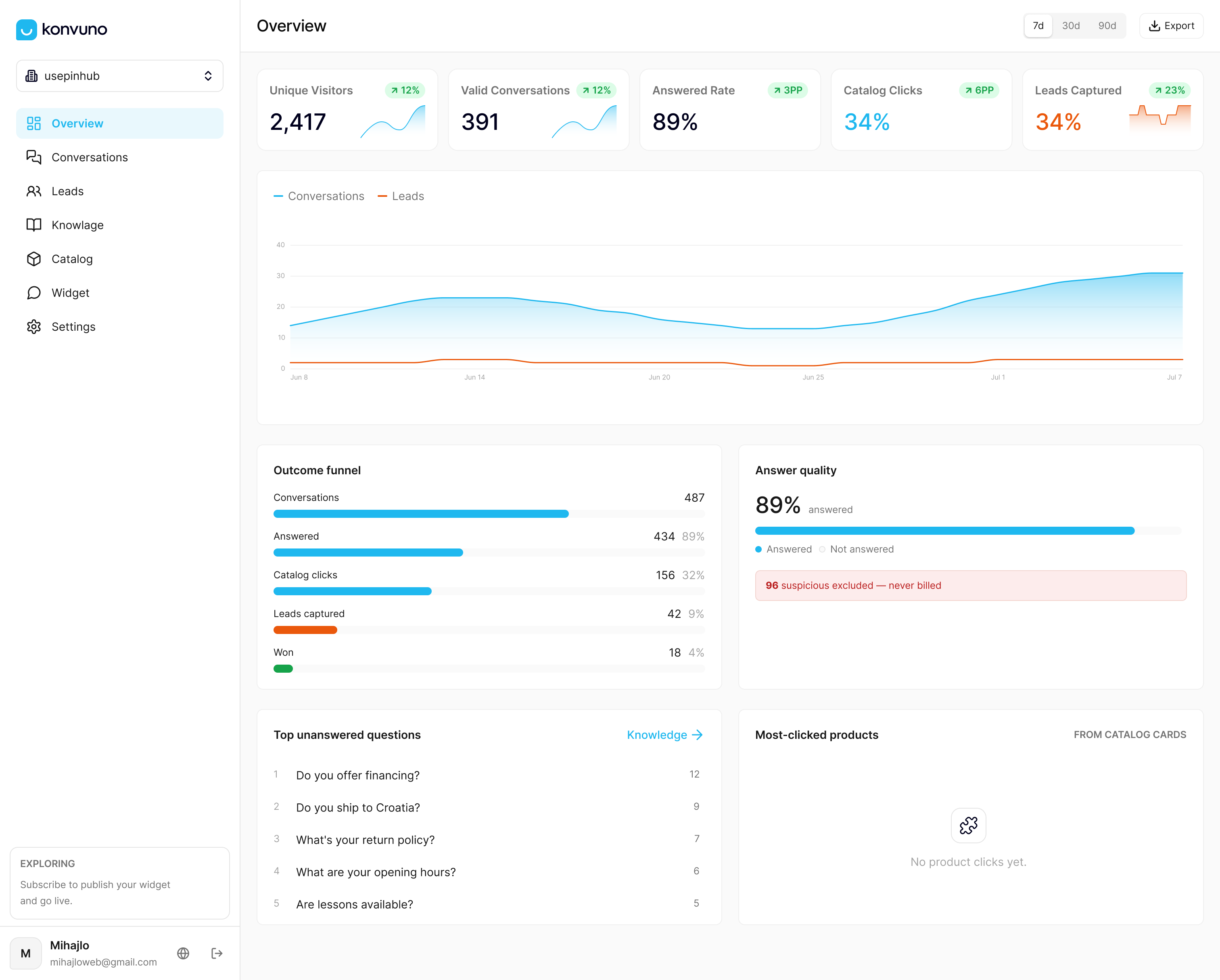
Connect GA4 on top using the event names above, and you will have both the site-wide picture and the conversation-level detail.
FAQ
Do I need Google Analytics to track my chatbot?
No. A chatbot dashboard shows conversations, leads and unanswered questions without it. GA4 adds the link between chat activity and traffic sources, landing pages and purchases, so it is worth adding once you want to measure business impact across the whole site.
How many events should a small business track?
Start with five to seven: widget opened, question asked, fallback shown, lead captured, handoff requested, product clicked, and your existing purchase or form event. Mark only the outcome events as key events. You can add more once you have a question they would answer.
How long before the data is meaningful?
It depends on traffic. A site with a few hundred monthly visitors may need a month or two before percentages stabilize, while a busier shop can read trends in a couple of weeks. Look at the content of conversations from day one, since even ten transcripts reveal gaps.
Is it legal to record chatbot conversations?
It depends on where your visitors live and what you collect. In general you should disclose that conversations are stored, link your privacy policy, avoid sending personal details to analytics tools, and honor deletion requests. For specifics in your situation, ask a privacy lawyer.
Sources
- Choosing web analytics and running a short pilot
- Google Analytics for small business: set up in 30 minutes
- Checking LLM traffic in Google Analytics 4