7 Step Feed Fix for Chatbots: Inspect Exports, Variant IDs, Syncs
Fix chatbot product feed errors with a 7 Step diagnostic: inspect the exported row, verify variant IDs, price and availability, then resync.

Most chatbot product errors trace back to feed accessibility or mismatched identifiers, so the first move is always the same: fetch the exported feed row for the affected SKU and compare it against the storefront and the last sync time. From there, the usual suspects are price and availability mismatches, wrong taxonomy mapping, and formatting errors in repeated attributes.
TL;DR:
- Incorrect or missing product identifiers, such as GTIN or SKU, lead to product confusion and wrong variant responses in chatbots.
- Price and currency mismatches between the feed and landing page cause the chatbot to quote inaccurate or outdated prices.
- Stale inventory data results in outdated availability responses, frequently showing items as in stock when sold out.
- Feed errors like broken image URLs, incorrect taxonomy mapping, and formatting issues directly impact the chatbot’s accuracy and trustworthiness.
- Regular validation, monitoring, and synchronized updates are essential to maintain feed quality and prevent recurring chatbot errors.
Table of Contents
- Top product feed errors that break chatbot answers
- Why feed quality matters for chatbots and AI shopping
- A practical, step-by-step diagnostic workflow
- How to fix each major error class
- Validation, monitoring and automation to prevent recurring errors
- What actually matters when troubleshooting chatbot feed errors
- Keeping chatbot product answers accurate without the manual upkeep
- Sources
- FAQ
Top product feed errors that break chatbot answers
When a chatbot gives a wrong or vague answer about a product, the cause is almost always sitting in the feed, not the assistant’s logic. These are the errors that show up most often, roughly in order of how frequently they cause visible chat symptoms.
- Missing or invalid identifiers. A missing GTIN, MPN, SKU, or brand field, or an ID reused across two different variants, makes the assistant confuse products or answer with the wrong variant’s price and stock.
- Price and currency mismatches. When the feed price does not match the landing page price, or the currency format is wrong, the chatbot quotes a number a shopper will not see at checkout.
- Availability mismatches. Stale inventory data makes the assistant tell a shopper something is in stock when it sold out hours ago, or vice versa.
- Wrong category or taxonomy mapping. Products filed under overly generic or incorrect categories confuse extraction logic, producing vague or off-topic answers.
- Image problems. Broken URLs, promotional overlays, or a variant image mapped to the wrong color or size mislead both shoppers and any visual matching the assistant relies on.
- Missing or thin required attributes. Gaps in fields like size, material, or color, along with formatting mistakes in repeated sub-attributes, cause the feed processor to reject or partially ignore a row.
- Feed accessibility and parse errors. A bad fetch URL, an expired authentication token, or the wrong MIME type stops the feed from loading at all, which silently freezes every chatbot answer tied to that catalog.
The chat symptoms usually match the error type closely:
- A generic “I don’t have details on that” often means a taxonomy or missing-attribute problem.
- A price quoted in chat that differs from checkout usually points to a currency or formatting mismatch.
- “Out of stock” answers for items visibly on the shelf usually mean the feed has not synced recently.
Google’s own product data specification lists id, title, price, availability, image, and taxonomy as the fields that determine whether a product is even eligible to display, which is exactly the set worth checking first when a chatbot answer looks wrong.
Why feed quality matters for chatbots and AI shopping

Conversational assistants do not read product fields in isolation. They evaluate related fields together: price alongside currency, availability alongside purchase state, and a product ID alongside its variant grouping. A price field that looks fine on its own can still break an answer if the currency code next to it is malformed or missing.
Google’s guidance on structured data attributes treats product data this way on purpose: isolated fields are not enough, systems check multi-field consistency before trusting a value enough to display it. A missing GTIN or a mismatched taxonomy lowers the system’s confidence in a match, and the chatbot falls back to a generic answer rather than risk stating something wrong.
Feed freshness matters just as much as feed accuracy. A product that expired in the source system but never dropped from the feed will keep answering with the wrong price or availability until someone catches it.
Feed accessibility and required-field checks are the documented first line of defense against these errors, according to Google Merchant Center’s product-data specification, which frames identifiers, price, availability, and images as the relationship checks that decide whether a product displays correctly at all.
A practical, step-by-step diagnostic workflow
Chasing a chatbot error by guessing at the catalog wastes time. A reproducible sequence gets you to the root cause faster and proves the fix actually worked.
- Record the symptom precisely. Note the exact chatbot answer, the product ID it referenced, the feed URL behind it, and the last sync timestamp shown in your dashboard.
- Reproduce it in a private window. Rule out cache, browser extensions, or a VPN before touching any product data. Microsoft’s bot service troubleshooting guidance recommends isolating runtime and delivery issues this way before assuming the data is at fault.
- Capture console and HAR logs. If the widget fails to load or times out, this is a delivery fault, not a catalog fault, and editing the feed will not fix it.
- Fetch the exported feed file anonymously. Pull the same file the chatbot’s sync process reads, not the admin preview, and find the row for the affected SKU.
- Compare three points: store source, exported row, and landing page. A mismatch between any two of these tells you exactly where the break happened.
- Correct the specific issue. Fix the mapping, formatting, or identifier problem you found, then regenerate the feed rather than patching the live file by hand.
- Force or wait for resync, then retest. Check the single SKU first, then a full category, then the catalog. Following WooCommerce’s proposed diagnostic sequence in this order avoids declaring victory on one product while ten others are still broken.
Pro Tip: Keep a private browser window open specifically for chatbot testing so you never mistake a cached answer for a fixed one.
Separating delivery faults from data faults early saves the most time. A widget that fails to load, times out, or shows a stale conversation is a runtime problem, and no amount of feed editing will resolve it. Only once the widget itself responds reliably does it make sense to dig into the exported row.
How to fix each major error class
Each error type has a specific, mechanical fix. Guessing rarely works because the assistant is only as accurate as the weakest field in the chain.
- Identifiers: assign one stable, unique SKU per purchasable variant, fill GTIN, MPN, and brand wherever the channel requires them, and never reuse an ID after a product is discontinued.
- Price and currency: export prices as plain numeric values, use an ISO 4217 currency code such as USD or EUR, and confirm the number matches what the landing page actually charges.
- Availability: sync the feed directly from your inventory source rather than a cached snapshot, and use only the accepted availability values your channel supports.
- Category and taxonomy: map each product to the channel’s own taxonomy rather than a generic internal category, since a mismatch here is a common cause of vague chatbot answers.
- Images: confirm every image URL actually loads, remove promotional overlays if the channel prohibits them, and check that each variant points to its own correct image.
- Repeated attribute formatting: keep the same number of sub-attributes declared in the header for fields like product_detail, escape colons and commas correctly, and consider TSV for complex text feeds as Google’s formatting guidance recommends.
- Feed accessibility: verify the scheduled fetch URL still resolves, credentials have not expired, the file is served with the correct MIME type, and the parser can read the format without errors.
WooCommerce stores face a specific version of the identifier problem: custom attributes like brand, color, or UPC often live outside the default export and need explicit mapping, according to WooCommerce’s feed documentation. The storefront editor showing a field is not proof it made it into the feed.
| Error class | Common cause | Fix |
|---|---|---|
| Identifiers | Reused or missing SKU/GTIN | Assign stable unique IDs per variant |
| Price/currency | Wrong currency code or stale price | Export numeric price with ISO 4217 code |
| Availability | Feed pulls from cached inventory | Sync directly from live inventory source |
| Taxonomy | Generic or incorrect category | Map to the channel’s own taxonomy |
| Images | Broken URL or wrong variant image | Verify live URLs and variant mapping |
| Formatting | Uneven sub-attribute count | Match header count, escape special characters |
| Feed accessibility | Expired credentials or wrong MIME | Confirm fetch URL, auth, and file type |
Pro Tip: Fix one error class at a time and retest before moving to the next; batching fixes makes it harder to tell which change actually solved the problem.
Validation, monitoring and automation to prevent recurring errors
Fixing a feed once is not the same as keeping it fixed. A validator and a monitoring habit catch the next break before a shopper does.
- Run a pre-export validator against the same schema Google Merchant Center checks, then confirm the file is reachable with a post-fetch health check.
- Diff a sample of rows after every export against the previous version to catch silent regressions in fields that used to be correct.
- Watch feed freshness and the Merchant Center Issue Details Page for disapprovals or a sudden spike in flagged products.
- Set an alert for any jump in error counts so a broken feed does not sit unnoticed for days.
- After each sync, run a short set of regression queries against the chatbot for a handful of critical SKUs as a smoke test.
Feed freshness checks and post-fetch health monitoring are the documented safeguards recommended in WooCommerce’s product feed manager guidance, which lays out the record, fetch, compare, and retest sequence as a repeatable habit rather than a one-time fix. Treating validation as routine, not emergency response, is what keeps a chatbot’s answers trustworthy over months rather than days. A checklist-based approach to feed monitoring reinforces the same point: prioritize the fields most likely to break shopper trust first, and check them on a schedule rather than waiting for a complaint.
What actually matters when troubleshooting chatbot feed errors
Most troubleshooting guides treat feed errors as a compliance checklist: fill every required field, pass the validator, move on. That misses the part that actually breaks chatbot answers, which is timing. A feed can pass every structural check and still hand a shopper the wrong price if the sync ran six hours before a price change went live in the store.

The conventional advice also underweights variant identity. Teams spend hours debugging category mapping while the real problem is two color variants sharing one SKU from a spreadsheet copy-paste months ago. That kind of error hides well because the product still displays, just with the wrong details attached.
If you take one thing from this: inspect the exported row before you touch anything else. Not the admin preview, not the storefront, the actual file the chatbot’s sync process reads. Most of the fixes above are mechanical once you know which field broke. Finding that field is the part that takes judgment, and it starts with the export, not the source.
— Konstantin
Keeping chatbot product answers accurate without the manual upkeep
Feed troubleshooting works, but it is ongoing maintenance, not a one-time project. Konvuno is built around removing that upkeep for small and medium business owners rather than adding another dashboard to babysit.
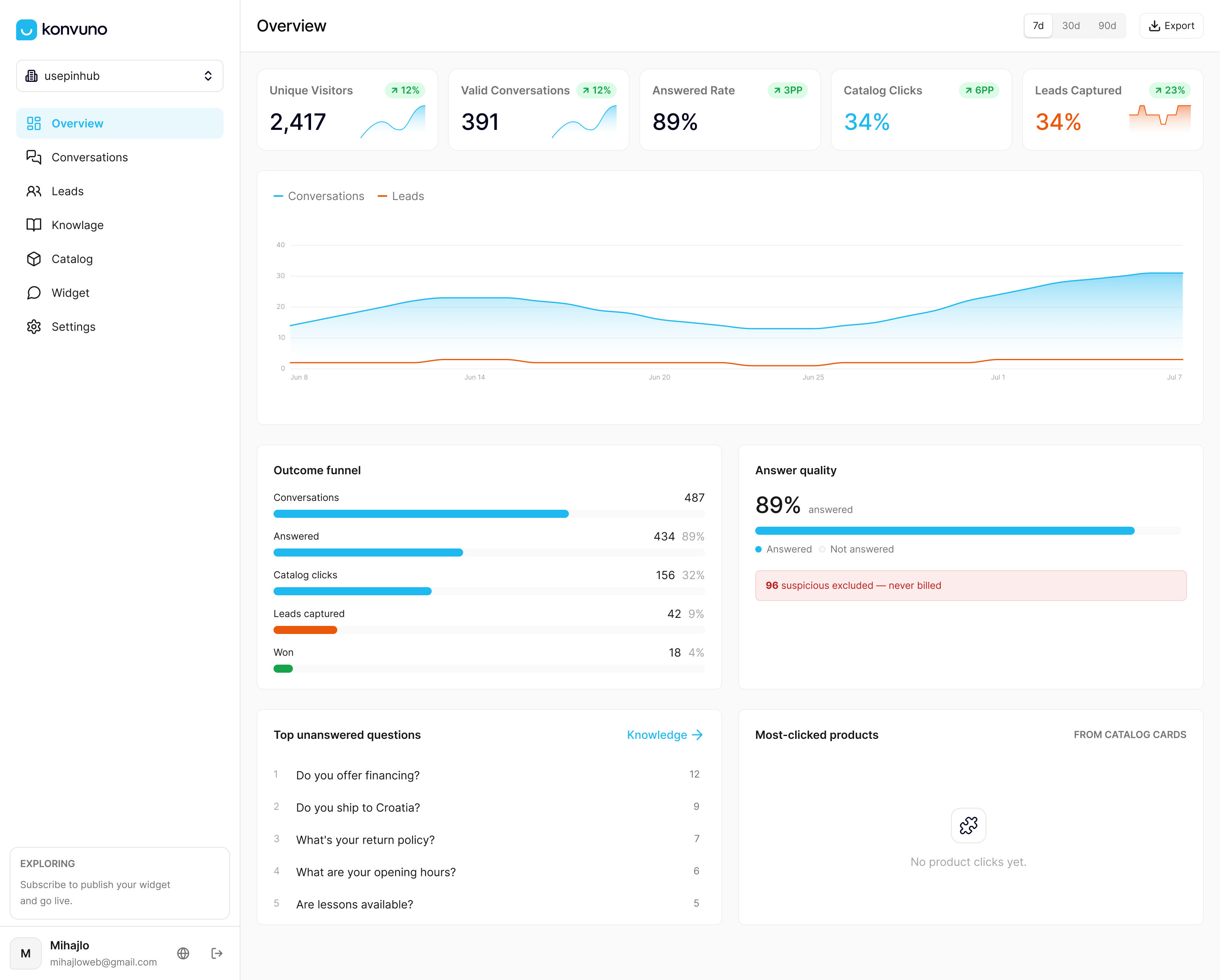
The assistant installs with a single script tag and syncs product catalogs automatically from WooCommerce, Google Merchant, or Facebook product feeds, so the identifier, price, and availability fields stay current without a manual export cycle. The Shop Connect integration handles that catalog sync directly, which means answers about price and stock reflect the feed’s current state rather than whatever was true at the last manual check.
- Answers pull from your synced catalog automatically, so a resync updates every chatbot response without redeploying anything.
- Leads captured during product conversations land in a built-in CRM.
- Questions the assistant cannot answer confidently hand off to a human instead of guessing.
If a shopper’s question needs more than the catalog can answer, the FAQ Assistant feature covers the rest from your own site content. Plans start at Starter for €29 per month, with Growth and Business tiers available for larger catalogs, all listed on the Konvuno plans page where you can configure and preview the assistant before subscribing.
Sources
- Product data specification - Google Merchant Center Help
- Product feed information and free listings - WooCommerce
- Troubleshoot general bot service problems - Microsoft Docs
FAQ
Why does my chatbot show the wrong price for a product?
This usually happens when the feed price was not updated after a store price change, or when the currency format does not match ISO 4217 standards. Fetch the exported feed row for that SKU and compare it against the live landing page price, since Google’s structured data guidance requires price and currency to be validated together, not separately.
How often should a product feed sync for a chatbot to stay accurate?
There is no single universal interval; it depends on how often your prices and inventory change and what your platform’s scheduled fetch supports. Check your last sync timestamp whenever a chatbot answer looks stale, and treat a long gap between sync time and the current time as a signal worth investigating.
What causes a chatbot to give a vague or generic answer about a product?
A generic answer typically means the assistant’s confidence in matching the product dropped, often due to a missing GTIN, an incorrect taxonomy mapping, or a thin required attribute. Google’s product data specification lists these relationship checks as the fields most likely to trigger a fallback response.
Can a broken image URL affect chatbot answers about a product?
Yes, a broken or mismatched image URL can affect how confidently a system matches a product to a query, since images are one of the fields checked alongside price and availability. Confirm every image URL loads and that each variant maps to its own correct image rather than a shared default.
Does Konvuno fix product feed errors automatically?
Konvuno syncs product catalogs automatically from WooCommerce, Google Merchant, and Facebook product feeds so chatbot answers reflect the current feed state, but the underlying feed data still needs to be accurate at the source. Errors like missing identifiers or wrong taxonomy should be corrected in the feed itself using the diagnostic steps above.