3 Copy Paste Chat Templates for SMBs and a 5 Step Widget Schedule Test
Small business playbook: three copy paste chat templates, a 5 step schedule test, quick bot vs human availability rules, and a turnkey Konvuno setup.

Yes, you can schedule your chat widget to match business hours: set a timezone, pick your weekdays, and define start and end times. The key decision is whether your bot stays available around the clock while only your human reply window follows a schedule, since that choice shapes what your offline message needs to say. The quick setup steps below take a few minutes.
TL;DR:
- Most scheduling settings are found in the “Availability” or “Hours” section of the dashboard, requiring accurate timezone setup before defining open hours.
- Businesses with irregular hours should use multiple blocks or exceptions, such as holidays, instead of editing main schedules directly, and verify timezone accuracy when adding exceptions.
- Separating bot and human availability allows bots to answer 24/7 while human response times are limited to staffing hours, preventing false expectations for immediate human replies outside scheduled times.
- Offline messages should clearly explain the company’s hours and direct visitors to alternatives, with templates kept under three sentences for quick skimming.
- Testing the schedule in an incognito window during different times ensures live behavior matches settings, preventing common issues like timezone mismatches and cache conflicts.
Table of Contents
- Where to find and enable scheduling in your dashboard
- Picking the right schedule pattern for your business
- Setting bot availability apart from human hours
- Welcome, offline, and lead-capture message templates
- Testing your schedule before customers see it
- Fixing common scheduling failures
- My take on scheduling policy for small teams
- A turnkey option for owners who want this handled
- FAQ
- Sources
Where to find and enable scheduling in your dashboard
Most widget dashboards hide scheduling under a settings tab labeled “Availability,” “Hours” or “Scheduler.” Once you find it, the process is nearly identical across platforms.
- Open your widget dashboard and look for an “Availability” or “Business Hours” section, often under general or chat settings.
- Set your timezone first: every other time entry on the page depends on this being correct.
- Select the weekdays you’re open and enter start and end times for each one.
- Check whether an “always available” or “always online” toggle is active, and turn it off if you want the schedule to actually apply.
- Save, then publish: in many systems, saving a draft does not push the change live.
Some platforms split this into separate bot and human sections, which matters more than it sounds since each controls a different part of the visitor experience. Confirm which toggle governs which before moving on.
Picking the right schedule pattern for your business
Not every business runs on a simple nine-to-five, and your widget schedule should reflect how you actually work rather than a generic template.
- Single block: one open window each weekday, best for offices or clinics with fixed hours.
- Multiple blocks: morning and evening windows with a midday gap, common for retail with a lunch closure or split shifts.
- Weekend-only or extended hours: useful for businesses that staff chat on weekends but not weekday evenings, or the reverse.
- Exceptions: one-off closures for holidays, staff training or emergencies, layered on top of your regular pattern instead of replacing it.
Holiday and one-off exceptions deserve their own entry in most schedulers rather than editing your main hours, since that keeps your default pattern intact once the exception passes. Double-check your timezone setting whenever you add an exception: a daylight saving shift or a misreported timezone is one of the most common reasons a schedule looks right in the dashboard but behaves wrong on the live site.
Pro Tip: Set your timezone using a city name tied to your actual office location rather than a generic offset like GMT+1, since offsets don’t adjust for daylight saving but city-based timezones usually do.

Setting bot availability apart from human hours
Your chat bot and your human team don’t have to follow the same clock, and for most small businesses they shouldn’t. Google’s Business Messages guidance treats these as two separate settings: bots can remain available at all times while human representative hours follow a defined schedule, and that human schedule is what determines whether an offline message appears.
- Keep your bot answering FAQs, pricing and product questions 24/7 if it’s capable of that without a human.
- Set human hours to match when someone actually monitors and replies to the chat, not just the general business open hours.
- Offer a “request a live agent” option so visitors who need a person can ask, even outside staffed hours, with a note on the expected response time.
This split matters for the visitor experience: a bot that answers instantly at 11 PM feels helpful, but a human reply window that overpromises creates frustration when nobody responds until morning.
Welcome, offline, and lead-capture message templates
A schedule only works if the messages attached to it set honest expectations. Google’s developer guidance on beginning a conversation recommends offline messages that explain the gap and point to alternatives rather than leaving visitors guessing.
- Welcome (staffed hours): “Hi! We’re online now. Ask us anything about our products, pricing or your order, and a team member will jump in if needed.”
- Offline message: “We’re away right now. Our team replies between 9 AM and 6 PM on weekdays. Leave your question and email below, or call us at [your number] for anything urgent.”
- Lead-capture auto-reply: “Thanks for reaching out. Can you share your name, email, and a quick summary of what you need? We’ll follow up as soon as we’re back online.”
Pro Tip: Keep every template under three sentences. Visitors skim chat messages the same way they skim a text, not an email.
Testing your schedule before customers see it
A schedule that looks correct in settings can still misfire live, so test it the same day you publish it.
- Publish your changes first: a saved-but-unpublished draft is the most common reason a test “fails.”
- Open your site in an incognito window to avoid cached widget behavior from a previous session.
- Test once during staffed hours to confirm the welcome message appears, then again outside those hours to confirm the offline message shows instead.
- If your dashboard supports timezone emulation, test a visitor in a different region to catch timezone mismatches early.
- Check your conversation logs and browser console for errors, since a silent script failure can look identical to a widget that’s simply offline.
Google’s own guidance on requirements and handoff behavior treats this kind of testing as standard practice before a scheduled agent goes live, precisely because scheduling bugs are cheap to catch early and expensive once customers hit them.
Fixing common scheduling failures
When a widget shows the wrong availability, the cause is almost always one of a handful of things.
- Timezone mismatch: the dashboard timezone doesn’t match your actual office location, or daylight saving shifted without you noticing.
- Caching: your browser or a page cache is still showing an old widget state after you published a change.
- Conflicting rules: an exception or a second schedule block overlaps your main hours and overrides it unexpectedly.
- Script blockers: an ad blocker or privacy extension prevents the widget script from loading at all, which looks like a scheduling bug but isn’t.
- Draft not published: changes were saved but never pushed live, the single most common issue.
If none of these explain it, check your platform’s status page for active incidents before assuming the problem is on your end, and escalate to developer documentation or support if the behavior persists after a clean, incognito test.
My take on scheduling policy for small teams
I’d rather see a small business keep its bot answering around the clock and be upfront about when a human will actually reply, than promise 24/7 support nobody can staff. Short templates work better than long ones, and reviewing what visitors actually ask every few weeks tells you faster than guesswork whether your current hours or staffing need to change. Treat your schedule as a living setting, not a one-time task.
— Konstantin
A turnkey option for owners who want this handled
If managing schedules, bot behavior and offline messages across several settings sounds like more than you want to own, that’s exactly the gap a configurable assistant like Konvuno is built to close.
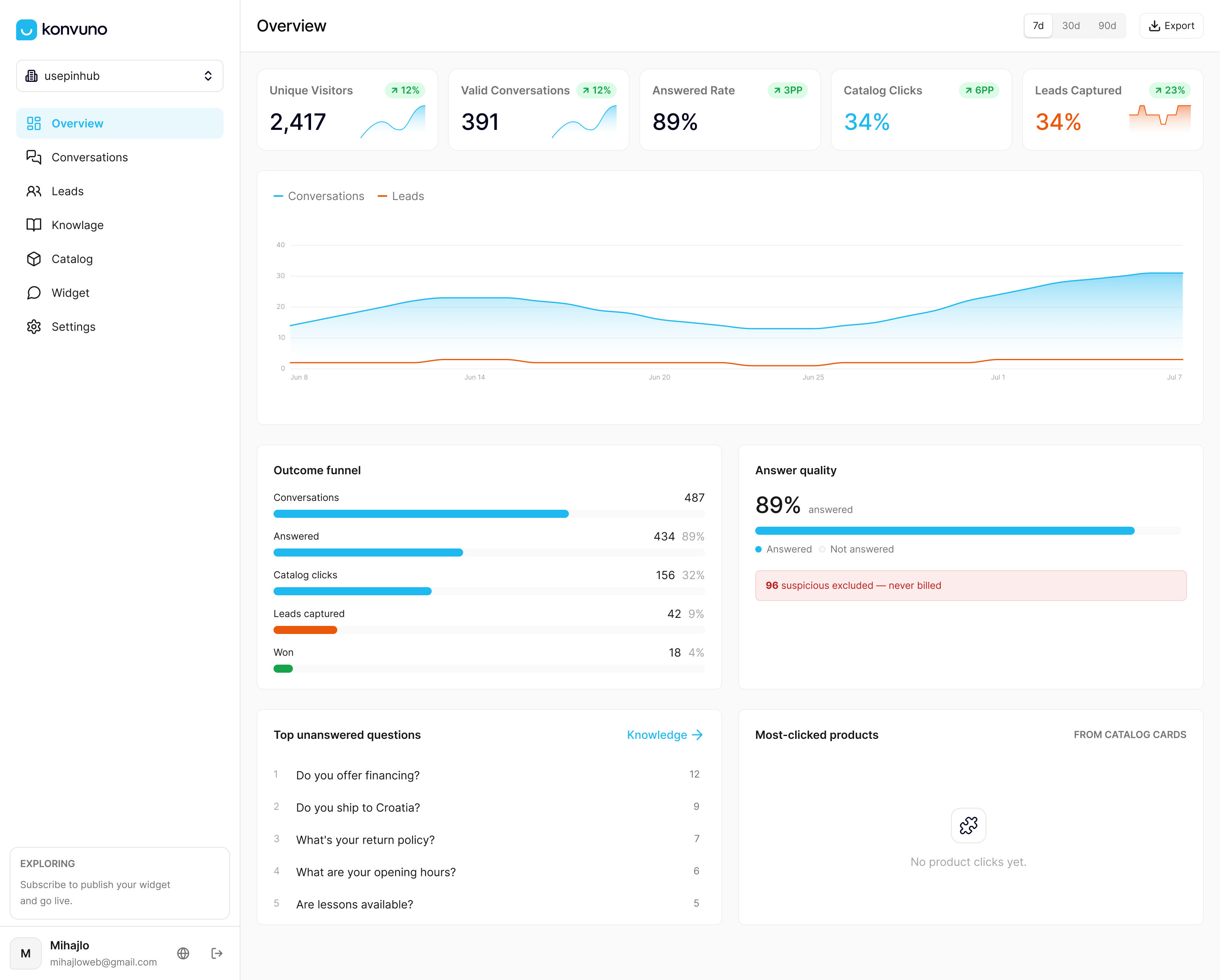
We install our assistant with a single script tag, no developer required, and the dashboard lets you configure scheduled availability alongside bot and human handoff in one place. The assistant answers from your FAQs, website content and product catalog while staffed hours apply only to live handoff, and leads it captures land directly in a built-in CRM instead of scattering across inboxes. For coordinating who’s actually on shift when your schedule calls for a human, a workforce platform like Heyhive can handle the staffing side while your widget handles the conversation.
- Configure bot and human availability separately from one dashboard without per-seat pricing.
- Product and pricing answers update automatically through product feed sync.
- Preview and adjust your setup fully before subscribing.
Check our Starter, Growth and Business plans to see which fits your team.
FAQ
Can I set different chat hours for weekdays and weekends?
Yes, most widget schedulers let you set separate start and end times for each day individually, so weekends can run shorter hours or stay closed entirely. This is typically done in the same availability panel where you set your weekday hours.
What’s the difference between bot and human chat availability?
Bot availability controls when your automated assistant can respond, which can be 24/7, while human availability controls when a real person is expected to reply. Google’s Business Messages guidance treats these as independent settings, with human hours determining whether an offline message appears.
Why does my chat widget still show online outside business hours?
The most common causes are an “always available” toggle left on, a schedule saved as a draft but never published, or a timezone mismatch between your dashboard and your actual location. Clearing cache and testing in an incognito window usually confirms which one applies.
Should I show an offline message or hide the chat widget when closed?
Showing an offline message is generally better than hiding the widget, since developer guidance recommends explaining the gap and offering an alternative contact method or expected response time. Hiding the widget entirely removes the chance to capture a lead.
Can I integrate chat scheduling with Google Calendar or Outlook?
Some chat platforms support integration with calendar or booking tools for advanced scheduling exceptions, though this varies by provider and isn’t universal. If calendar sync matters to you, check your specific platform’s integration list before assuming it’s supported.