One Async Script Tag Installs a Chat Widget for Developers and SMBs
Install a production chat widget with one async script tag. Includes copy ready snippets, framework placement tips, CSP troubleshooting, and hosted SMB...
Yes. A single async <script> tag can mount a complete, working chat widget on your site. Place it near the closing </body> tag, and it loads without blocking your page content. Most vendors let you configure the widget two ways: through data-* attributes on the tag itself, or with a small JavaScript init call that sets the theme, position, welcome message, and event callbacks after the script loads.
TL;DR:
Most vendors recommend placing the script just before the closing
tag with the async attribute to optimize page speed and ensure reliable loading.
The widget can be initialized declaratively with data-attributes for quick setup or programmatically via a JavaScript API for dynamic control and event handling.
Common issues affecting functionality include CSP headers blocking API calls, ad blockers, or duplicate script insertions on single-page applications if not properly guarded.
Testing involves checking widget appearance, message sending, and performance impact, especially on multi-page or SPA sites, to ensure consistent operation.
For small or medium businesses, hosted solutions like Konvuno simplify deployment, automatically sync product data, and offer multi-language support without developer maintenance.
Konvuno
Add Website Help Without Developers
Konvuno adds a configurable AI assistant with one lightweight script, answers questions from your content, and captures leads in a built-in CRM.
Where To Get Your Single Script Chat Widget Snippet
The snippet almost always comes from an admin dashboard, not a public documentation page. You log in, create or select a workspace, and copy a generated tag tied to your account or API key. Microsoft’s own guidance for deploying chat widgets using a single tag follows this exact pattern: retrieve the snippet from the admin experience, then paste it as-is.
You’ll typically encounter three variations of the same idea:
Plain async script: <script src="https://cdn.vendor.com/widget.js" async></script> with no extra attributes.
Data-attribute variant: the same tag carries data-api-key, data-welcome-message, or data-workspace-id directly on the element.
Dynamic loader: a short inline script that creates a <script> element programmatically and appends it to the page, often used for tag managers or CMS platforms that restrict raw HTML.
Each attribute does specific work. src points to the hosted bundle, async tells the browser not to block rendering while it downloads, and data-api-key (sometimes called data-workspace-id) authenticates the widget to your account. Never commit that key to a public repository or log it client-side in analytics. It’s not usually a secret on the level of a server key, but a leaked one can let someone else’s site pull your conversation data or rack up usage against your plan.
Where To Place The Script And Why It Matters
Placement affects both reliability and page speed, and the two goals point to the same answer.
Put it just before </body>. This is standard practice across nearly every chat vendor, including Converge’s install documentation, which explicitly recommends this spot so the widget loads after your main content.
Use async, always. An async script downloads in parallel with page rendering instead of pausing it, which keeps your Largest Contentful Paint (LCP) and Total Blocking Time (TBT) scores from taking a hit.
In single-page applications, mount once. React, Vue, and similar frameworks re-render on route changes, which can trigger duplicate script insertion if you’re not careful. A common fix is checking a flag like window.__CHAT_WIDGET_INITIALIZED before injecting the script again, so route changes don’t stack multiple widget instances on top of each other.
In Next.js, use the built-in Script component with strategy="afterInteractive" instead of a raw tag, so the framework handles load timing for you.
Nearly every vendor snippet ships as a classic IIFE (immediately invoked function expression) bundle rather than an ES module. That’s a deliberate choice: IIFEs run in older browsers and legacy embed contexts without needing module support, which is exactly the kind of environment a random client site might be running.
How Do You Initialize The Widget Once It Loads?
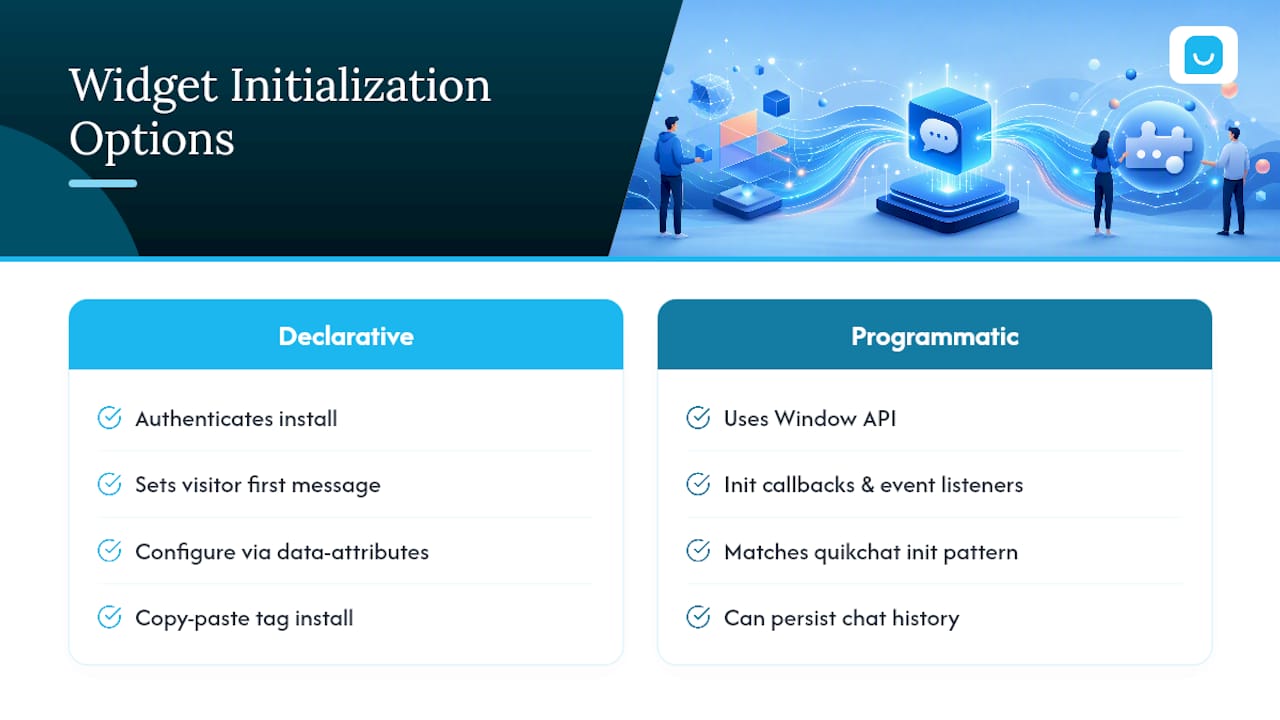
Initialization generally splits into two camps: declarative and programmatic. Pick based on how much runtime control you need.
Declarative (data-attributes):
<script
  src="https://cdn.vendor.com/widget.js"
  async
  data-api-key="pk_live_xxxxx"
  data-welcome-message="Hi! How can we help?">
</script>
Here, data-api-key authenticates the install, and data-welcome-message sets the first message a visitor sees. This approach is the simplest install path. Copy, paste, and configure everything through the tag itself with no separate JavaScript file to maintain.
This pattern relies on the same Window API mechanics that let a script attach callbacks and event listeners to the global window object, which is how most dynamic loaders wire themselves up after the bundle downloads. Open-source projects like quikchat show this same init-callback structure. Many vendors also persist chat history in localStorage, so a visitor who closes the tab and returns later sees their prior conversation instead of a blank widget. Choose data-attributes for a fast, static install; choose the JS API when you need to react to widget events, change config at runtime, or coordinate the widget with other parts of your app.
Customizing The Widget Without Breaking Your Site
Most widgets expose a handful of visual knobs directly through attributes or the init call: position (bottom-right or bottom-left), a primary brand color, compact versus expanded launcher size, and explicit width or height values for the chat panel.
Override styling through a dedicated CSS class or data attribute the vendor documents, rather than targeting generic element selectors that might collide with future widget updates.
Give every interactive button an aria-label so screen readers announce its purpose, not just “button.”
Check contrast ratios on your chosen color against both the background and text, especially in compact mode where padding shrinks.
Avoid trapping keyboard focus inside the widget when it’s closed. Tab order should skip it entirely until a visitor opens it.
On mobile, keep the launcher’s tap target at least 44 by 44 pixels and confirm it doesn’t sit on top of a sticky footer nav or an add-to-cart button.
Pro Tip:Test your widget’s color and position against your site’s actual mobile checkout or contact form before launch. A launcher bubble parked in the bottom right can quietly cover a “Submit” button on smaller screens, and nobody notices until conversions drop.
Fixing The Most Common Chat Widget Failures
Most single-tag widget problems trace back to four causes, and they’re worth checking in this order.
Content Security Policy (CSP). If your site enforces a CSP header, the widget’s domain needs to appear in both script-src and connect-src. Missing connect-src is the sneaky one: the chat bubble renders fine, but every message attempt fails silently because the API calls are blocked. BoldDesk’s troubleshooting guide walks through this exact failure mode, and CSP omissions rank among the highest-frequency support tickets vendors see for chat installs.
Console and Network tab. Open DevTools and look for blocked requests, 4xx or 5xx responses, or failed WebSocket handshakes. This single check resolves a large share of “widget won’t load” reports.
Ad blockers and privacy extensions. Many block known chat-widget domains outright, hiding the bubble entirely. Test in a clean browser profile with no extensions before assuming your code is broken.
Caching and service workers. A hard refresh (Ctrl+Shift+R or Cmd+Shift+R) clears stale cached assets. Confirm your CDN is actually serving the latest script version and check response headers for unexpected max-age values.
Testing And Verifying The Widget Actually Works
Run through this checklist every time you deploy or update the install.
Open an incognito window, load the page, and confirm the chat bubble appears without console errors.
Send a test message and confirm it goes through, then check DevTools’ Network tab for the API request and its response, plus any WebSocket or Server-Sent Events connection if the widget uses one.
Run Lighthouse or PageSpeed Insights with and without the widget script present and compare LCP and TBT to confirm the async load isn’t dragging down your scores.
On multi-page sites or SPAs, navigate between a few routes and confirm the widget either persists its state or reinitializes cleanly, without duplicating itself.
DIY Widget Or Hosted One-Tag Assistant: What I’d Actually Pick
Building your own lightweight widget gives you total control over data, styling, and backend logic, but you own every bug, every browser quirk, and every CSP edge case forever. A hosted single-tag product trades some of that control for speed: you’re live in minutes, not sprints.
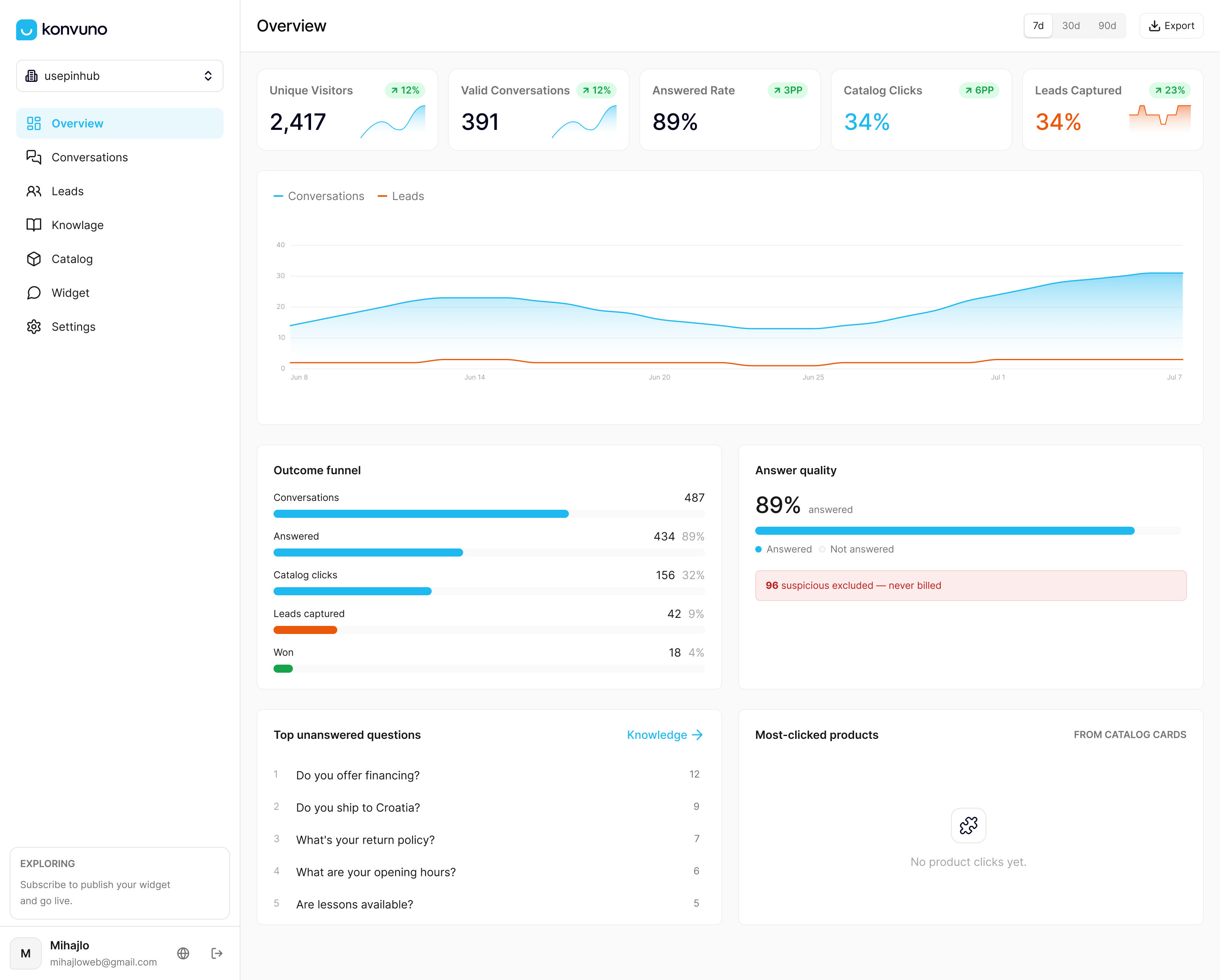
That’s the trade-off Konvuno is built around. One lightweight script tag, configuration through a hosted dashboard, automatic catalog sync, and lead capture into a built-in CRM, with none of the maintenance burden of a self-built widget. My honest read: pick self-hosted only if you have a specific data-residency requirement or a deep custom integration that a dashboard can’t express. For everyone else, especially small teams without a dedicated frontend engineer, the hosted route gets you further, faster.
— Konstantin
Get A Working Chat Widget Live Today
Konvuno installs with the exact pattern this article just walked through: one lightweight script tag, no build step, no developer required to keep it running. Where it differs from a DIY build is what happens after the tag loads.
Configuration happens entirely in a hosted dashboard, not in your codebase. Product answers stay accurate automatically because catalogs sync from WooCommerce or a Google Merchant and Facebook product feed, so you’re never manually updating prices or stock status in a config file. The assistant answers from your FAQs and site content, captures leads into a built-in CRM, hands off to a human when needed, and speaks 7 languages out of the box. That combination fits small and medium business owners, WooCommerce store operators, and agencies managing multiple client sites who want a no-developer install without per-seat pricing. Konvuno offers multiple plans including Starter, Growth, and Business, with pricing details available on the Konvuno site. If product answers are your biggest pain point, the FAQ Assistant feature page and Shop Connect catalog sync are worth a look before you commit to building your own. Visit Konvuno to configure a live preview and see the widget on your own site before paying anything.
Where To Check The Technical Details Yourself
For implementation specifics beyond this guide, these sources cover the underlying standards and vendor patterns directly:
How Do You Create A Chat Widget With One Script Tag?
Grab the generated <script> tag from your chat vendor’s dashboard, paste it just before </body>, and mark it async so it doesn’t block page rendering. Configure it with data-* attributes for a simple install, or call a JS init function like Widget.init({ apiKey, onMessage }) when you need runtime control. Converge’s install guide documents this exact flow for its own widget.
What Are The Downsides Of A Script-Based Chat Widget?
The main risks are a Content Security Policy blocking the widget’s domain, ad blockers hiding the launcher entirely, and duplicate script insertion on single-page apps that don’t guard against re-mounting on route changes. None of these are dealbreakers, but they do mean someone needs to own troubleshooting when a visitor reports the chat “isn’t working.”
Is There A ChatGPT-Style Widget I Can Add With A Script Tag?
Yes. Several vendors, including quikchat, offer single-script, zero-dependency widgets with a conversational interface similar to ChatGPT’s chat window. Konvuno takes this further for business use by connecting the conversational layer to your actual FAQs, site content, and product catalog, so answers reflect your business instead of generic AI knowledge.
What Do Working Single-Script Chat Widget Examples Look Like?
Open-source projects like quikchat show a plain <script src="..." async></script> tag paired with a JS init call for options like theme and auto-open behavior. Hosted commercial examples follow the same shape but add data-api-key or data-workspace-id attributes for account authentication, as shown in Microsoft’s single-tag deployment docs.
How Much Does Konvuno Cost To Install On A Website?
Konvuno offers paid plans that include the single-script install and dashboard configuration; current pricing details are available on their site. Every plan includes full catalog sync and conversational features, with current details on the Konvuno site.