WooCommerce Facebook Catalog: Setup, Feed Sync and Fixes
Connect WooCommerce to a Facebook catalog the right way: accounts you need, the sync wizard, feed URL option, product data, and fixes for missing products.

A WooCommerce Facebook catalog is a product database that lives in Meta’s Commerce Manager and mirrors your store’s products. The quickest way to build one is the official Meta for WooCommerce plugin: you run its setup wizard, pick or create a catalog, and your products sync on their own. If you want more control, you can generate a feed file and hand Facebook its URL instead. This guide covers both routes, the product data that matters, how to check sync status, and what to do when products go missing.
TL;DR
- The catalog is the database. Ads, product tags and shops all read from it, so one clean catalog serves every Meta surface.
- The fastest setup is in WooCommerce under Marketing > Facebook. Click Get Started and the wizard walks you through every account.
- Products sync when you create or update them. A manual sync sits in the plugin’s Troubleshooting drawer.
- Missing products usually come down to a catalog mismatch, stock status, product type, or too many variations.
- Once the catalog is accurate, you can reuse the same product data to answer shopper questions on your own site.
Table of Contents
- What a WooCommerce Facebook catalog actually is
- Two ways to fill the catalog
- What you need before you start
- Step-by-step: connect WooCommerce to Facebook
- Building a feed URL instead
- Which product data to fill in
- Keeping the catalog current and checking sync status
- Why products are missing or rejected
- Why a clean catalog pays off beyond Facebook
- Perspective
- Put your catalog to work on your own site
- FAQ
- Sources
What a WooCommerce Facebook catalog actually is
A catalog is a container in Commerce Manager that holds your product data: titles, images, prices, availability and similar fields. Meta’s own help page describes it as the place where you add and manage product data, including titles, images, prices and availability, and features such as dynamic ads, product tagging and shops depend on it.
It helps to separate three things people often mix up:
- The catalog is the backend database. Nobody shops in it.
- A shop is the customer-facing storefront on Facebook or Instagram. It displays products pulled from the catalog.
- A product feed is a structured file, or a direct plugin connection, that fills the catalog.
When readers search for a “WooCommerce product feed for Facebook” or a “Facebook shop feed”, they are almost always asking how to fill that catalog from WooCommerce. There are two ways to do it.
Two ways to fill the catalog
Option 1: the Meta for WooCommerce plugin
The official plugin connects a WooCommerce store to Facebook, Instagram and WhatsApp. It can sync your catalog and create product-based ads. There is no file to build and no URL to maintain. For most small stores, this is the right default.
Option 2: a feed file with a URL
The second route is a feed file in XML, CSV or TXT format. Each marketing channel has its own file requirements, which you should confirm before submitting a feed URL to the channel’s merchant center. In Commerce Manager, a catalog can take a feed URL as a data source, and a scheduled fetch keeps the data refreshed.
Choose a file feed when you need custom field mapping, want to exclude product groups, or already maintain a feed for other channels. Choose the plugin when you want setup done in minutes and automatic syncing on every product change.

What you need before you start
The wizard asks you to log in to Facebook and then create or choose each of the following, according to the Meta for WooCommerce documentation:
- A Business Manager account
- A Facebook Page
- An ad account
- A Meta Pixel
- A catalog
Have admin access to each of these before you begin. If your business already has a Business Manager and a Page, choose them in the wizard rather than creating duplicates. Duplicates are the most common reason a store ends up linked to the wrong catalog later.
Two practical notes. First, the Pixel is more than a formality. It tracks what shoppers view and add to their carts, and that is what lets Meta match ads to the products in your catalog. Second, expect Facebook to ask for two-factor authentication on the account you connect with, so turn it on ahead of time to avoid a stalled setup.
If you are also working on getting more organic visitors to those product pages, tools for WooCommerce SEO automation can handle keyword and content planning while you focus on the catalog.
Step-by-step: connect WooCommerce to Facebook
This is the official path described in the plugin documentation.
- Install and activate the Meta for WooCommerce plugin on your WordPress site.
- In your dashboard, go to Marketing > Facebook.
- Click Get Started.
- Log in to Facebook when prompted, using an account with admin rights on your business assets.
- Choose or create your Business Manager, Page, ad account, Pixel and catalog.
- Finish the wizard and wait for the first sync to complete.
After that, products sync when they are created or updated. You do not need to resubmit anything when you change a price or a description.
Run the wizard once, and run it fully
If you set up a shop or catalog outside the wizard, the plugin can end up linked to a different catalog than the one Facebook is showing you. The WooCommerce troubleshooting guide says that is a common reason products fail to appear. The fix is to reconnect through the setup wizard so the store, the catalog and the shop all point to each other.
Building a feed URL instead
If you take the file route, the process looks like this:
- Generate a feed file from your product data using a feed tool or export.
- Confirm the file type (XML, CSV or TXT) matches what the channel accepts.
- In Commerce Manager, open Catalogs, pick your catalog and add a data source using a feed URL.
- Set a schedule so Facebook fetches the file regularly.
That last step matters. WooCommerce’s own guidance is that scheduling automatic fetching keeps store changes flowing to the channel without manual work, and avoids mismatches between your store and what shoppers see on Facebook. Without a schedule, your prices and stock levels drift out of date quietly.
One technical detail trips up many stores that use file feeds: your product IDs in the feed must match the IDs your Pixel sends with each event. If they do not match, Meta cannot connect a shopper’s behavior to the right catalog item and dynamic ads underperform or fail to match products. Check this once after setup by comparing a product ID in the feed against what the Pixel reports for the same product.
Which product data to fill in
A catalog is only as useful as its fields. The plugin supports the basics of title, price, image and description, plus attributes including brand, MPN, condition, age group, size, color, material, pattern and GTIN, as listed in the documentation. Common attributes map automatically, and you can set custom mappings when your store uses different attribute names.
A short checklist for each product:
| Field | Why it matters |
|---|---|
| Title and description | What shoppers read in ads and shops |
| Main image | The first thing they see; use a clean, high-quality file |
| Price and currency | Must match your store, or shoppers lose trust at checkout |
| Availability | Keeps ads from promoting items you cannot ship |
| Brand, GTIN or MPN | Helps Meta identify and categorize the product |
| Size, color, material | Lets shoppers find the right variant |
Category codes and tax
Google Product Category codes deserve attention. According to the plugin documentation they are used for tax calculation, category-specific attributes and discoverability in Shops. You can set them on a single product or on a whole WooCommerce category. For tax to apply correctly, the documentation says you need at least two category levels, so choose a specific sub-category rather than a broad top-level one.
Variable products
Variations are where catalogs break most often. Keep any variable product under 100 variations; WooCommerce recommends staying below that number to avoid sync problems. If a product has more size, color and material combinations than that, split it into separate products by the attribute that shoppers choose first.
Keeping the catalog current and checking sync status
With the plugin, products sync when they are created or updated. You can see sync status and catalog health on the Shops tab, and if something looks stuck, you can run a manual product sync from the Troubleshooting drawer, per the plugin documentation.
Build a small routine around it:
- After bulk edits (a sale, a price update, a supplier import), open the Shops tab and confirm the sync finished.
- After adding a new product type, check one example in Commerce Manager to confirm the fields came through.
- Monthly, open Commerce Manager and scan for items flagged with errors or missing data.
With a feed URL, the equivalent is the fetch schedule and the upload history in Commerce Manager. If the last fetch failed, fix the file first and then trigger a new fetch.
Why products are missing or rejected
When products do not show up, work down this list. It follows WooCommerce’s troubleshooting guidance.
- Wrong catalog. The shop was created outside the wizard and is linked to a different catalog. Reconnect using the setup wizard.
- Out of stock. Items without stock may not appear. Confirm the stock status in WooCommerce.
- Virtual products. Check the product type, since virtual items can be left out.
- Too many variations. Stay under 100 per variable product.
- External or affiliate products. The plugin does not work very well with them, and they have no Facebook tab in the product editor, as noted on the plugin’s testing wiki. If you promote these items, plan a separate approach.
- Stale sync. Run the manual sync from the Troubleshooting drawer, then recheck.
Fix one thing at a time and recheck after each. Changing three settings at once makes it hard to know which one worked.
Why a clean catalog pays off beyond Facebook
A catalog that has accurate titles, prices, stock and variants is a reusable asset. It powers dynamic ads and shop listings, and it also helps you understand how your products fit together as a storefront. If you are still weighing platforms, this WooCommerce vs Shopify comparison gives useful context on how stores grow on each.
The same clean product data can answer shopper questions on your own website. Shoppers ask about price, size, stock and shipping before they buy, and every unanswered question is a lost sale. If you want to see how a feed becomes a working assistant, read about an accurate product feed chatbot live in one day, or how to get size, color and price right in chatbot product variants.
Perspective
We see the same pattern in almost every small store: the owner spends an afternoon getting the catalog right for Facebook, and then the product data sits there doing one job.
We think that is a missed opportunity. A catalog with accurate names, prices, variants and availability is the best answer sheet your shop will ever have. Visitors on your website ask the same things your ads imply: is this in stock, does it come in blue, how much is shipping. If an assistant answers from the same data, the answers stay in step with your store.
That is why we built Konvuno to sync catalogs automatically from WooCommerce or any Google Merchant or Facebook product feed. You install one script tag, configure everything in a hosted dashboard, and you do not need a developer or per-seat pricing. Your catalog work is done once, and it works on your site, too.
Konstantin
Put your catalog to work on your own site
Konvuno is an AI website assistant that answers visitor questions from your FAQs, website content and product catalog. Catalogs sync automatically from WooCommerce or any Google Merchant or Facebook product feed, so answers about products, prices and availability stay current. It captures leads into a built-in CRM and hands off to a human when a question needs one.
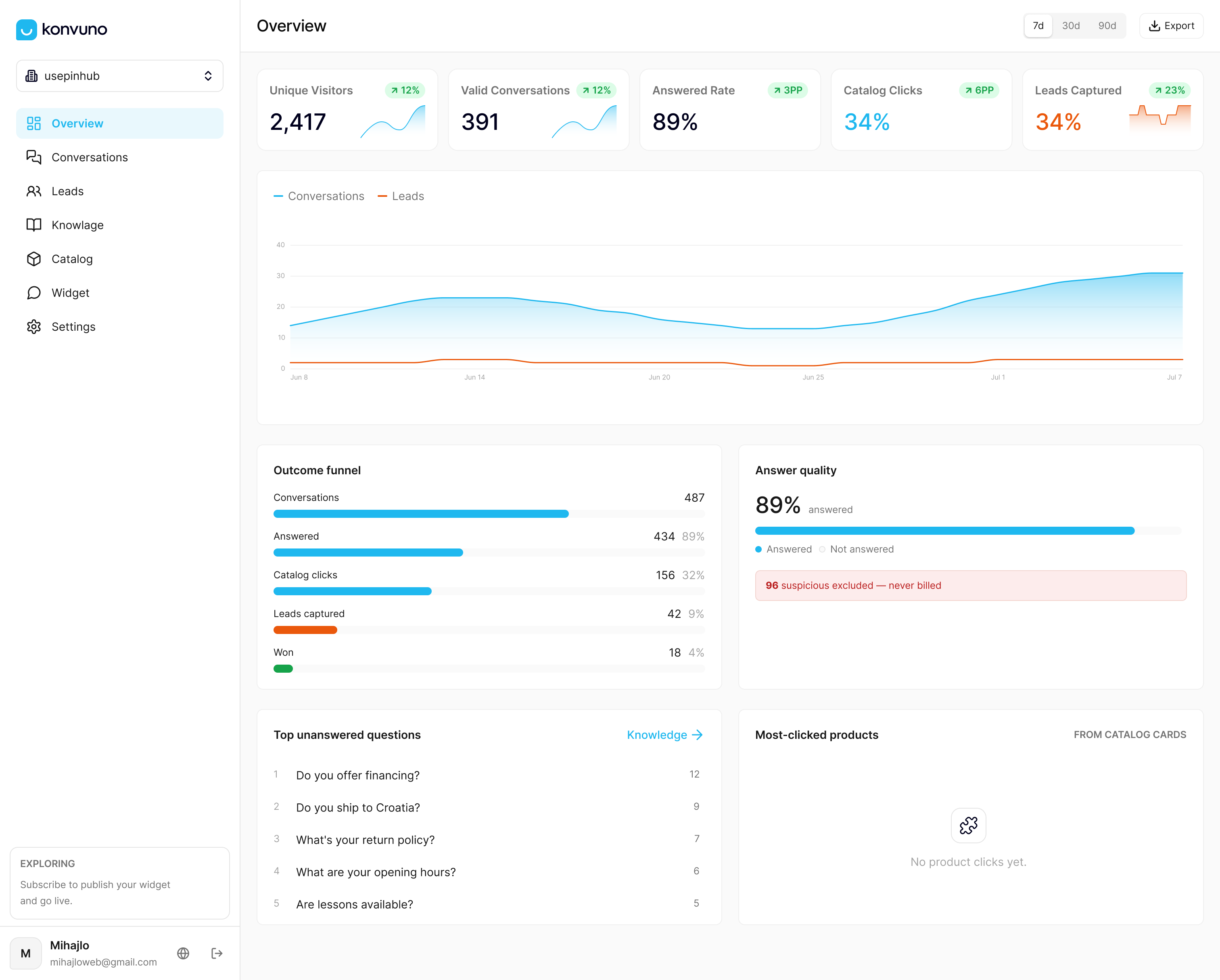
Plans start at €29 per month for Starter, with Growth at €79 per month and Business at €199 per month. You can configure everything and preview it before paying. See the Konvuno plans and connect your feed.
To see how it works in practice, read how to combine FAQ and catalog data in one AI assistant, or learn what Shop Connect does with your products.
FAQ
Do I need the official plugin to build a Facebook catalog from WooCommerce?
No. The Meta for WooCommerce plugin is the simplest route because it syncs products automatically. You can also generate a feed file and add its URL as a data source in Commerce Manager, then schedule fetching so updates arrive without manual work.
How often does the catalog update?
With the plugin, products sync when they are created or updated. You can check status on the Shops tab and start a manual sync from the Troubleshooting drawer. With a feed URL, updates follow the fetch schedule you set in Commerce Manager.
Why are some of my products not showing in the Facebook shop?
The usual causes are a catalog linked outside the setup wizard, out-of-stock or virtual products, variable products with more than 100 variations, and external or affiliate products. Reconnect through the wizard first, then check stock and product type.
Which product details can I include?
Title, price, image and description are the base. You can add brand, MPN, condition, age group, size, color, material, pattern and GTIN. Common attributes map automatically, and custom mappings are available when your store names things differently.
Sources
- Meta for WooCommerce Documentation, WooCommerce
- Submit to Marketing Channels Documentation, WooCommerce
- Facebook for WooCommerce: Products are not displaying in Facebook Shop, WooCommerce
- Smoke tests, facebook-for-woocommerce wiki, GitHub
- About catalogs for products and services, Meta