Facebook Catalog Feed Setup: A Step-by-Step Guide for 2026
Set up a Facebook catalog feed step by step: create the catalog, build the product feed, schedule updates, fix errors, and keep product data accurate.

To set up a Facebook catalog feed, you create a catalog in Meta Commerce Manager, build a product file (CSV, TSV or XML) that lists every item with its required fields, host that file at a public URL, and add the URL as a scheduled data source. Meta then re-reads the file on a schedule, so your prices and stock stay current without manual edits. This guide walks through each step, the fields you need, the errors that block products, and how to keep the catalog accurate over time.
TL;DR
- Create an Ecommerce catalog in Commerce Manager, then add a data feed as the source under Data Sources.
- Every item needs id, title, description, availability, condition, price, link, image_link and at least one of brand, mpn or gtin.
- Use a feed URL with scheduled fetching (hourly, daily or weekly) so changes in your store reach the catalog automatically.
- Check Diagnostics after the first fetch. Errors block items, warnings only lower data quality.
- The same feed can also feed your website assistant, so shoppers get the same prices and stock everywhere.
Table of Contents
- What a Facebook catalog and product feed actually are
- Step 1: Create the catalog in Commerce Manager
- Step 2: Build the feed with the required fields
- Step 3: Create the feed, by store type
- Step 4: Add the feed as a data source and schedule it
- Step 5: Read Diagnostics and fix errors
- Keeping the catalog accurate over time
- Our perspective: one feed, several jobs
- Put your feed to work on your own site
- A quick pre-launch checklist
- FAQ
- Sources
What a Facebook catalog and product feed actually are
A catalog is the container in Meta’s tools that holds your products. Ads, Facebook and Instagram shops, and dynamic product ads all read from it. A product feed (or data feed) is the spreadsheet-style file that fills the catalog. It is uploaded to a catalog to add and update items in bulk, which is why it beats adding products one by one once you have more than a handful.
You have three realistic ways to fill a catalog:
| Method | Best for | Keeps itself current? |
|---|---|---|
| Manual entry in Commerce Manager | A few products | No |
| One-time file upload | Testing or a one-off import | No |
| Scheduled feed from a URL | Any store with changing prices or stock | Yes |
| Plugin or platform integration | Stores on a platform that offers a direct connection | Yes, within the plugin’s limits |
For most small shops, the scheduled feed URL is the most dependable option, because you control the file and can inspect it in a browser.
Step 1: Create the catalog in Commerce Manager
The click path in Meta’s tools changes from time to time, but the sequence has stayed stable. In Commerce Manager, open Catalogs, choose Add Catalog, select Ecommerce, choose the catalog owner, name it and create it.
Two practical points before you click:
- Pick the right owner. The catalog should belong to your Business Manager account, not a personal profile. Agencies building shops for clients should have the client own the catalog and grant the agency access.
- Create one catalog per store. Duplicate catalogs are one of the most common reasons products fail to show in a shop. WooCommerce’s troubleshooting notes call out duplicate catalogs as a frequent cause, so check Catalog Manager for leftovers before you create a new one.
Step 2: Build the feed with the required fields
Your feed is a table where each row is a product (or a variant) and each column is an attribute. For ecommerce product ads, include these fields: id, title, description, availability, condition, price, link, image_link, and at least one of brand, mpn or gtin. File formats can be CSV, TSV or RSS/Atom XML, and Google Sheets works through the upload workflow too.
| Field | What goes in it | Common mistake |
|---|---|---|
| id | A unique, stable ID per item or variant | Reusing the same ID across variants |
| title | Product name | Keyword stuffing or all caps |
| description | Plain-text product description | Leaving it blank |
| availability | in stock or out of stock | Stale values after a sellout |
| condition | new, refurbished or used | Missing column |
| price | Number plus currency, such as 24.99 USD | Price on the feed differs from the product page |
| link | Full URL to the product page | Redirecting or broken URLs |
| image_link | Full URL to a product image | Hotlink-protected or tiny images |
| brand, mpn or gtin | At least one identifier | None supplied |
Feed column names must be written in US English and match the platform specification exactly, even if your store runs in another language. A column called “precio” will not be read as price.
Size limits worth knowing
One ecommerce platform’s help center lists titles up to 150 characters, descriptions up to 256, prices above $0, and images in JPG, GIF or PNG at least 500 by 500 pixels. Treat those as sensible working limits when you write feed content. The same source notes that hidden products do not sync, so confirm a product is visible in your store before you wonder why it is missing in the catalog.
Keep the page and the feed in agreement
Meta compares what your feed says with what shoppers find on the product page. If your product pages carry clean structured data, you have the same facts in two places and fewer mismatches. A guide on ecommerce structured data markup explains which fields to add first, and most of them overlap with the feed fields above.
Step 3: Create the feed, by store type
How you produce the file depends on where your products live.
WooCommerce
You have two main routes.
Route A: a generated feed file. A product feed plugin builds the file and gives you a URL. The workflow documented by one WooCommerce feed plugin is to select a Facebook Catalog template, map id, title, description, availability, condition, price, link, image_link and brand, generate the file, copy the feed URL and leave automatic rebuilding on. WooCommerce’s own documentation for its Product Feed Manager adds that generated files are submitted manually to each channel by feed URL rather than through a direct connection. You copy the URL from the feed editor or feed list and paste it into Commerce Manager.
Route B: a direct integration. The Meta for WooCommerce extension starts at WordPress Admin, Marketing, Facebook, Get Started, where its wizard can create or connect a Business Manager account, Page, ad account, Pixel and catalog. One thing to check first: WooCommerce states that the extension is no longer available on WooCommerce.com and its documentation will not be updated. If you already run it, it can keep working. For a new setup, a feed URL is the safer path because you decide what goes into the file.
We cover this platform in more depth in our guide to WooCommerce Facebook catalog setup, feed sync and fixes.

Other platforms and custom stores
Most platforms export products as CSV or XML. Export, then rename columns to Meta’s field names, or use your platform’s built-in Facebook feed if it has one. Spreadsheet sellers can keep the master list in Google Sheets and share the link as the feed source.
Step 4: Add the feed as a data source and schedule it
With the file hosted at a public URL, return to Commerce Manager. Go to Data Sources, choose Add Items, then Data feed. When asked if your feed is already hosted, choose Yes, then Use a URL, enter the feed URL and the update frequency, confirm and upload.

Meta’s own help page explains that with scheduled uploads you can update hourly, daily or weekly and Meta fetches your file URL at the times you set. It also confirms you can host the file on your own website or a file-sharing service, or share a Google Sheets link.
Match the two clocks
There are two schedules: how often your store regenerates the file, and how often Meta fetches it. If your plugin rebuilds the feed once a day but Meta fetches hourly, you gain nothing. The plugin guide recommends matching the generation interval to Meta’s fetch interval so Meta always reads a fresh file. For stores where stock moves quickly, pick the shortest interval you can sustain.
Large catalogs
Big files fail more often. Useful rules from feed troubleshooting guidance: compress large feeds, split them into smaller ones when needed, and make sure an item is not listed in more than one split feed. Some platform feeds also cap how many items a single URL can hold. One platform limits its variant feed to 500 items per URL and uses paginated URLs for the rest.
Step 5: Read Diagnostics and fix errors
After the first fetch, open the data source and look at Diagnostics. Do not wait a week. Early errors are usually mapping problems that affect every row.
Know the difference between the two message types. Errors are severe and can stop items from uploading or appearing in channels, while warnings generally do not block them but can lower catalog quality. Fix errors first, then work through warnings by volume.
| Symptom | Likely cause | Fix |
|---|---|---|
| Feed URL cannot be accessed | URL opens a web page, or returns 404 or 503 | Open the URL in a private window. It should download a file. Check that your host is not blocking Meta’s requests |
| Items missing availability | No availability column | Add it and map every row |
| Items rejected for identifiers | No brand, gtin or mpn | Supply at least one |
| Duplicate item errors | The same id appears twice | Make every id unique |
| Field too long | Titles or lines over the limit | Trim in the feed template |
| Products not in the shop | Duplicate catalog, hidden product or product not synced | Check the shop’s linked catalog, visibility and stock |
For stores using the WooCommerce integration, the documentation suggests reviewing product validation messages, sync settings, visibility and stock, variation settings and whether the shop is linked to the catalog the integration uses, and syncing manually if needed. That documentation also describes three product-level modes: sync and show, sync and hide, or do not sync. Use the hide option for items you want in the catalog for ads but not visible in the shop.
If your chatbot or other tools read the same feed, the same mistakes break them too. Our checklist for chatbot product feed errors covers variant IDs and export inspection in detail.
Keeping the catalog accurate over time
Setting up the feed is the easy part. Staying correct is the habit.
- Let the schedule do the work. WooCommerce’s guidance is to schedule automatic fetching so store updates are reflected without manual intervention. Manual re-uploads are how stale prices creep in.
- Change products in the store, not in the catalog. Edits made directly in Commerce Manager can be overwritten by the next feed fetch.
- Review Diagnostics after bulk changes. A price update, a new variant scheme or a theme change can break mappings.
- Check each channel’s requirements separately. Meta, Google and others differ on file format, required attributes and category mapping, which is why channel requirements should be checked individually.
- Use one source of truth. If your store, your ads and your site chat all read the same product data, a price changes in one place.
Our perspective: one feed, several jobs
Most owners treat the Facebook feed as an ad chore. We see it differently: a clean product feed is the most reusable asset a small shop owns.
The same file that fills your Meta catalog can also answer the questions shoppers type on your own site. “Is this in stock in medium?” and “How much is the blue one?” are catalog questions. When the assistant reads the feed that your store keeps current, the answer on your site matches the ad the shopper clicked.
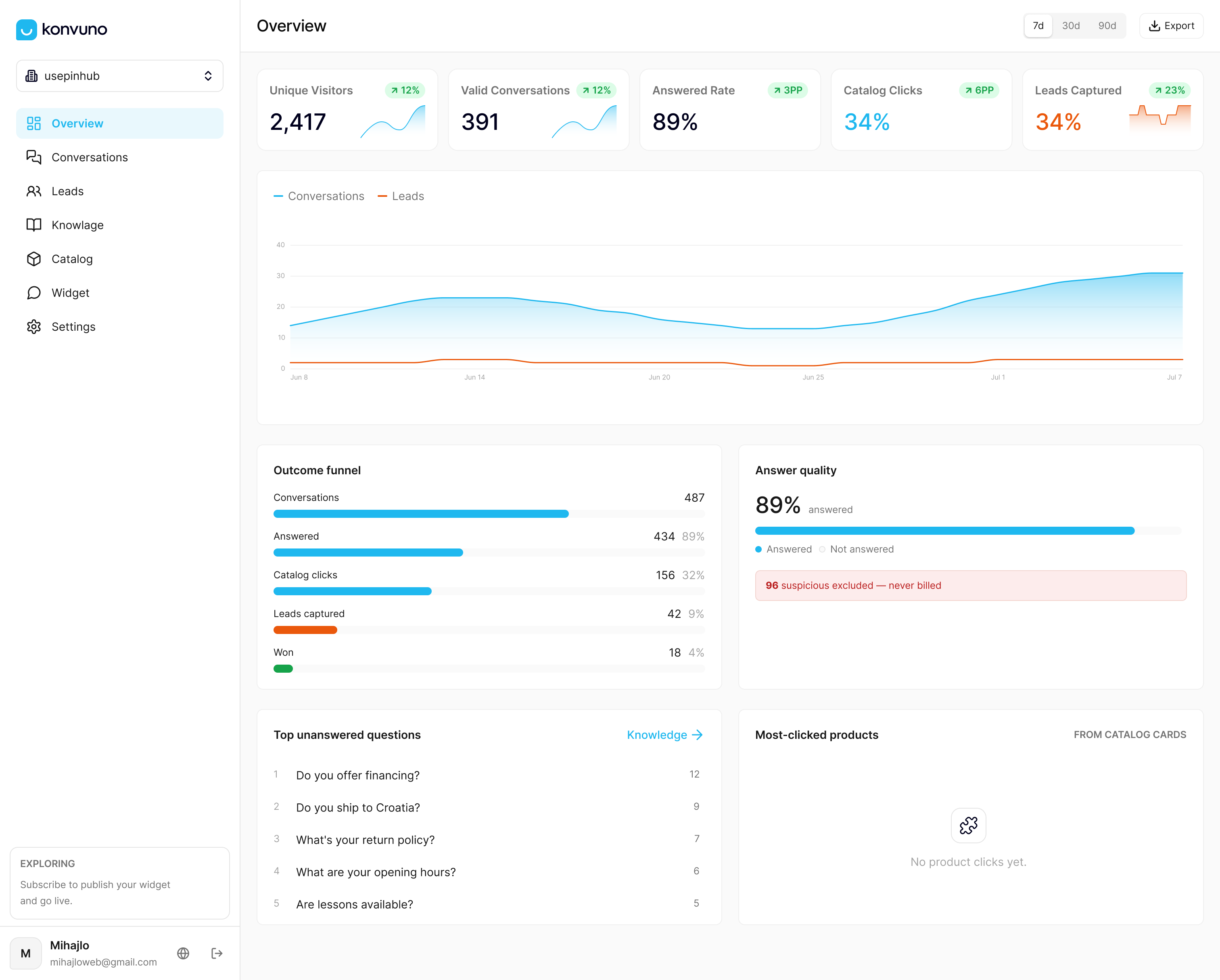
That is how we built Konvuno. Product catalogs sync automatically from WooCommerce or any Google Merchant or Facebook product feed, so answers about products, prices and availability stay current on their own. Every plan includes full conversational catalog capabilities, and you configure it from a hosted dashboard without developers or per-seat pricing.
So do the feed work once and do it well. Fix the identifiers, keep availability honest, schedule the fetch. Then let every channel, including your site assistant, benefit from it.
Konstantin
Put your feed to work on your own site
If you already publish a Facebook or Google Merchant feed, Konvuno can read it and answer visitor questions about products, prices and availability, capture leads into a built-in CRM and hand off to a person when a question needs one. Plans are Starter at €29 per month, Growth at €79 per month and Business at €199 per month. You can configure and preview the assistant before paying. See the Konvuno plans to pick the one that fits.
Want to see how product data and FAQs work together? Read how to combine FAQ and catalog data in one assistant, or how product feed sync keeps answers accurate.
A quick pre-launch checklist
Before you call the setup finished, run through this list:
- The catalog is type Ecommerce and owned by the right Business Manager account.
- The feed URL downloads a file when opened in a private browser window.
- Every row has id, title, description, availability, condition, price, link and image_link.
- Every row has a brand, mpn or gtin.
- IDs are unique, including variants.
- Prices and availability in the feed match the product pages.
- The fetch schedule is set and matches how often the file is rebuilt.
- Diagnostics shows no errors after the first fetch.
- No duplicate catalogs are left connected to your Page or shop.
FAQ
How long does a Facebook catalog feed take to set up?
Creating the catalog takes a few minutes. Most of the time goes into cleaning product data and mapping fields, which depends on how tidy your store export is. A small shop with complete product data can usually finish in an afternoon, then needs a short check after the first fetch.
Which file format should I use?
Use CSV, TSV or XML. Google Sheets also works through a shareable link. CSV is the easiest to inspect and fix by hand, while XML suits platforms that already generate feeds automatically.
Can I use one feed for Facebook and Google?
Often yes, because the core fields (id, title, description, price, availability, link, image) overlap. Still, each channel has its own required attributes and category rules, so check them separately and adjust the template per channel.
Why are my products in the feed but not in my Facebook shop?
The usual causes are errors in Diagnostics, hidden products, products set to not sync, or a shop linked to a different catalog than the one you filled. Check the linked catalog first, then item-level errors, then visibility and stock.
Do I need a developer to keep the feed running?
Not once it is set up. A scheduled feed URL refreshes on its own. You only step in when you change the product structure or when Diagnostics reports new errors.
Sources
- About Scheduled Data Feed Uploads for Catalogs (Meta)
- Meta for WooCommerce Documentation (WooCommerce)
- Submit to Marketing Channels Documentation (WooCommerce)
- Facebook for WooCommerce: Products are not displaying in Facebook shop (WooCommerce)
- Facebook data feed specifications for catalogs
- Connecting your feed to your catalog as a new data source
- Common issues, errors and warnings in Commerce Manager
- Upload a Facebook product feed from WooCommerce
- Selling on Facebook, product requirements