Import items from a CSV file
Bring a whole spreadsheet into your catalog in three steps, update it later, read the result, and undo an import that went wrong.
If your products or services already live in a spreadsheet, your till or another program, you can import them in one go instead of typing them in. The same import also updates items you imported before, so you can keep a spreadsheet as your master list and re-import it whenever it changes.
Click Import CSV at the top of the Catalog screen. The import takes three steps: Upload, Map columns and Review.
Prepare your file
A CSV file is a spreadsheet saved as plain text. Excel, Google Sheets, Numbers and most shop and accounting programs can save or export one.
- The first row holds the column names, and every row after it is one item.
- Every row needs a name and a code — a SKU or an ID that is unique to that item. The code is how a later import recognises the item.
- Up to 20 MB and 50,000 rows per file.
Not sure where to start? On the first step, click Download a sample template for a small file with the usual columns, and fill it in.
What Konvuno understands in each column:
| Column | Write it like |
|---|---|
| Regular price, Sale price | 1290, 1290.50, 1.290 or 1.290,50 — a currency sign is ignored |
| Currency | a three-letter code: EUR, USD, RSD |
| Availability | in stock, out of stock, preorder, available, unavailable — or yes / no, in any of the dashboard's languages (na stanju, auf Lager, épuisé, agotado…). Empty means Unknown |
| Type | product, service, listing or custom, also in the dashboard's languages (usluga, Dienstleistung). Empty means product |
| Quantity | a whole number |
| URL, Image URL | a full address starting with https:// |
Thousands separators are fine: 1.290 and 1,290 both mean one thousand two hundred and ninety,
and 1.290,50 or 1,290.50 add the decimals. Only a price in a currency with three decimals, such
as KWD, reads 1.290 as one point two nine.
Tip
Letters such as č, ß or é turn into odd symbols? Save the file as CSV UTF-8 — in Excel, pick it as the file type when you save. A file separated by semicolons, as Excel saves it in many European countries, is fine; Konvuno detects commas, semicolons and tabs by itself.
Step 1 — Upload
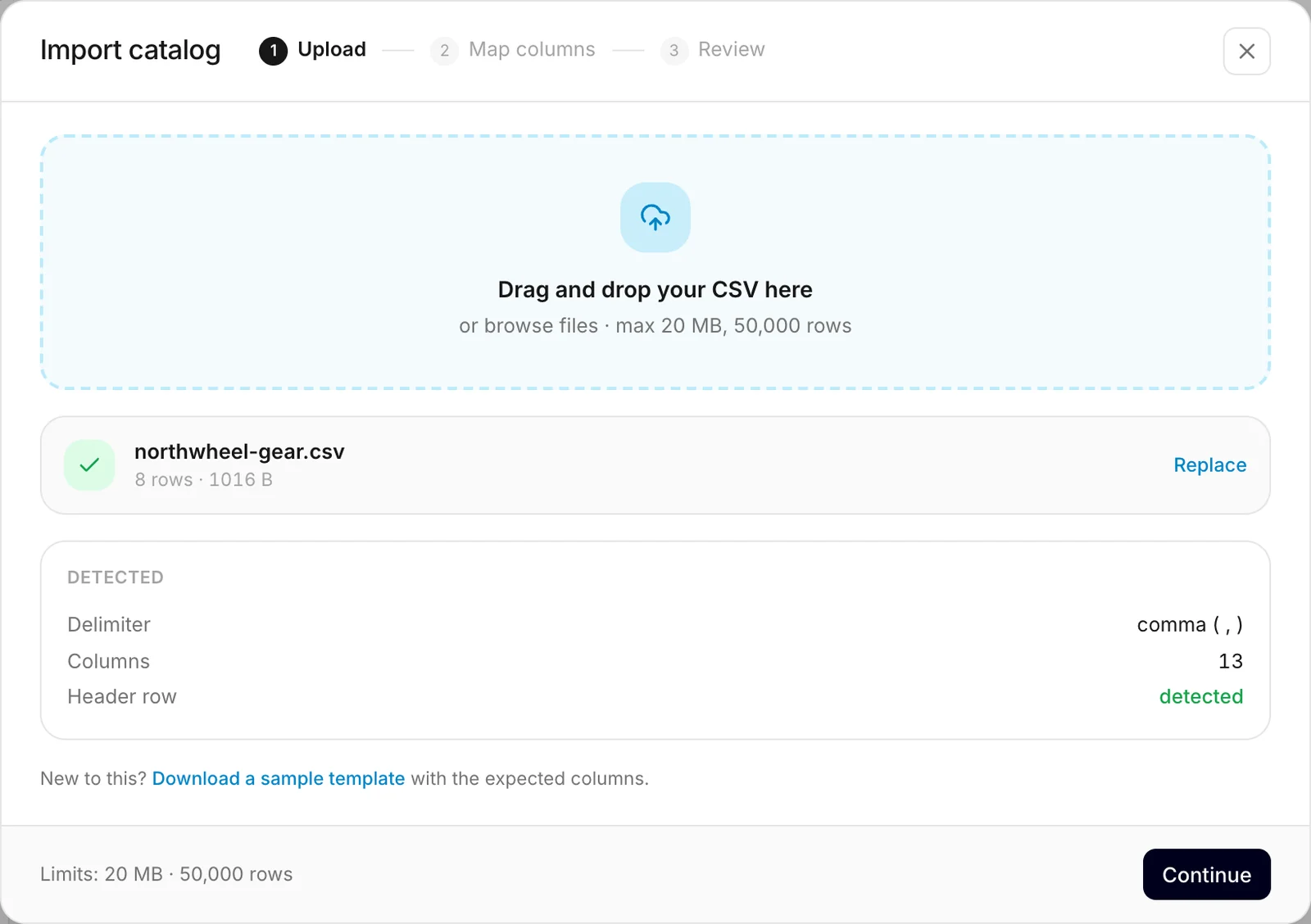
Drag your file onto the box, or click it to choose the file. Konvuno reads it in your browser and shows what it found under Detected: how the columns are separated, how many there are, and how many rows. Nothing is saved yet. To use a different file, click Replace.
Click Continue.
Step 2 — Map columns
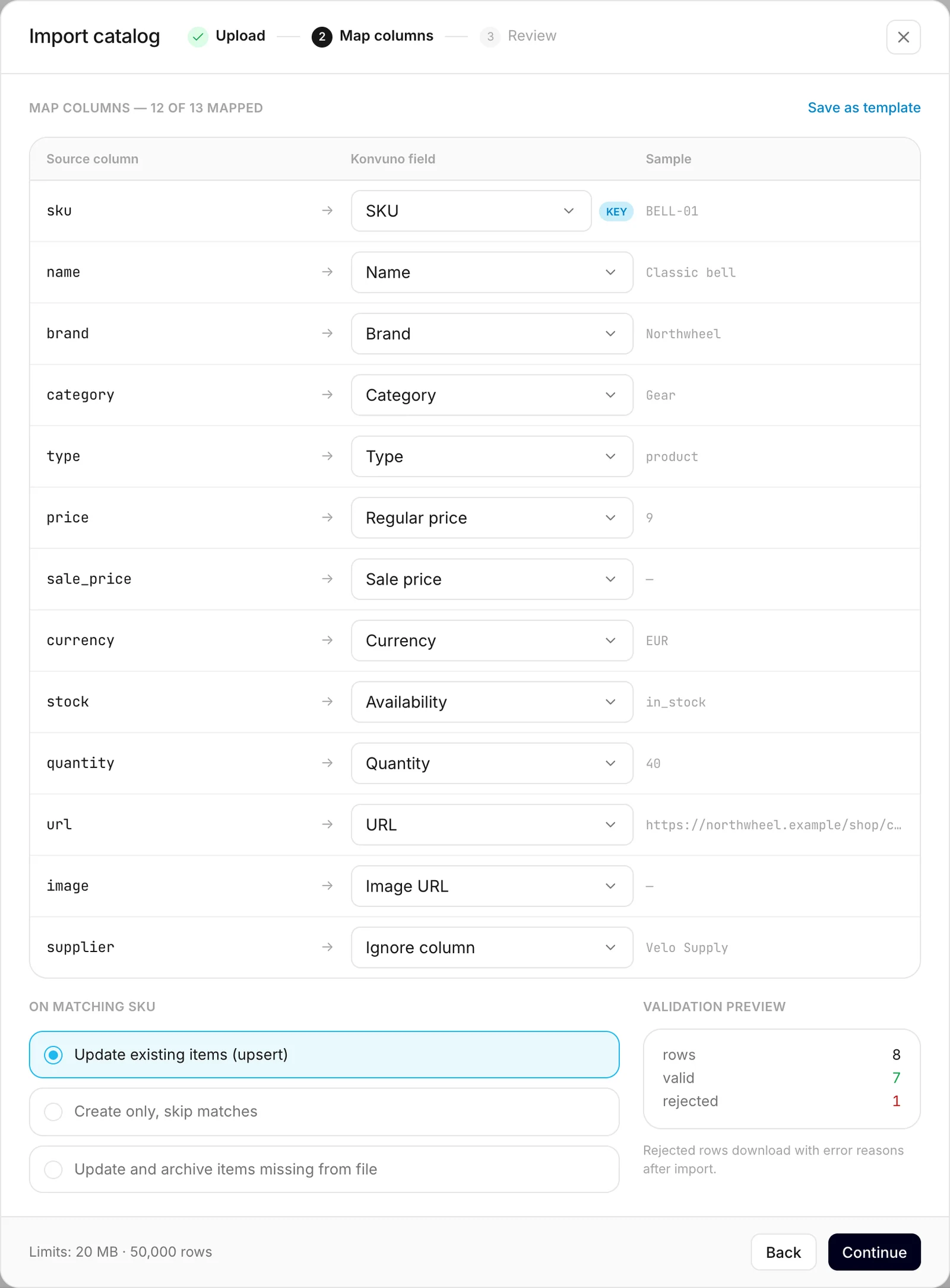
Konvuno lists every column of your file with an example value, and next to it the field it will
fill. Columns with common names — name, price, sku, stock, or the same in the dashboard's
other languages, such as naziv, Preis or precio — are matched for you. Check each
one, and change it with the drop-down if it is wrong. Choose Ignore column for
columns you do not need, such as a supplier or a purchase price.
You must map a Name column and at least one of SKU or External ID. The one marked Key is the code Konvuno uses to recognise items that are already in your catalog. If you map both, a drop-down under the options below lets you choose which one it is.
What happens to items that already exist
Under the mapping, choose what the import does when a row's code matches an item you already have:
- Update existing items (upsert) — new codes become new items; matching codes update the existing item. The usual choice.
- Create only, skip matches — only adds items with new codes. Existing items stay exactly as they are.
- Update and archive items missing from file — updates like the first option, and every item an earlier import brought in that is not in this file is set to Unavailable. Use it when your file is the complete list of what you sell today. Items you added by hand are left alone, and nothing is deleted — the missing items stay in your catalog, marked unavailable.
An update changes only the columns you matched. Import a price list with just sku, name and
price, and the matching items get their new prices while their descriptions, links, pictures,
availability and type stay as they were. A column you matched but left empty in a row does empty
that field for the item.
Check the rows before you import
Validation preview counts how many rows look valid and how many will be rejected — a missing name or code, a price that is not a number, a sale price above the regular price, an availability word Konvuno does not know. Rejected rows are skipped, not guessed; after the import you can download them with the reason for each, in your dashboard's language.
Save the mapping for next time
If you import the same kind of file regularly, click Save as template, type a name for the mapping in the field that opens, and click Save. Next time, pick it from the template drop-down that appears on the first step once your file is read. Templates are kept in this browser only. The import also remembers the columns of your last import and matches them again where the names are the same.
Click Continue.
Step 3 — Review and start
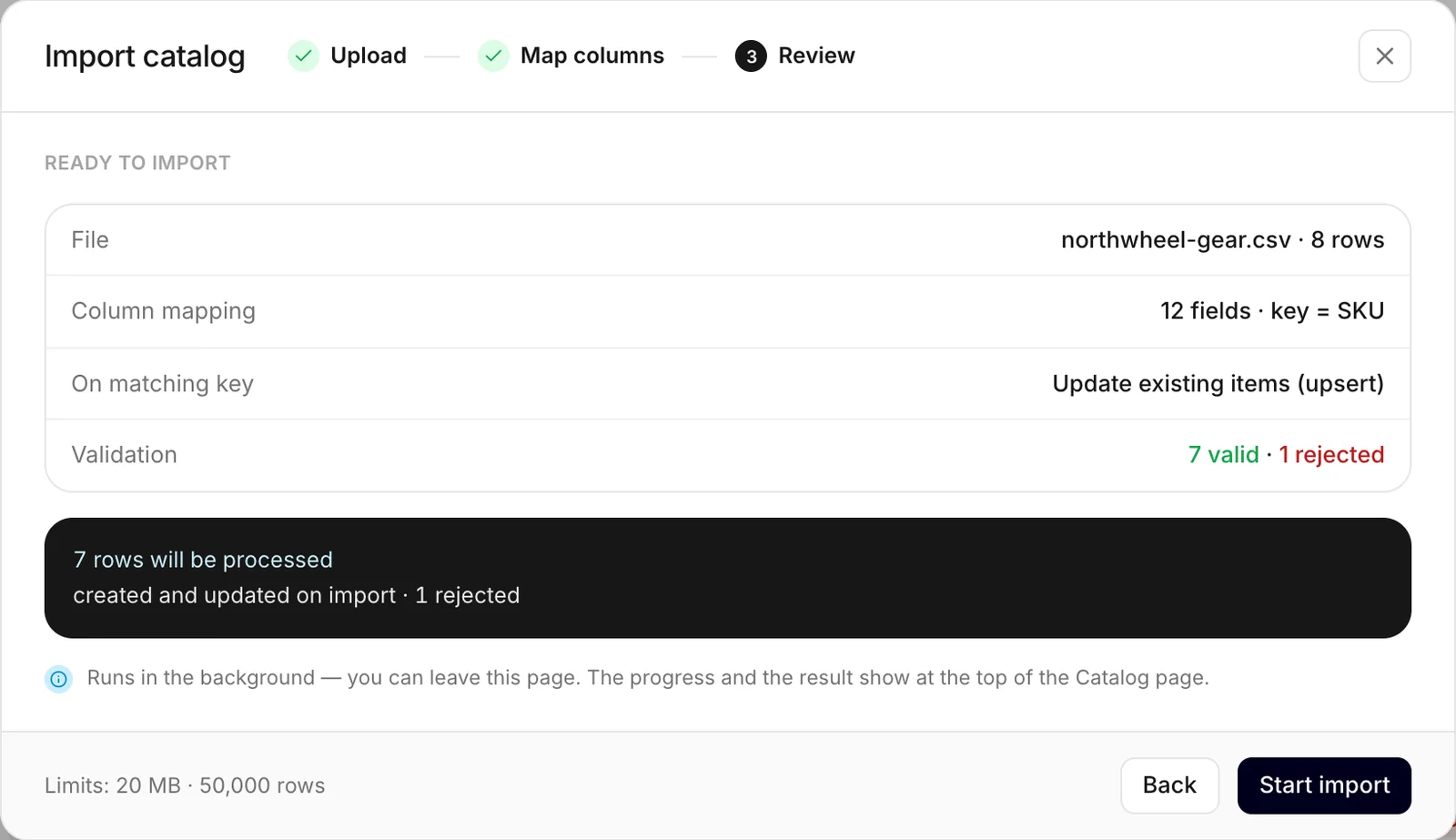
The summary shows the file, the mapping, what happens to existing items and how many rows are valid. If something looks wrong, click Back. Otherwise click Start import.
The import runs in the background, so you can leave the page. A bar at the top of the Catalog screen shows how many rows are done. When it finishes, it shows how many items were created, updated and rejected; if any were rejected, click Rejected rows to download them.
Import history
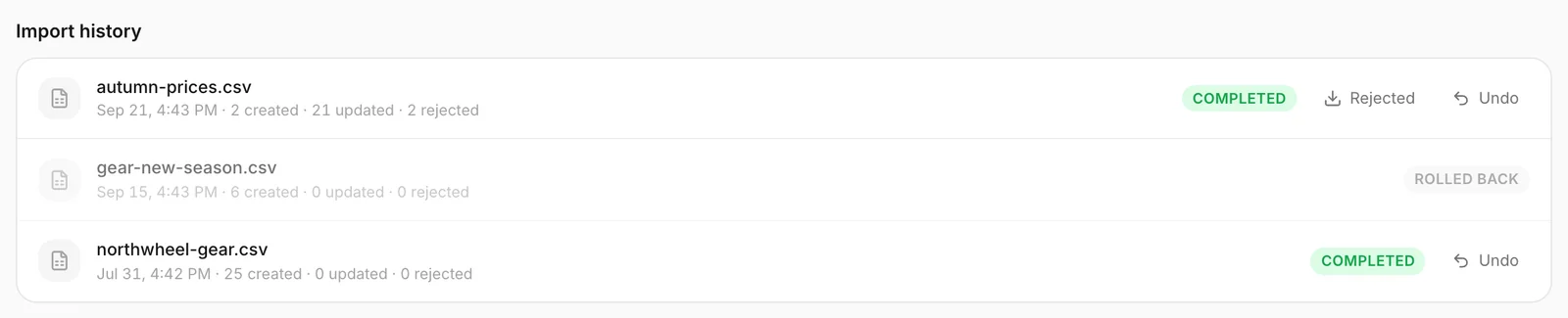
Import history at the bottom of the Catalog screen lists your recent imports: the file, when it ran, and how many items it created, updated and rejected.
- Rejected downloads the rejected rows as a CSV file: the row number in your file, the reason (in your dashboard's language; imports from before September 2026 give it in English), and the row itself. Fix them in your spreadsheet and import them again.
- failed means the import stopped as a whole — for example because the file could not be read. The bar at the top says why.
Undo an import
Imported the wrong file, or the wrong prices? Click Undo next to the import and confirm with Roll back:
- items the import created are deleted;
- items it updated — or marked unavailable — go back to exactly how they were before it.
An import can be undone once, and the undo itself cannot be reversed. The import then stays in the list as rolled back.
Note
Undo puts items back as they were before that import. If you edited one of them by hand after the import, that edit is lost too.
Imports and your plan
An import can add items up to your plan's number — or up to 100 without a plan. Only rows for items your catalog does not have yet count: a row for an item you already have updates it and adds nothing.
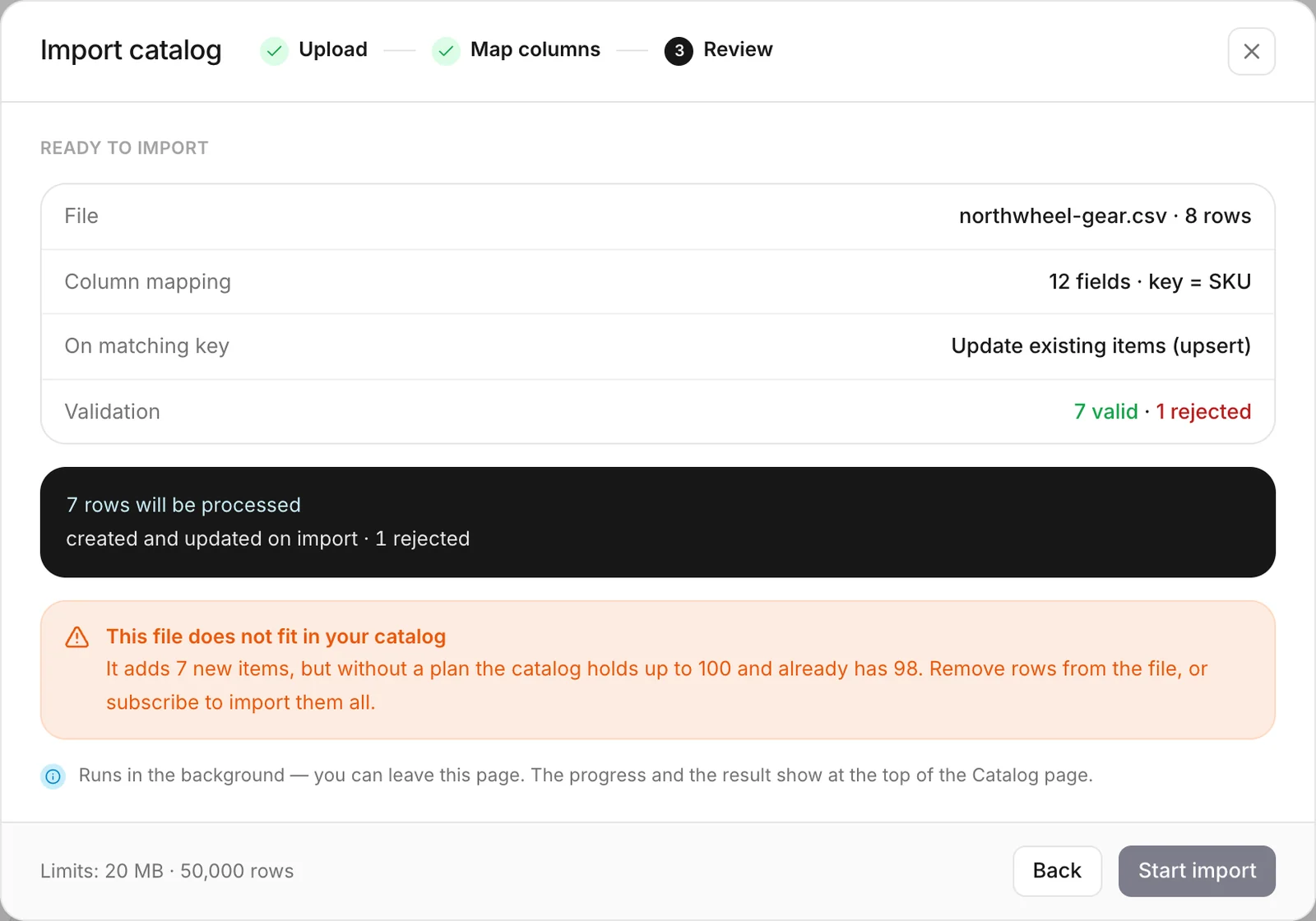
The last step of the import checks this before the file is uploaded. When the new items do not fit, the box This file does not fit in your catalog says how many the file would add and how many your catalog already has, and Start import stays off. Remove rows from the file — or subscribe, or move to a bigger plan — and try again.
If your catalog grew while the import was running, the rows that no longer fit are rejected with the reason "The catalog limit was reached". See Items and your plan.
How other businesses use it
- A wine shop exports its stock list from the till every Friday and imports it with Update and archive items missing from file, so sold-out wines are marked unavailable by themselves.
- A language school keeps its courses in Google Sheets, with a
typecolumn set toservice, and re-imports the sheet when a new term starts. - A hardware store saves its column mapping as a template, because its supplier's price list always has the same odd column names.
- A bakery imported last year's price list by mistake and clicked Undo — the new prices were back in a second.