Add and edit items
Add a product or service by hand, understand every field, handle sizes and colours, and delete what you no longer sell.
Adding items by hand is the quickest way to start when you offer a handful of products or services. Everything happens in a panel that slides in from the right.
Add an item
- On the Catalog screen, click Add item at the top.
- Fill in at least the Name and a SKU (or an External ID) — the fields are explained below.
- Click Add item at the bottom of the panel.
The item appears at the top of the list, and the assistant can use it straight away. Once your catalog holds as many items as your plan allows — 100 without a plan — adding one more is refused; see Items and your plan.
Edit an item
Click the item's row in the table. The same panel opens with everything filled in. Change what you need and click Save changes.
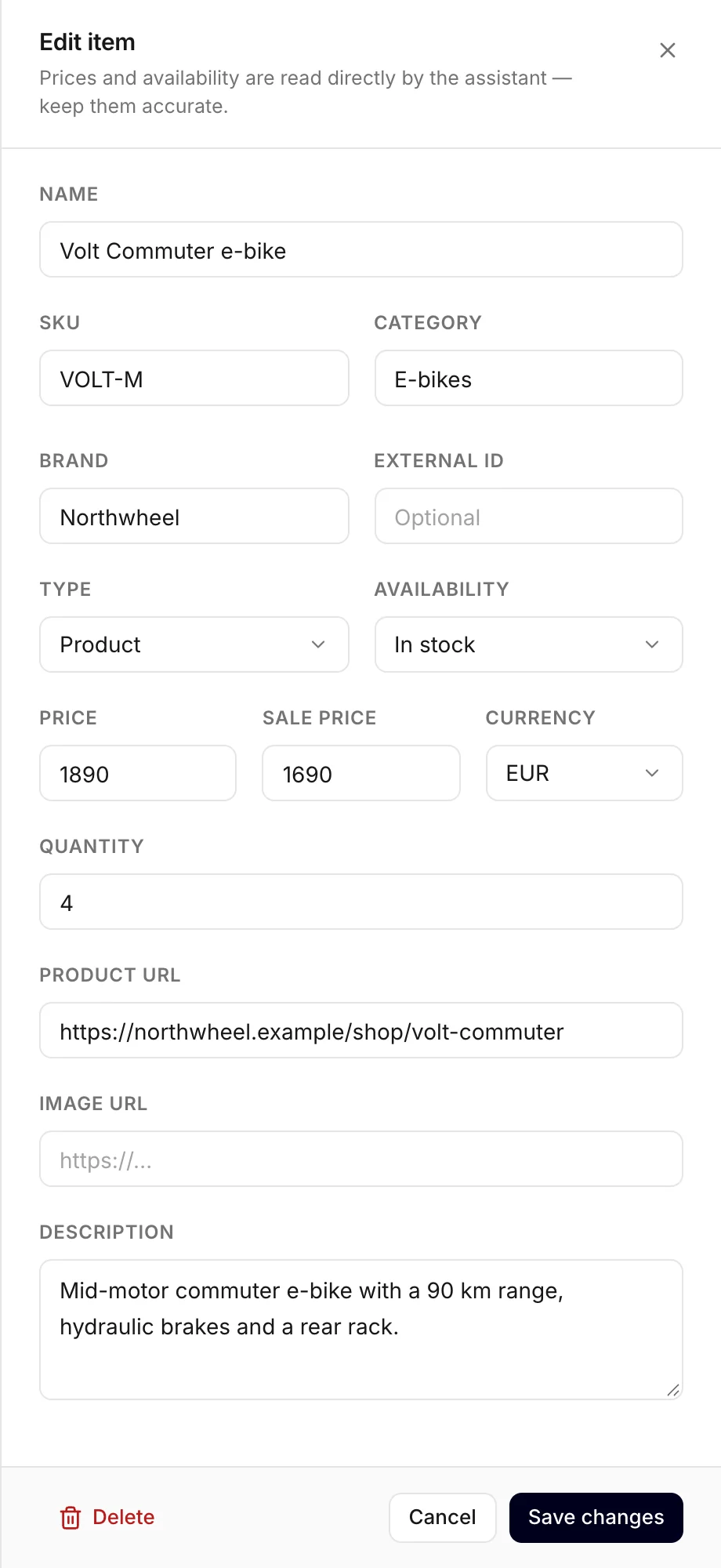
The fields
- Name — what your customers call it. The only field you must always fill in. Write it the way people search: "Oak dining table, 180 cm" works better than "ODT-180".
- SKU and External ID — your own codes for the
item. Every item needs at least one of the two. A SKU is the stock code you use in your shop or
till; an external ID is the item's number in another program, such as your accounting software.
They are how a later CSV import recognises an item it already knows,
so keep them unique. Services need one too —
SRV-HAIRCUTis fine. - Category — a group such as "Chairs" or "Workshop". Start typing to reuse one you already have; it is also what the Category filter above the table lists.
- Brand — optional. Visitors often ask by brand ("do you have anything from Bosch?"), and the assistant can narrow its search to one.
- Type — Product, Service, Listing or Custom. See Products and services.
- Availability — see Availability below.
- Price, Sale price and Currency — see Prices below.
- Quantity — optional, for your own overview. When only a few are left, the table shows how many instead of In stock. The assistant never tells visitors exact stock numbers; it goes by Availability.
- Product URL — the page on your website where the visitor can buy or book it. Without it, the assistant can still mention the item, but it cannot show a card for it.
- Image URL — the address of a picture that is already online, such as the product photo on your own website (right-click the photo and choose Copy image address). The picture appears in the table and on the item's card in the chat. You cannot upload a file here.
- Description — a sentence or two in plain words. It helps the assistant find the item for questions that do not use its name, such as "something for a rainy commute".
Both links must start with https:// or http://.
Tip
The assistant is only as good as your names and descriptions. Imagine how a customer would ask for the item on the phone, and make sure those words appear in the name or the description.
Availability
| Choose | When |
|---|---|
| In stock | A product you can sell right now |
| Out of stock | A product that is sold out for now |
| Preorder | A product people can order before it arrives |
| Available | A service or listing people can book right now |
| Unavailable | A service or listing that cannot be booked at the moment |
| Unknown | You would rather not say — the chat then shows no label |
When a visitor asks for something that is in stock, the assistant can leave out what is not. Items that are out of stock stay in your catalog, so the assistant can still say "that one is sold out at the moment" instead of pretending it does not exist.
Prices
- Price — the normal price, as a number:
1290,1290.50,1290,50or1.290,50all work. - Sale price — only while something is on sale. The table then shows the old price crossed out, and the assistant quotes the sale price. It cannot be higher than the regular price.
- Currency — a new item starts in the currency your catalog already uses.
Heads up
Clear Sale price when the sale ends. Whatever is in that box is the price the assistant quotes, for as long as it is there.
Leave the price empty for things you price on request, such as a custom build. The assistant then does not name a price — it can offer to put the visitor in touch with you instead.
Sizes, colours and other options
The panel has no fields for options such as size or colour. In the catalog you manage yourself, each option you sell is its own item, with its own SKU and availability:
- "Linen shirt — S, white" ·
SHIRT-S-WHT - "Linen shirt — M, white" ·
SHIRT-M-WHT
Put the option in the name so the assistant can tell them apart. Each one counts as a row toward your plan — see Items and your plan.
An imported spreadsheet works the same way: each row is one item, and there is no column that groups rows into one product.
Grouping options into one product is something only a connected shop does. A product feed or a WooCommerce shop brings its options across by itself: the assistant then sees one product with several options, and the card in the chat says how many there are.
Delete items
- One item — open it, click Delete at the bottom left of the panel, and confirm.
- Several at once — tick the boxes at the start of their rows (the box in the header ticks the whole page). Click Delete above the table and confirm. Clear unticks everything.
Deleting is permanent — a deleted item cannot be brought back, only added again. If something is just sold out, set it to Out of stock instead.
Find an item
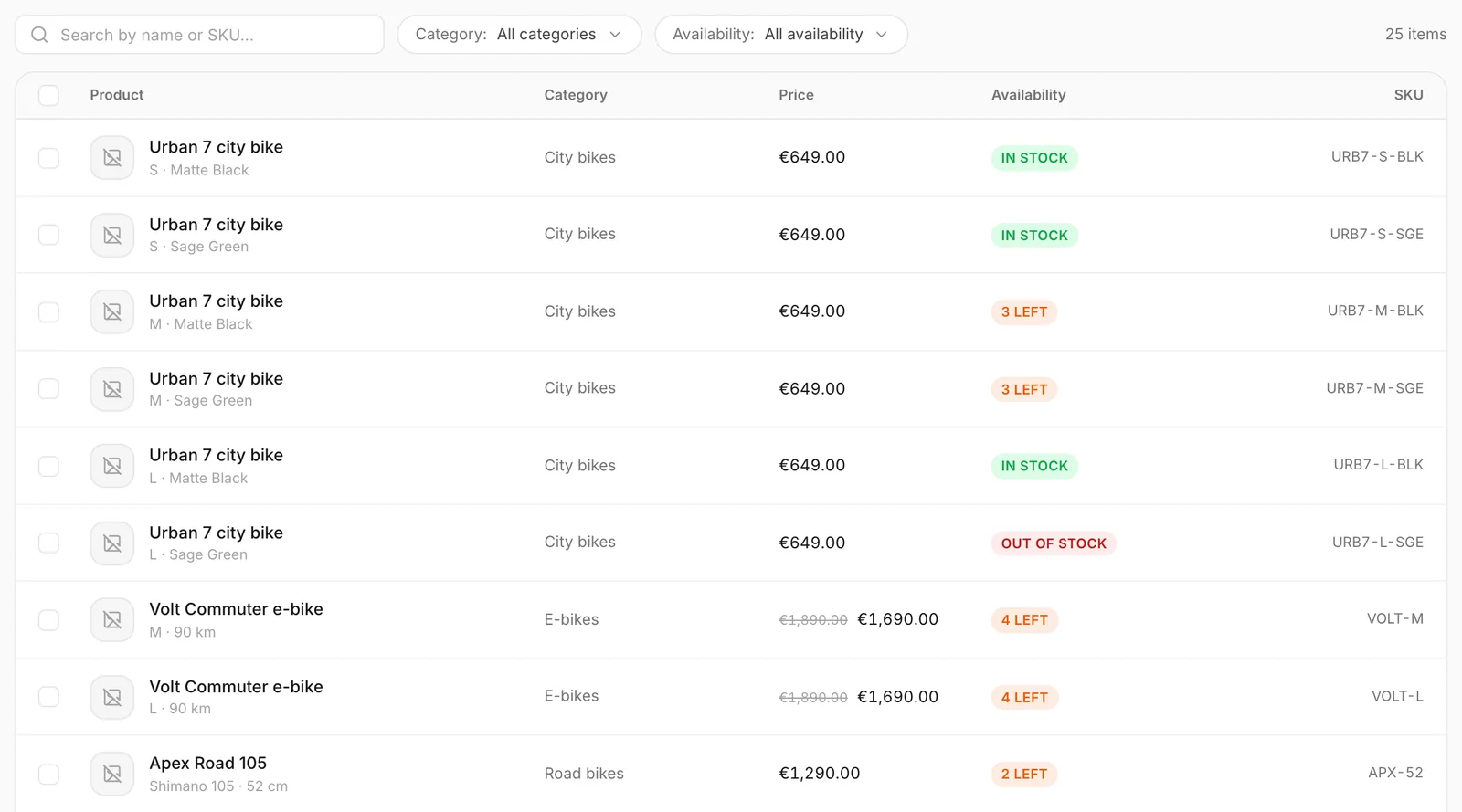
Type in the search box to find items by name or SKU, or narrow the list with the Category and Availability filters. The list shows 25 items per page; the page numbers are under the table.
How other businesses use it
- A café adds its cakes as products with a photo each, and sets a cake to Out of stock when it runs out for the day.
- A physiotherapy practice adds its treatments as services, with the price per session and a link to its booking page as the Product URL.
- A furniture maker leaves the price empty on made-to-measure tables, so the assistant offers to pass the question on instead of quoting a number.