Identity — name, logo, greeting and languages
Decide who your assistant is — what it is called, the logo it shows, the first thing it says and the languages it speaks.
The Identity tab is the first thing you see on the Widget screen. It decides how your assistant introduces itself.
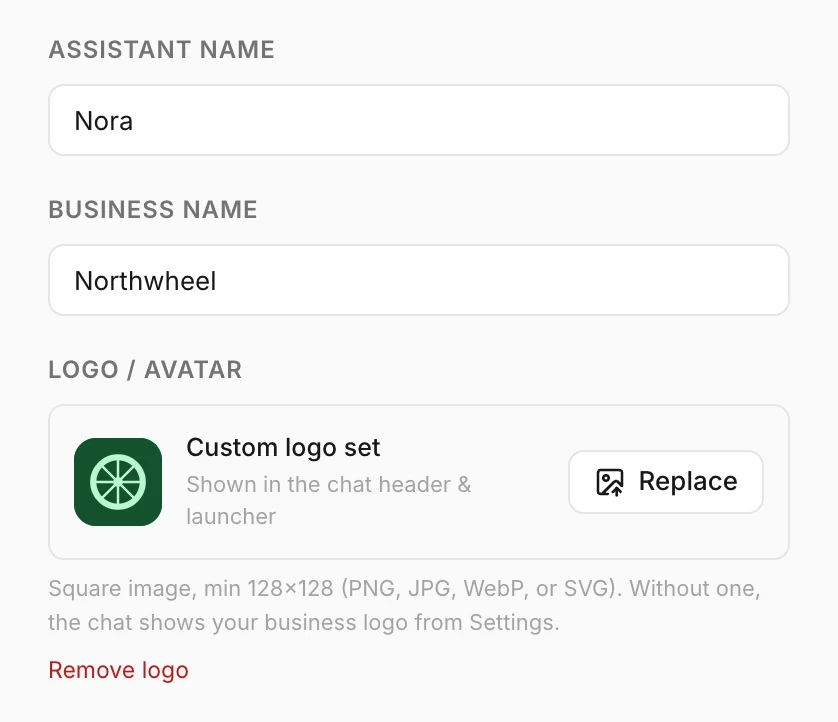
Assistant name
Assistant name is the bold title at the top of the chat panel, and the name the assistant uses when it introduces itself. Keep it short — up to 40 characters.
A person-like name ("Ana from Northwheel") feels friendly; a plain one ("Northwheel assistant") sets clearer expectations. Both work.
Business name
Business name appears under the assistant's name in the chat header. The assistant also uses it to understand whose website it is on and to stay on topic, so write the name your customers know you by. Up to 60 characters.
The first time you open the screen, this is filled in with your business's name from Settings.
Logo
Logo / avatar fills the round launcher button and the avatar in the chat header.
- Click Upload and choose an image.
- The logo shows in the preview right away.
- Click Publish to put it on your website.
Use a square image of at least 128 × 128 pixels, in PNG, JPEG, WebP or SVG, under 2 MB. Konvuno shrinks large photos automatically, so there is no need to resize them first.
You may not need to upload one here. Without a logo of its own, the widget shows your business logo from Settings → Business profile — the field then says Using your business logo, and a new business logo reaches your website without publishing again. See Logo. Upload a logo here only when the chat should show a different image. Remove logo takes the widget's own logo away again; with no logo in either place, the widget shows the Konvuno mark.
Tip
A logo on a transparent background can disappear against your brand colour. If yours does, upload a version with a solid background.
Welcome message
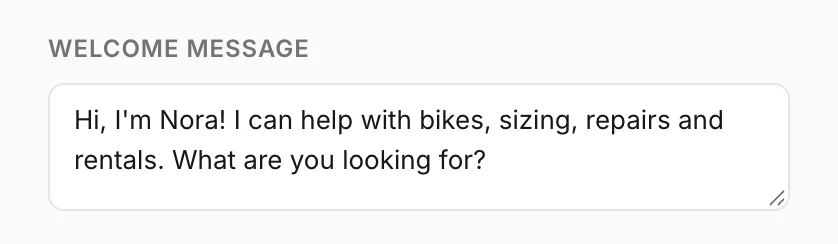
Welcome message is the first message a visitor sees when they open the chat. Up to 300 characters. A good welcome says what the assistant can help with:
Hi! I can help with bike sizes, repairs and rentals. What are you looking for?
If you turn on the proactive greeting (see Behavior), the start of this message is also what pops up next to the launcher. Leave it empty and the chat opens without a greeting.
Languages
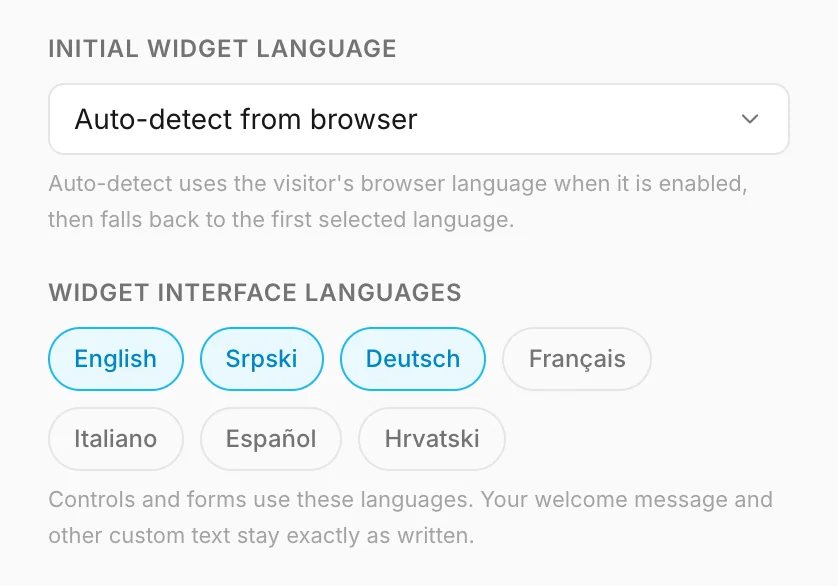
Two settings decide the language of the widget's buttons, forms and notices:
- Widget interface languages — tick every language your visitors may need. Controls and forms use these languages. Your welcome message and other custom text stay exactly as written.
- Initial widget language — the language the widget starts in. Pick one, or keep Auto-detect from browser.
With Auto-detect from browser, a visitor whose browser is set to one of your languages gets that language. Everyone else gets the first language you ticked.
Note
These settings translate the widget itself, not your content. The assistant always answers in the language the visitor writes in, whatever you pick here. Your welcome message and suggested questions appear exactly as you wrote them, so write them in the language most of your visitors use.
How other businesses use it
- A hotel on the coast ticks English, German and Italian, keeps Auto-detect from browser, and writes its welcome in English.
- A local bakery ticks only its own language and names the assistant after the owner.
- An accounting firm uses its full registered name as the business name, so the assistant never shortens it.