Filter and search conversations
Narrow the list to the conversations that need you, and find any chat by a word the visitor or the assistant used.
Once your widget has been live for a few weeks, the list on the Conversations screen gets long. The filters and the search box above it take you straight to the conversations you are looking for.
Filters
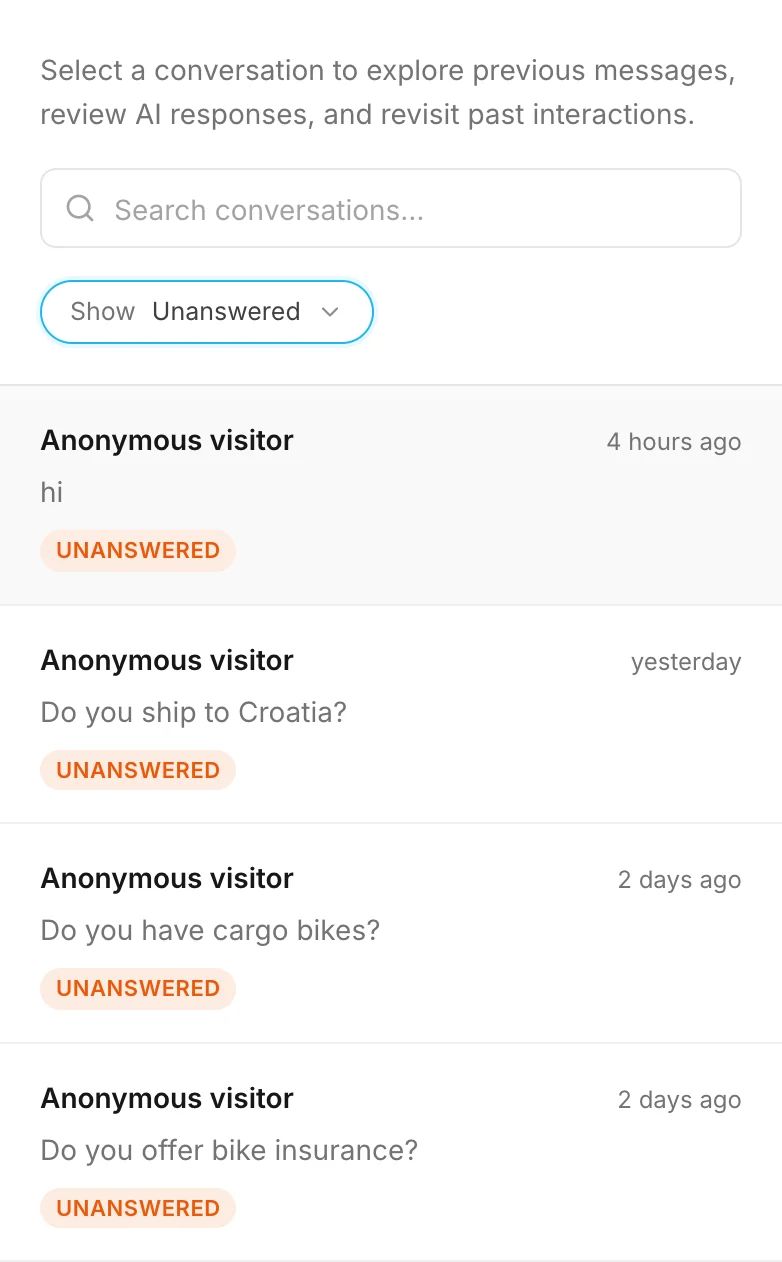
Open the Show menu above the list and pick what to see:
| Filter | Shows |
|---|---|
| All | Every conversation, including your own test chats and the ones flagged as suspicious. |
| Answered | Conversations in which the assistant answered at least one question from your knowledge. Your own test chats are not here. |
| Unanswered | Conversations in which the assistant answered nothing: visitors who only said hello, questions it had nothing to answer from, off-topic requests, and visitors who only asked for a person or left their details. Your own test chats are not here. |
| Handed off | Conversations the assistant handed over to your team — the visitor asked for a person, or for something only you can give. See Hand-offs. |
| Leads | Conversations in which the visitor sent the contact form, whatever the lead's status is now. |
Suspicious conversations appear only under All (and under Leads if one of them left details).
Answered and Unanswered are about the assistant's answers, not about your plan: a visitor who only leaves their details counts toward your plan, and the conversation is still unanswered. To see what counts and why, see Which conversations count.
Tip
Unanswered is your to-do list. Once a week, skip the greetings, note the real questions the assistant could not answer, and add them as FAQs under Knowledge. The next visitor who asks gets an answer.
Search
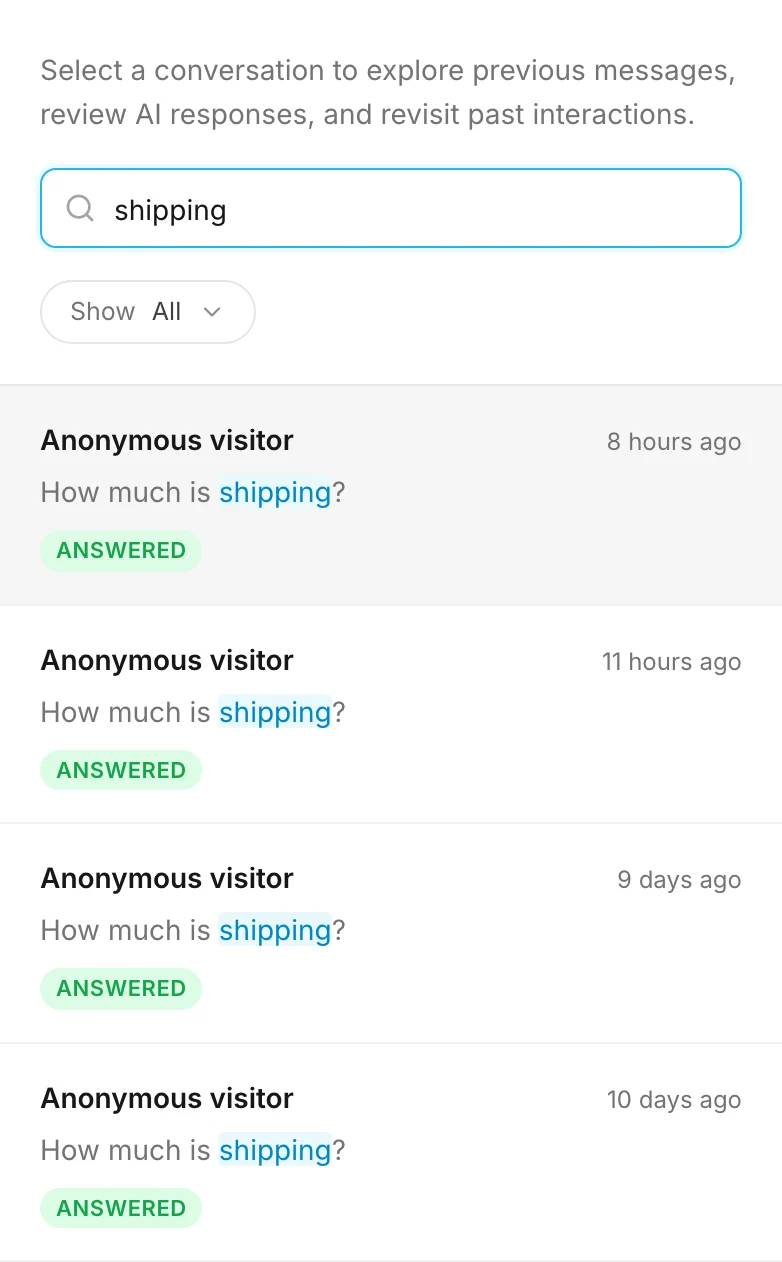
Type a word into Search conversations… above the filters. The list shows the conversations that contain it, and each row shows the part of the message where it appears, with the word highlighted.
Search looks through:
- every message from the visitor and from the assistant — not only the first one;
- the AI summary at the top of a conversation;
- the tags you added (see Tags and export);
- the names of visitors who left their details.
It does not look through email addresses or phone numbers. To find someone by their email address, search under Leads instead.
Search works together with the filters: pick Leads and search for
delivery to see only the leads who asked about delivery, or pick
Handed off to see who asked for a person.
How to get good results
- The beginning of a word is enough. A word of three letters or more also finds the longer
words that start with it:
shipfinds "shipping",bikefinds "bikes", anddelivfinds "delivery". Shorter words must match whole. - Capital letters do not matter, accents do.
Radićfinds "Radić", butradicdoes not. - One word at a time works best. When you type several words, they must all appear in the
same message, so
shipping costfinds nothing if the visitor wrote "shipping" and the assistant answered with "cost". - Either word: put
orbetween them —shipping or delivery. The word for "or" in your dashboard language works too, such asoderin German oriliin Serbian and Croatian. - An exact phrase: put it in quotes —
"group tour".
To go back to the full list, clear the search box and click All.
How other businesses use it
- A hair salon searches
balayagebefore a busy season to see what customers want to know about its most expensive service. - A language school uses Unanswered every Friday and has added twenty FAQs about course dates in a month.
- A car repair shop searches
brake or padsto catch every way customers describe the same problem. - An accounting firm opens Leads each morning to read what new clients asked before calling them back.