Sign in to Konvuno
Sign in with a code sent to your email or with your Google account, and what to do when the code does not arrive.
Konvuno has no passwords. You sign in either with a one-time code that we email to you, or with your Google account. The first time you sign in, your Konvuno account is created automatically — there is no separate sign-up.
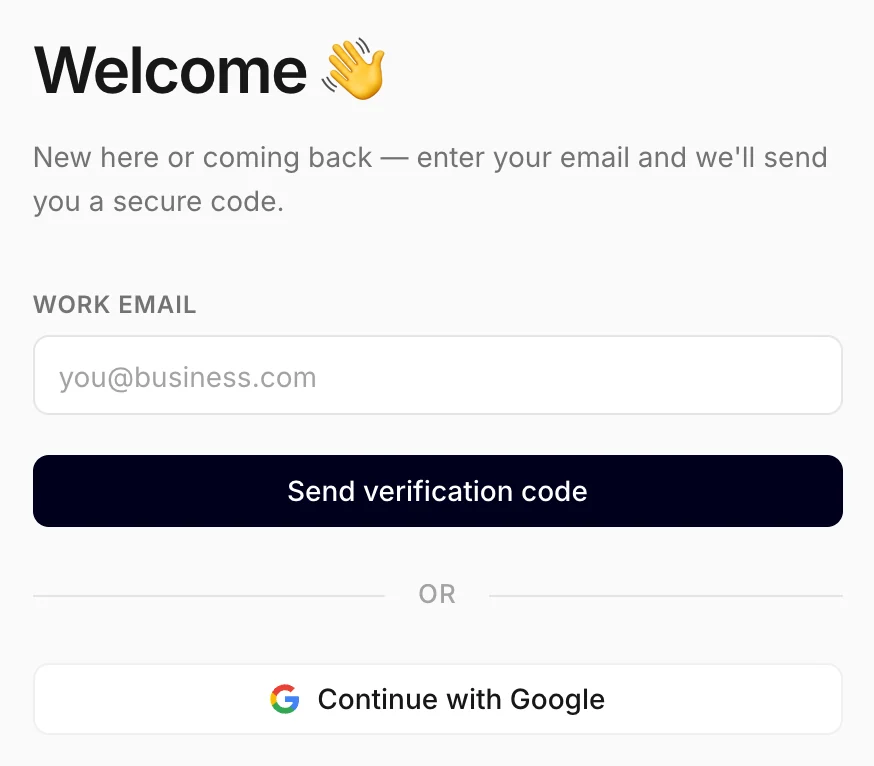
The screen opens in your browser's language when Konvuno speaks it. To pick another one, click the globe button at the top, next to the Konvuno logo. See Change the dashboard language.
Sign in with an email code
- Go to app.konvuno.com and type your email address under Work email.
- Click Send verification code.
- Open the email from Konvuno. It is written in the language the sign-in screen is in, and the code is in the subject line too — "123456 is your Konvuno sign-in code" — so you can often read it straight from the notification on your phone.
- Type or paste the code under Verification code and click Verify & continue.
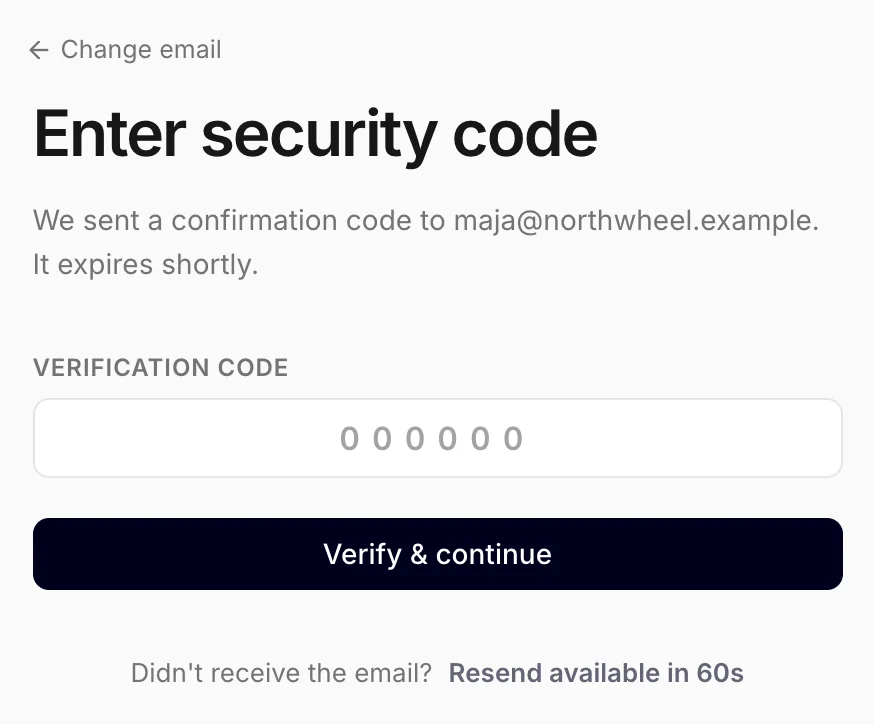
The code works once, for 10 minutes. If it has expired, ask for a new one — see the code does not arrive. Typed the wrong address? Click Change email at the top.
Tip
Sign in with an address you read every day: our answers to your support requests go there, and if you register the business, so do the emails about billing and new leads — unless the business has its own support email in Settings, which gets the lead emails instead. Colleagues each sign in with their own address — see Owners and members.
Sign in with Google
- Click Continue with Google.
- Google asks which account to use. Pick one, or add another.
- You come back to Konvuno already signed in.
If you cancel on Google's page, you land back on the sign-in screen with the message "Google sign-in was cancelled." — just try again.
Both ways lead to the same Konvuno account as long as the email address is the same. You can sign in with a code today and with Google tomorrow.
What happens next
- Your first time: Konvuno asks you to create your business. See Create your business.
- You already have a business: you land on Overview.
- You were invited by a colleague: open the link in the invitation email and sign in with the address the invitation was sent to. You then join their business straight away, without creating one of your own. With a different address you see "This invitation was sent to a different email address. Sign in with the invited address to accept it."
You stay signed in on this browser until you sign out. To sign out, click the arrow icon next to your name at the bottom of the sidebar.
The code does not arrive
Work through these, most common first:
- Wait a minute and look again. Most codes arrive within seconds, but some email providers hold them back for a short while.
- Check your spam or junk folder, and on Gmail the Promotions and Updates tabs. Search your mailbox for "Konvuno sign-in code".
- Check the address. The code screen shows where it was sent. If there is a typo, click Change email and send it again.
- Ask for a new code. Under the code box, click Resend code. The button waits about a minute between codes; if you ask too often you see "Too many code requests — wait a minute before trying again." Only the newest code works.
- A company email address? Some company mail systems hold emails from new senders for review. Ask whoever runs your email to let messages from konvuno.com through — or sign in with Google instead.
If none of this works, email us at [email protected] from the address you are trying to sign in with.
Note
"That code was not valid or has expired." means the code was mistyped, has expired, or a newer code has been sent since. Ask for a new one and use the most recent email.
How other businesses use it
- A hair salon owner signs in on her phone with the code from the notification, without opening her mailbox.
- An accounting firm gives each accountant their own sign-in, so everyone uses their work address and nobody shares a login.
- A software company whose mail filter quarantines new senders signs in with Google on day one, and asks IT to allow konvuno.com afterwards.