Write and manage FAQs
Add, edit, organise and remove the questions and answers your assistant uses — one at a time or many at once.
FAQs are the heart of your knowledge: each one is a question a customer might ask and the answer you want them to get. This page covers writing them by hand and looking after the list. To add many at once, see Import FAQs from your website or Upload and export as CSV.
Add an FAQ
- Click Add knowledge, then Add FAQ.
- Type the Question the way a customer would ask it.
- Write the Answer.
- Optionally fill in a Category and pick a Language. It starts on the language your dashboard is in.
- Set Status to Active if the answer is ready — the form starts on Draft.
- Click Add FAQ.
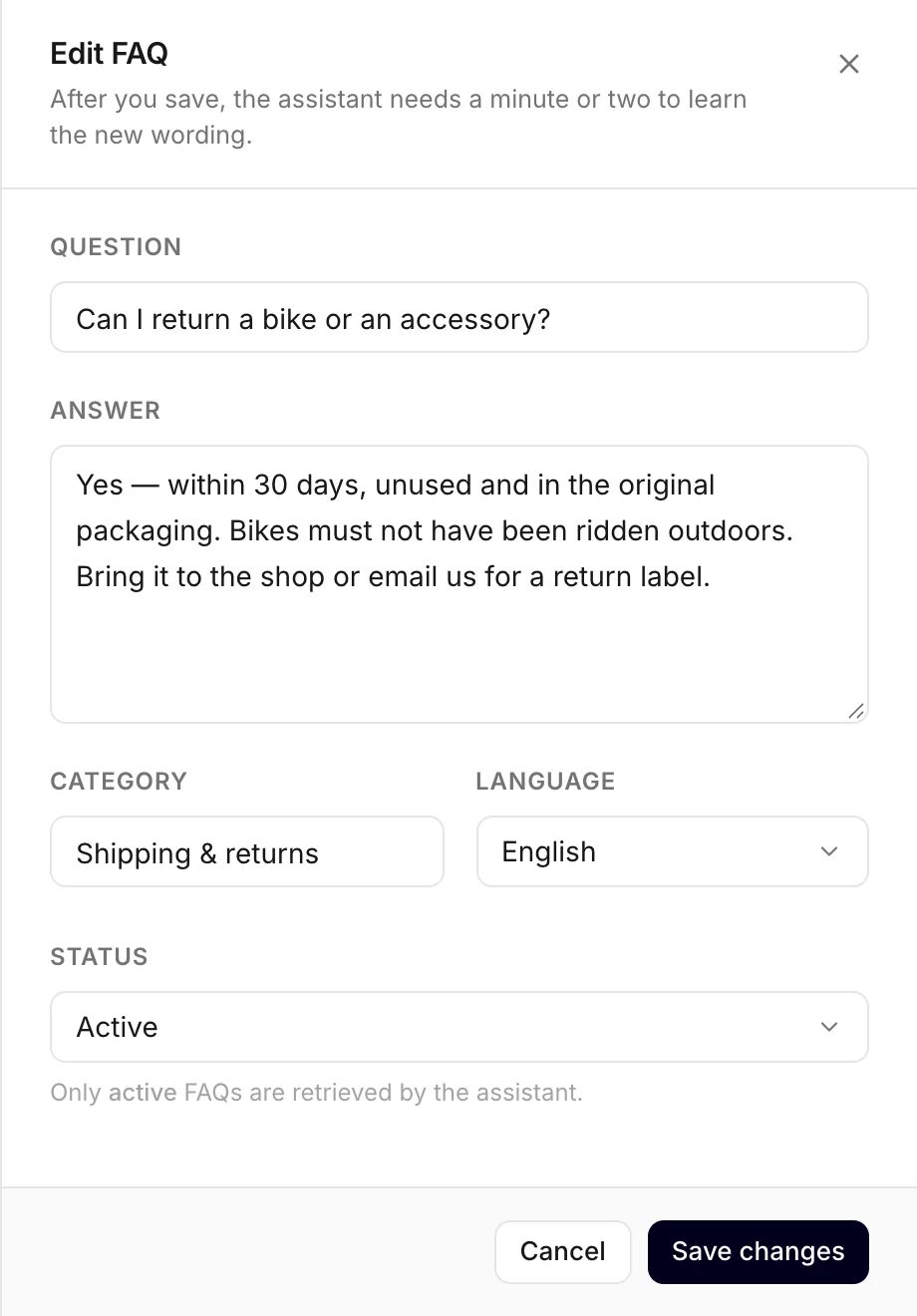
What each field does:
- Question — one topic per FAQ. The assistant finds FAQs by meaning, so you do not need to write every way of asking; "What are your opening hours?" also catches "are you open on Saturday?".
- Answer — the facts the assistant should give. It does not paste your text word for word: it writes a reply in the visitor's language and your widget's tone, based on what you wrote.
- Category — a label for your own sorting, such as "Delivery" or "Prices". Start typing and your existing categories are suggested. It does not change the answers.
- Language — the language the FAQ is written in: English, Serbian, Croatian, German, Spanish, French or Italian. It is a label too: the assistant answers in the visitor's language either way.
- Status — Active, Draft or Disabled. See FAQ statuses.
Write answers the assistant can use
- One question per FAQ. "Opening hours" and "parking" are two FAQs, not one.
- Put the key fact first. The assistant reads the first 1,500 characters of an answer — about a page of text — and the editor tells you when an answer is longer. Split a big topic into several FAQs rather than writing one essay.
- Be specific. Days, times, prices, conditions, what is included. "Delivery is free over €50 and takes 2–3 working days" helps; "we deliver fast" does not.
- Write only what a customer may read. Everything in an answer can end up in a visitor's chat — no internal notes, supplier prices or staff names you would not share.
Indexing: when the assistant can find an FAQ
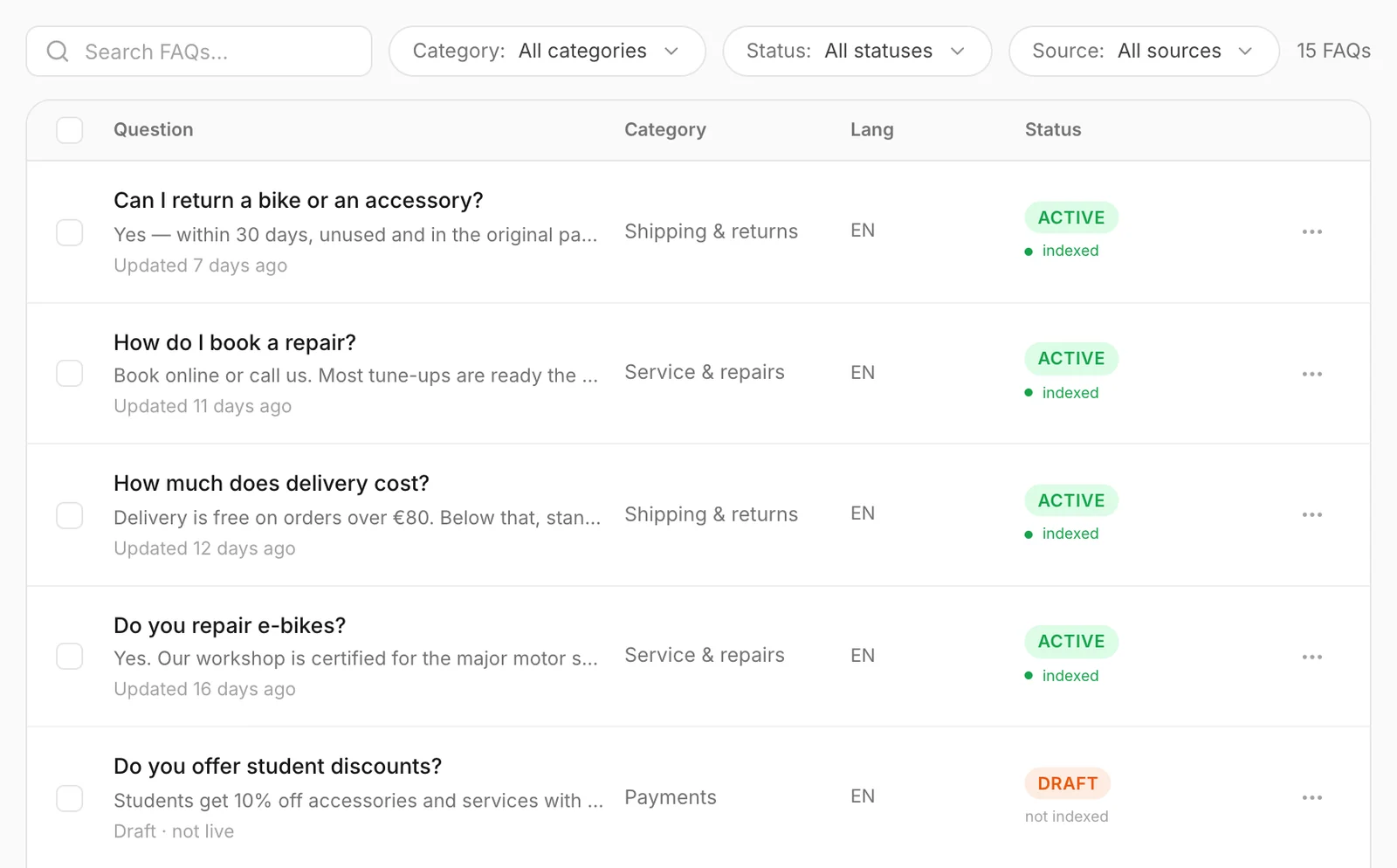
Before the assistant can find an FAQ by meaning, Konvuno indexes it. The small line under each status badge tells you where it stands:
| You see | What it means |
|---|---|
| indexed | Ready. The assistant finds this FAQ however the visitor phrases the question. |
| embedding… | Being indexed — usually a few minutes after you add it or change its question or answer. Until then the assistant may miss it. |
| failed | Indexing did not work. See below. |
| not indexed | A draft. The assistant does not use it. |
| excluded | Disabled. The assistant does not use it. |
The list updates by itself while an FAQ is being indexed, so there is no need to reload the page.
If an FAQ shows failed, you do not need to do anything straight away: Konvuno tries again by itself, first after an hour and then at longer intervals, for about two days. If it still shows failed after that, open it, make a small change to the question or answer — even a full stop — and click Save changes, which sends it for indexing again. If that fails too, use Contact support in the help menu.
Read an FAQ
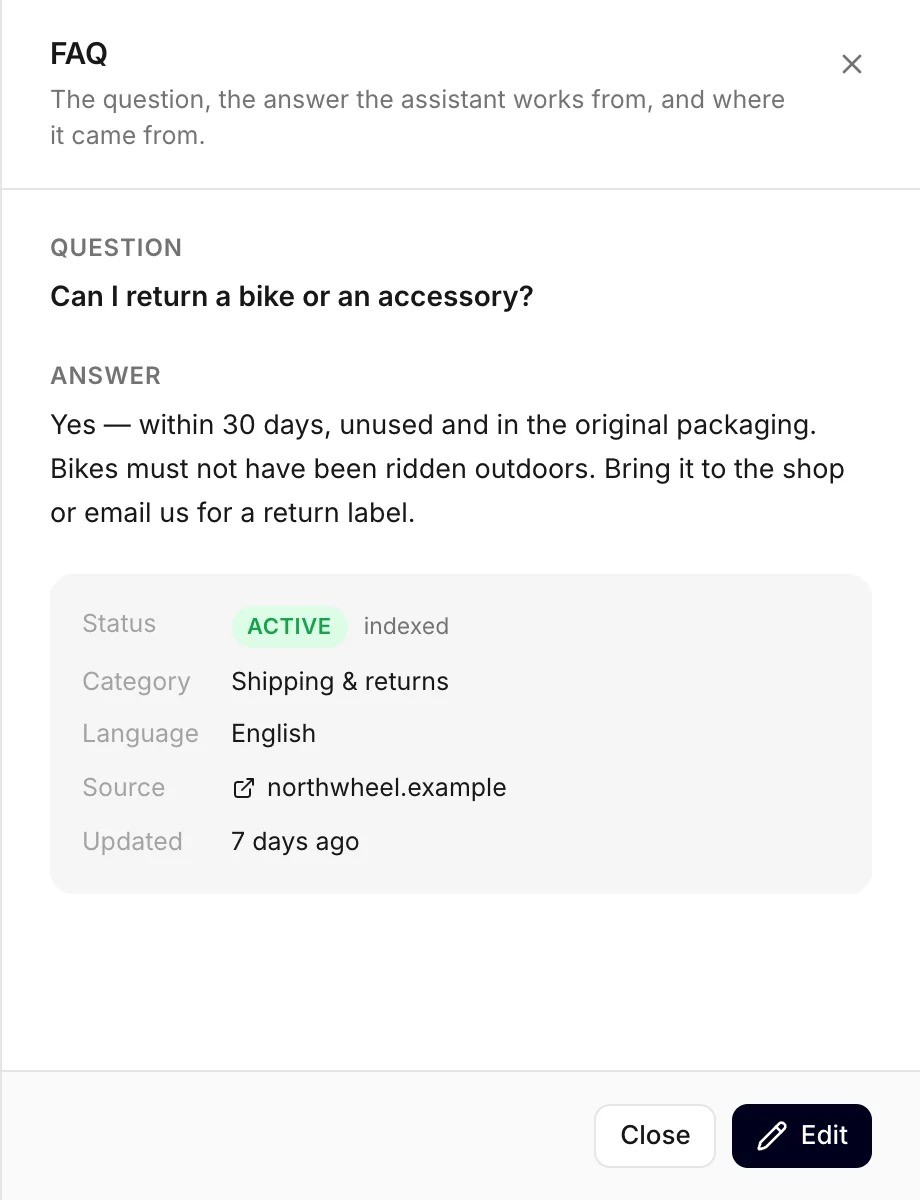
Each row shows the question and the start of its answer. Click a row to read the whole FAQ: the answer, its status and indexing, category, language, where it came from — a scanned page or a file — and when it last changed. Click Edit there to change it, or Close to go back to the list. Reading an FAQ never changes it.
Edit an FAQ or change its status
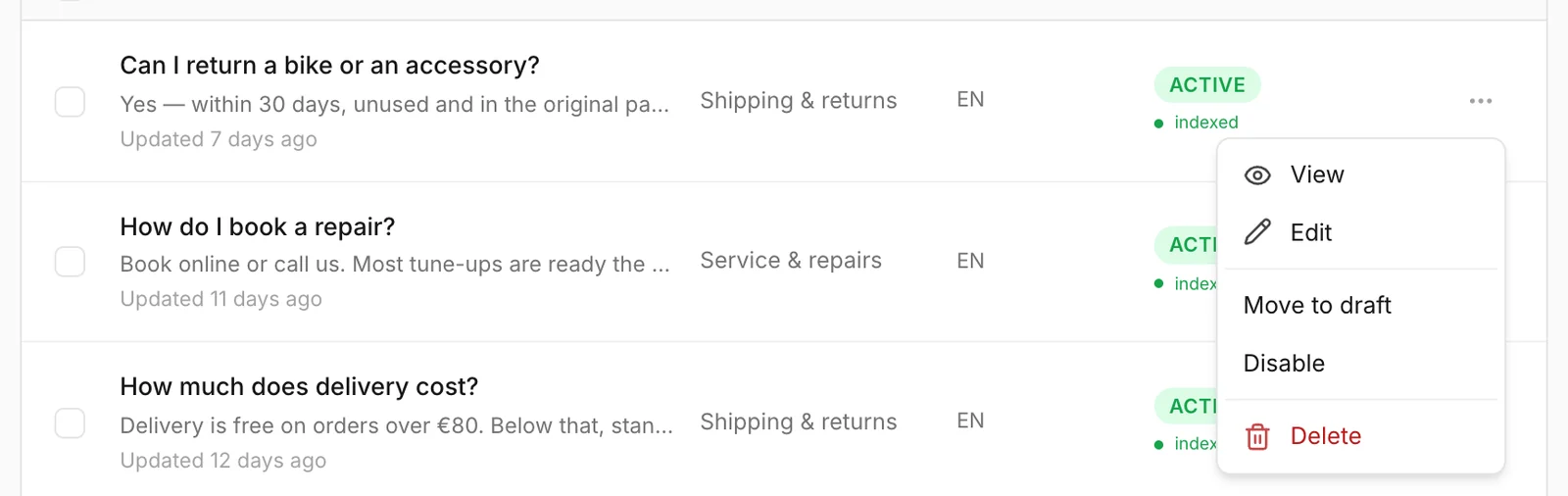
Click the ⋯ at the end of a row:
- View opens the FAQ for reading, like a click on the row.
- Edit opens the form. Change what you need and click Save changes. Changing the question or the answer indexes the FAQ again.
- Set active, Move to draft and Disable change the status straight away, without opening the form. The menu only offers the statuses the FAQ does not already have.
- Delete removes the FAQ — see Delete FAQs.
Stale answers
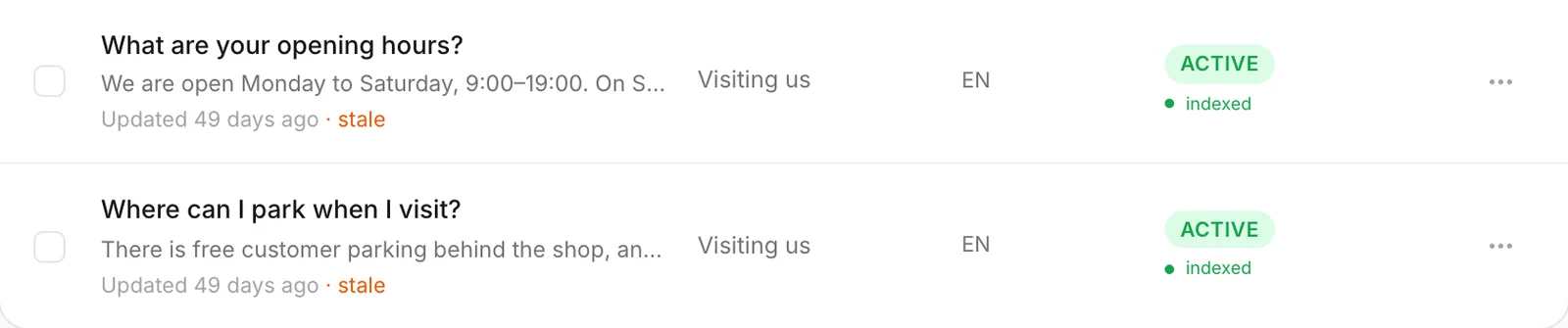
An Active FAQ that nobody has changed for 30 days gets a stale mark next to its date. Nothing happens to it — the assistant keeps using it. The mark is a reminder to check that the answer is still true: prices change, opening hours change, offers end.
If the answer is still right, open it and click Save changes without changing anything. The mark goes away and the 30 days start again.
Find an FAQ
- Search looks through questions, answers and categories as you type.
- Filters narrow the list: All categories, All statuses and, once you have imported something, All sources (see Sources).
- The counter on the right shows how many FAQs match, out of how many you have.
The newest changes are at the top. If your business has more than 1,000 FAQs, the list shows the 1,000 most recently updated and says so above the list.
Change or delete many at once
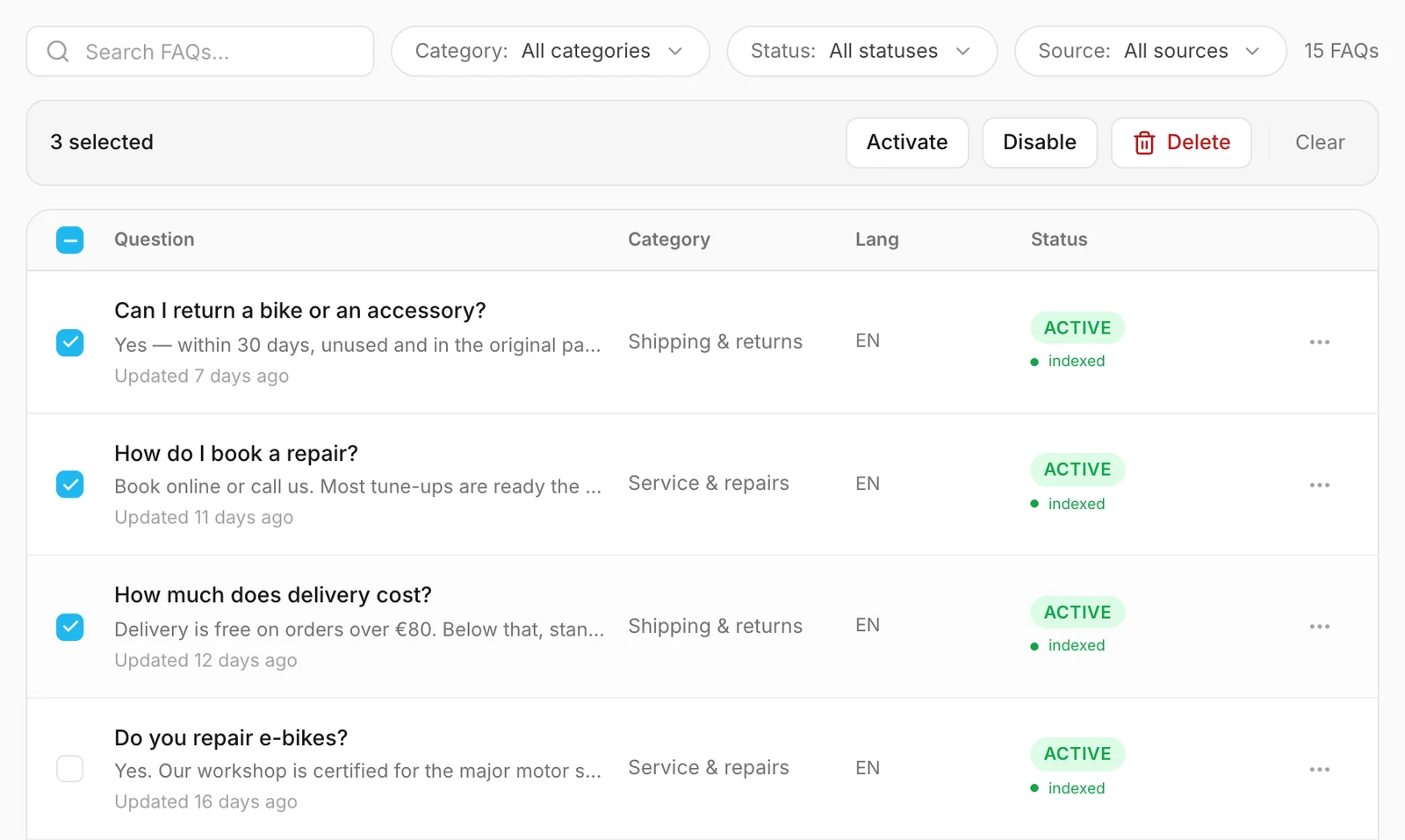
- Tick the box at the start of each FAQ you want — or the box in the header row to tick every FAQ in the list as it is filtered right now.
- A bar appears above the list with Activate, Disable and Delete.
- Click one. Clear unticks everything.
Changing the search or a filter unticks everything, so an action only ever reaches FAQs you can see.
Tip
To remove everything one upload or scan brought in, pick it in the All sources filter, tick the header box and click Delete.
Delete FAQs
Click ⋯ → Delete on a row, or select several and use the bar above the list. Konvuno asks you to confirm first.
Deleting is permanent — there is no bin to restore from. If you might need an answer again, choose Disable instead, or export your FAQs first as a backup.
How other businesses use it
- A bakery writes one FAQ per allergen question and uses the category "Allergens", so the whole group is one filter away when a recipe changes.
- A physiotherapy clinic disables its "Are you open in August?" FAQ during the holidays and sets it active again in September.
- A web agency keeps new service descriptions as drafts until the partner signs them off, then activates them all at once with a bulk action.
- A car rental company watches the stale marks every month, because its prices change with the season.