Select, delete and export leads
Select several leads at once, delete the ones you no longer need, and download your leads as a spreadsheet file.
The checkboxes on the Leads screen let you act on many leads at once — to clear out old ones, or to download exactly the leads you want to work on in a spreadsheet.
Select leads
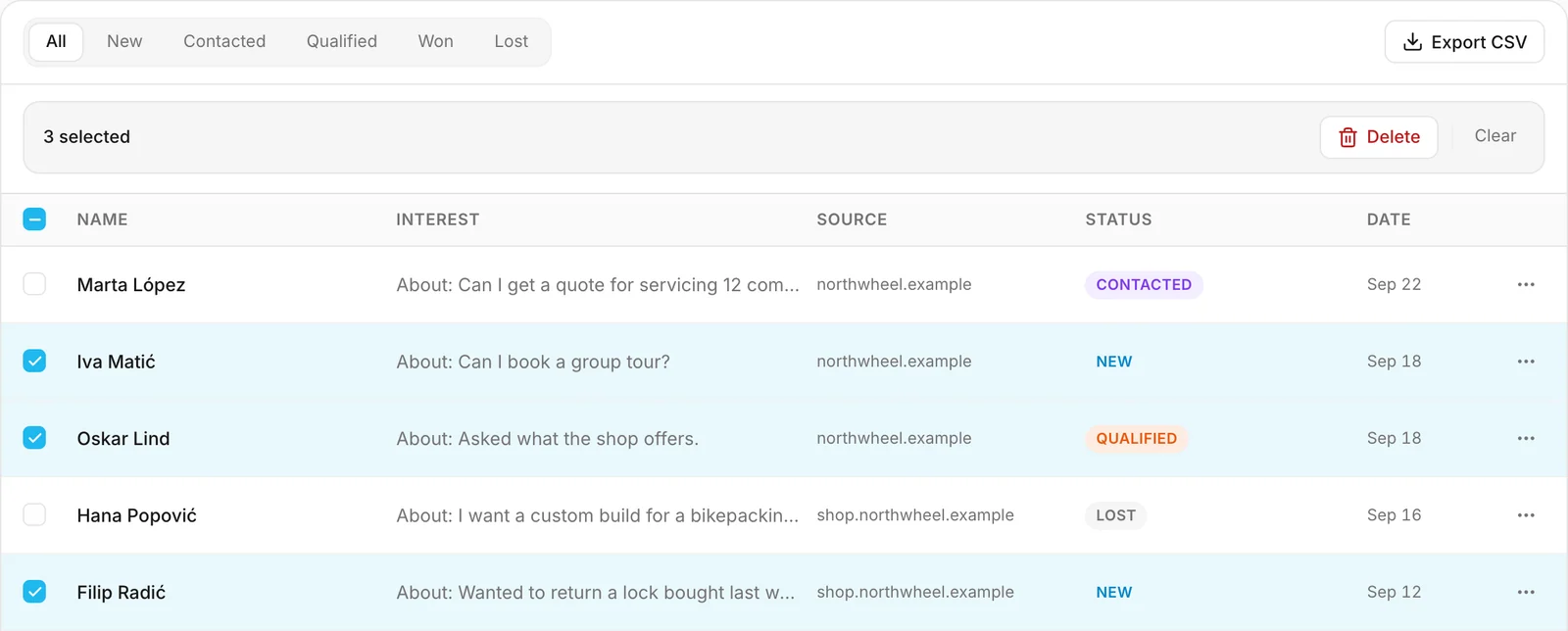
- Tick the box at the start of a row to select that lead.
- Tick the box in the header row to select every lead the list shows right now — with the status filter and the search you have applied. Tick it again to unselect them.
As soon as one lead is selected, a bar appears above the list with the number selected, Delete and Clear. Clear unselects everything.
Switching to another status or changing the search unselects everything, so a delete or an export only ever reaches leads you can see.
Delete several leads
- Select the leads you want to remove.
- Click Delete in the bar above the list.
- Check the number in the question, then confirm with Delete.
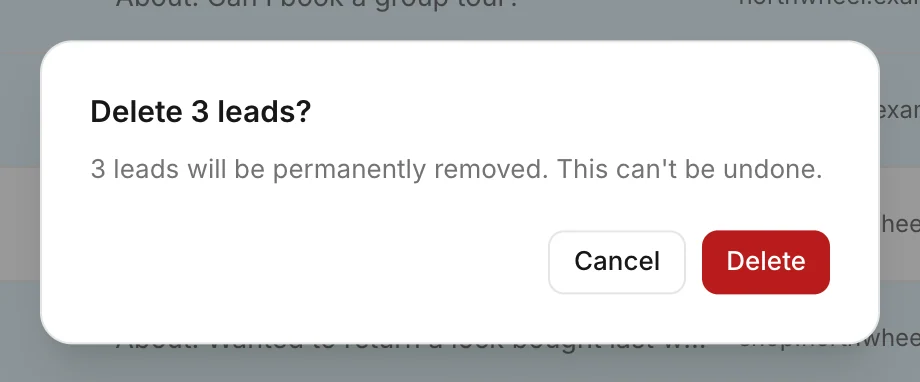
The leads are removed for good and cannot be brought back. The conversations they came from are not deleted. To delete a single lead, see Delete a lead.
Export leads to a spreadsheet
Click Export CSV above the list. Your browser downloads a CSV file — a simple
spreadsheet format — named with today's date, such as leads-2026-09-23.csv. It contains:
- the leads you selected, if you selected any — even ones the current filter hides; or
- every lead the list shows right now, with the current status filter and search, if you selected none.
Each row is one lead: name, email, phone, company, status, what they asked about, the website they came from, and when they arrived. Tags and internal notes are not included — for those, use Export everything, which the owner can run.
Good to know about the file:
- The column headings are always in English —
Name,Email,Phone,Company,Status,Interest,Source,Created— and so is the status:new,contacted,qualified,wonorlost, whatever language your dashboard is in. - The date and time are written in a fixed international format, in UTC.
- Google Sheets and Numbers open the file as it is, letters such as ć or é included. In Excel, double-clicking the file can put everything in one column when your computer uses semicolons between columns; open it through Data → From Text/CSV and choose Comma instead.
Note
The Leads screen lists your 500 most recent leads, so an export from it can contain at most those. An older lead still opens from its conversation's View lead. To download all of them, the owner can use Export everything.
Tip
Before you copy leads into a mailing tool, check what they agreed to. The consent text on your form covers being contacted about their request — not necessarily a newsletter. See Contact details and consent.
How other businesses use it
- A furniture shop filters Qualified, exports the list every Friday and gives it to the sales team for the weekend calls.
- A language school selects last year's Lost leads once the courses are over and deletes them together.
- A consultancy imports the export into its CRM once a month, then deletes the leads it has copied so nothing is handled twice.