Business context
The short description of your business the assistant keeps in mind for every answer — what to put in it, how to edit it, and how to review a new version after a website scan.
FAQs answer specific questions. The business context gives the assistant the bigger picture: what you do, who you do it for, what you offer and the rules you work by. The assistant reads it before every answer, so it can handle questions no FAQ covers — "what exactly do you do?", "do you work with small companies?", "are you the right place for…?".
Where to find it
The Business context strip sits at the top of the Knowledge screen, above your FAQs. It appears once you have at least one FAQ — or, before that, as soon as a website scan has written a business context for you to review.

It shows the beginning of the text and an Edit button. With no context at all, it says: Not set — the assistant only knows your FAQs and your catalog.
What to write
A few short, labelled paragraphs work best. Cover what applies to you:
- About — what your business is and does, where, and for whom.
- Products or services — the main ones, with prices or price ranges if you share them.
- Hours and area — when you are open, where you deliver or work.
- Policies — returns, cancellations, guarantees, payment.
- Contact — how customers reach you.
For example, a physiotherapy practice might write:
About: physiotherapy practice in the city centre with two therapists, for adults and teenagers.
Services: sports injuries, back and neck pain, rehabilitation after surgery. First visit 60 minutes, follow-ups 30 minutes.
Policies: appointments can be moved free of charge up to 24 hours before. We do not bill health insurers directly.
You have up to 4,000 characters.
Heads up
The assistant treats everything here as approved knowledge it may tell any visitor. Leave out internal notes and anything confidential, and keep it up to date — an old price here is repeated just as confidently as a correct one. If an FAQ and the context disagree, fix whichever is wrong.
Edit or clear it
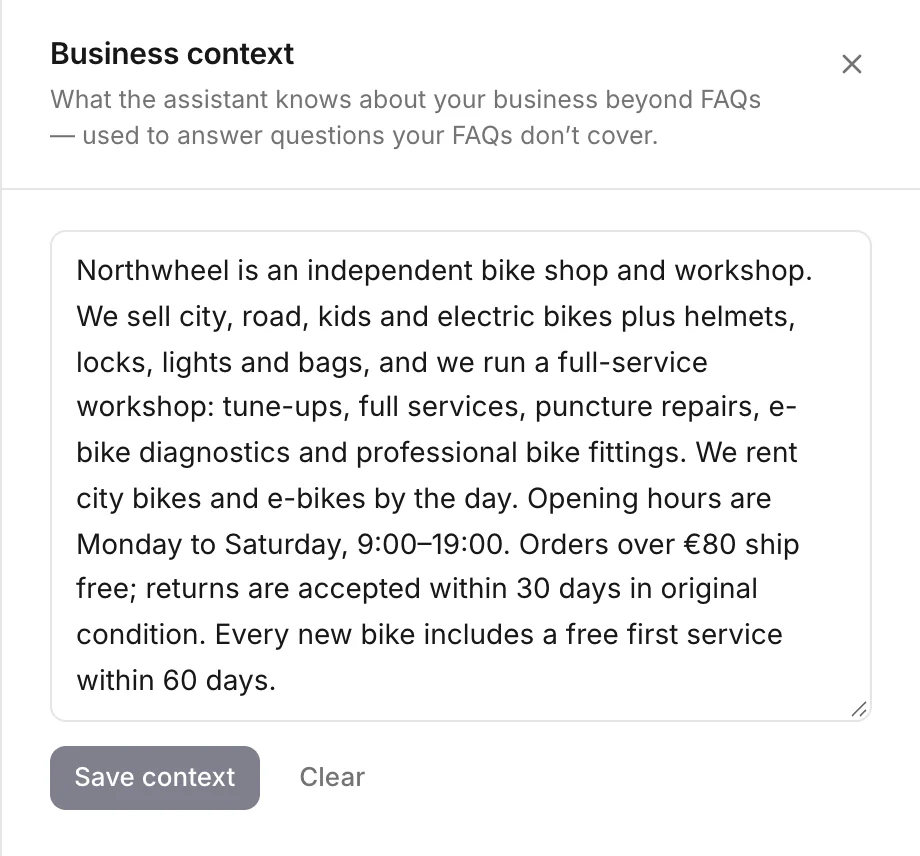
- Click Edit on the strip.
- Change the text.
- Click Save context. The button becomes available once you have changed something.
The new text applies to the very next question a visitor asks.
Clear removes the business context completely, so the assistant knows only your FAQs and your catalog. It happens at once, without asking — copy the text somewhere first if you might want it back. A later website scan can offer you a new one to review.
Review a new version after a scan
Every website scan writes a fresh business context from your pages. It never replaces yours by itself — including the very first one. Instead, the strip shows a Review new version button:

Click it to see both versions, one above the other:
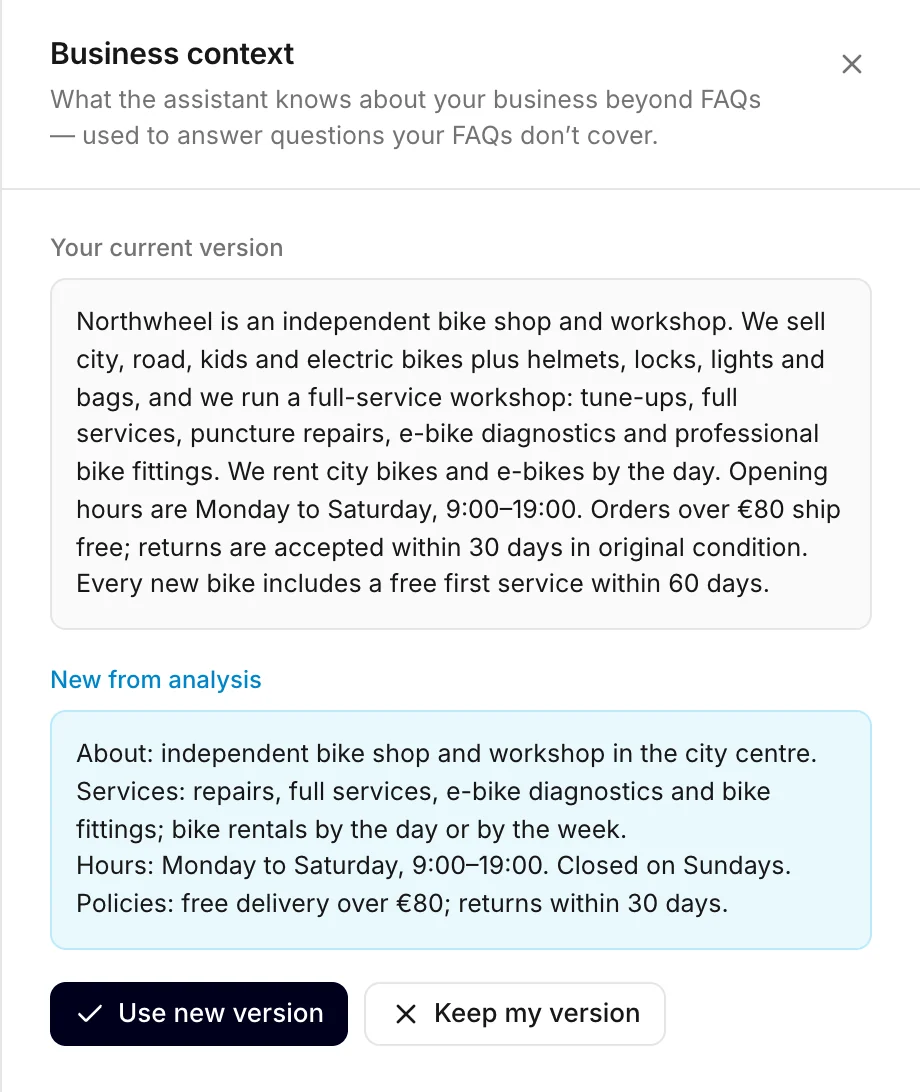
- Use new version replaces your text with the new one. It is live straight away.
- Keep my version throws the new version away and leaves yours as it was.
You can also decide on the scan's own results: the Business context card under the suggested FAQs shows the same draft, with Use this description and Edit first.
Want parts of both? Copy the lines you want from New from analysis, click Keep my version, then Edit and paste them in where they belong.
Tip
Always read a new version before you use it. Konvuno writes it only from what your pages say, but pages can be out of date — or carry text that was never meant for customers, such as a forgotten test page.
How other businesses use it
- A law firm lists its practice areas and adds "we do not handle criminal cases", so the assistant can tell visitors up front.
- A restaurant writes that it is family-run, seats 40, has a garden terrace and takes bookings for groups of up to 12.
- A software company describes each of its plans in one line and keeps the exact prices in its FAQs, where they are easier to update.
- A cleaning company names the neighbourhoods it covers, so "do you come to…?" gets a clear yes or no.