Behavior — tone, questions, contacts and privacy
Decide how the assistant talks, what it suggests, how visitors can reach you, what it may answer and where the widget stays hidden.
The Behavior tab controls how the assistant behaves in a conversation. It is the longest tab, so this page follows it from top to bottom.
Tone
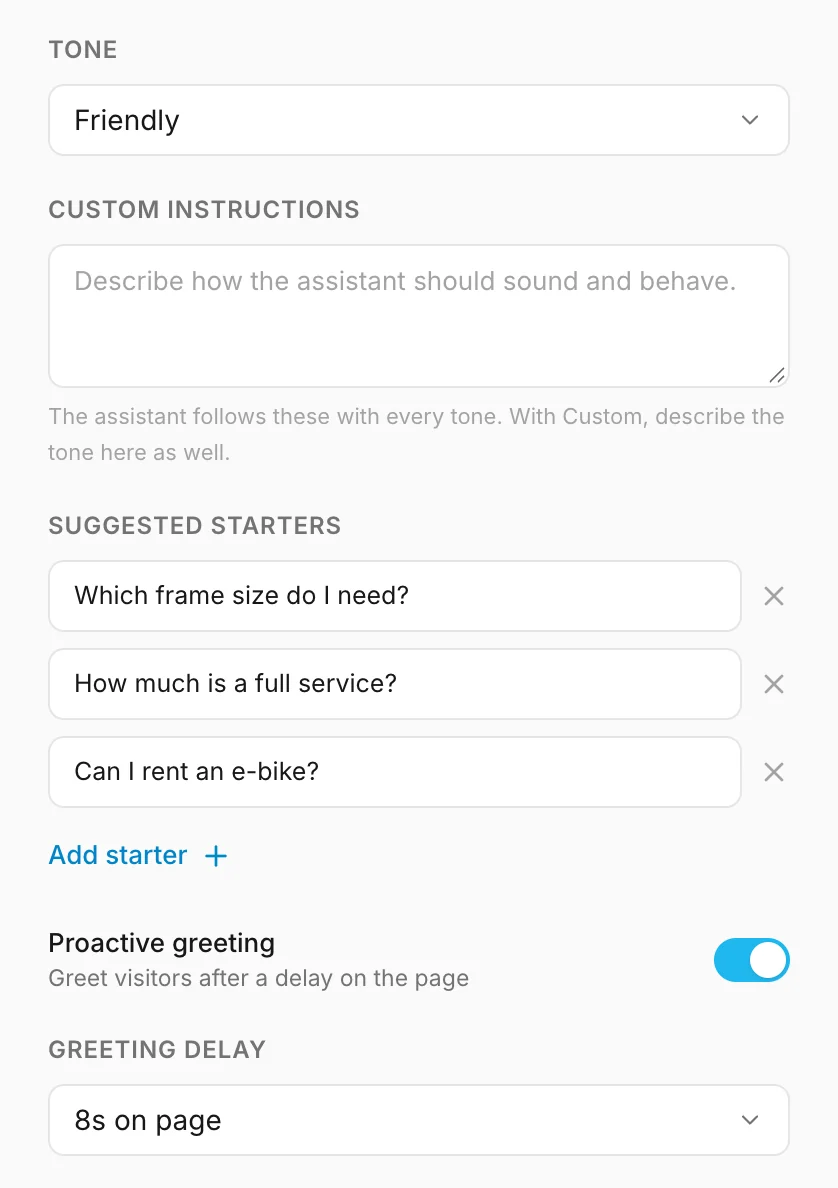
Tone sets how the assistant sounds: Professional, Friendly, Concise or Enthusiastic. Pick the one closest to how you would talk to a customer yourself.
Custom instructions (up to 1,000 characters) tells the assistant anything else about how to answer, and it applies whichever tone you pick. Choose Custom to describe the tone itself there too, in your own words. For example:
Speak like a friendly local shop assistant. Keep answers short. Always mention that the first service is free with every new bike.
To stop using your instructions, clear the box.
Suggested starters
Suggested starters are ready-made questions shown under the welcome message. A visitor taps one instead of typing, and they disappear once the visitor sends their first message.
- Click Add starter.
- Type a question the way a customer would ask it, up to 80 characters.
- Repeat for up to six questions. Remove one with the × next to it.
Good starters are the questions you hear most often — they show visitors, at a glance, what the assistant knows about.
Proactive greeting
Turn on Proactive greeting to invite visitors who have not opened the chat yet. After the Greeting delay you pick, a small bubble with your welcome message appears next to the launcher. It does not open the chat by itself — the visitor still decides.
A delay of 8–15 seconds catches people who are browsing without interrupting those who just arrived.
How visitors reach you
Some questions need a person — a quote, a booking, a complaint. When a visitor asks for one, the assistant offers two ways forward.
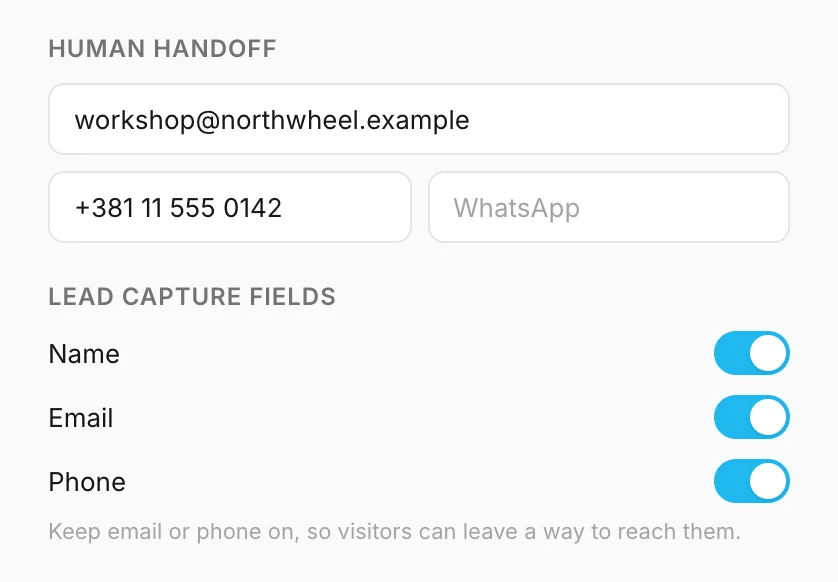
Human handoff — the direct contacts shown to the visitor. Fill in any of:
- an email address — opens the visitor's email app;
- a phone number — starts a call on a phone;
- a WhatsApp number — opens a WhatsApp chat. Write the full international number, such as +381 60 123 4567.
Only the channels you fill in are shown.
Lead capture fields — the form a visitor can fill in instead, so you can get back to them. Choose which fields it asks for: Name, Email and Phone. The form always has an optional message box too. Everything a visitor sends lands under Leads, and you get an email about it.
One of Email and Phone always stays on: the form needs one of them to know how to reach the visitor, so the last one on cannot be switched off.
Privacy and consent
The widget always shows visitors a short privacy notice at the top of the chat. Two settings add your own details to it:
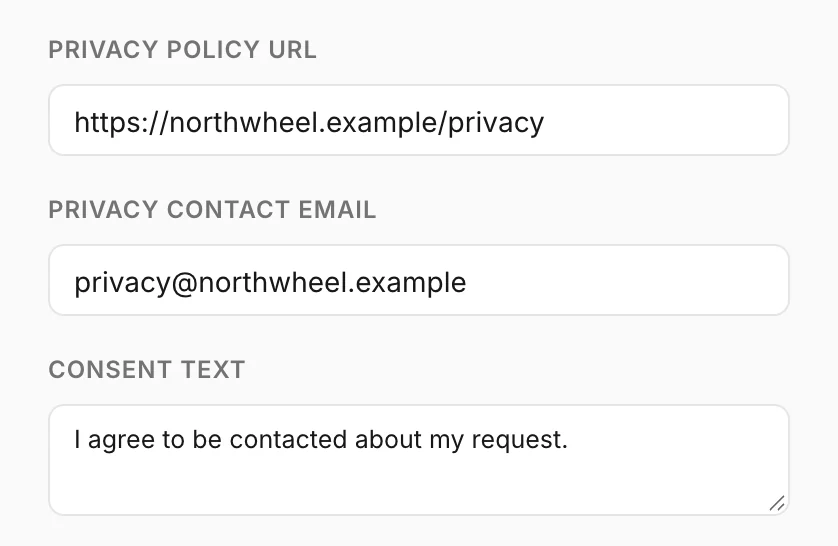
- Privacy policy URL — a link to your privacy policy. It must start with
https://orhttp://. - Privacy contact email — where visitors send privacy requests, such as asking to see or delete their data. If you leave it empty, the link points to Konvuno's support address instead, so fill in your own — the requests are about your customers.
Consent text is the checkbox a visitor must tick before sending the contact form, such as "I agree to be contacted about my request." The exact text is saved with every lead, so you can always show what someone agreed to. Leave it empty to remove the checkbox.
Note
Konvuno does not write your privacy policy for you. If you are not sure what yours must say, ask whoever advises you on data protection.
How the assistant answers
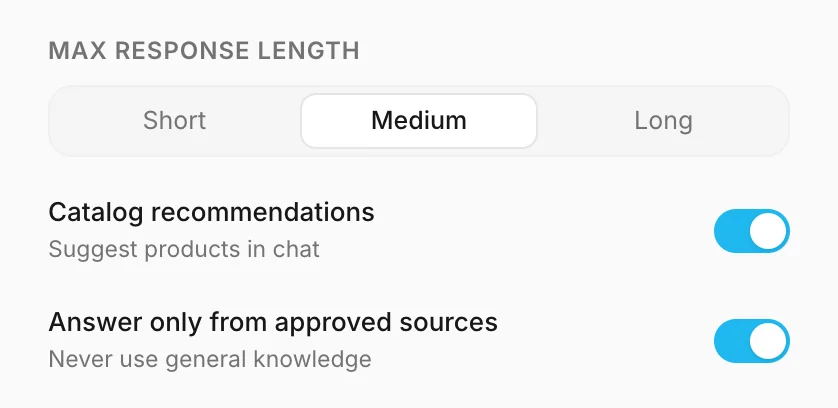
- Max response length — Short, Medium or Long. Short answers suit quick questions on a phone; long ones suit detailed products or services.
- Catalog recommendations — lets the assistant search your catalog and show product cards with a link to each product. It only works once you have items under Catalog.
- Answer only from approved sources — when on, the assistant only answers from what you approved: your FAQs, your business description and your catalog. When off, it may add careful general advice ("a helmet should sit level on your forehead"), but it still never makes up your prices, stock, opening hours, policies or contact details.
Tip
Keep Answer only from approved sources on at first. Once you have read a few weeks of conversations under Conversations, you will know whether general advice would help your visitors.
Hide the widget on some pages
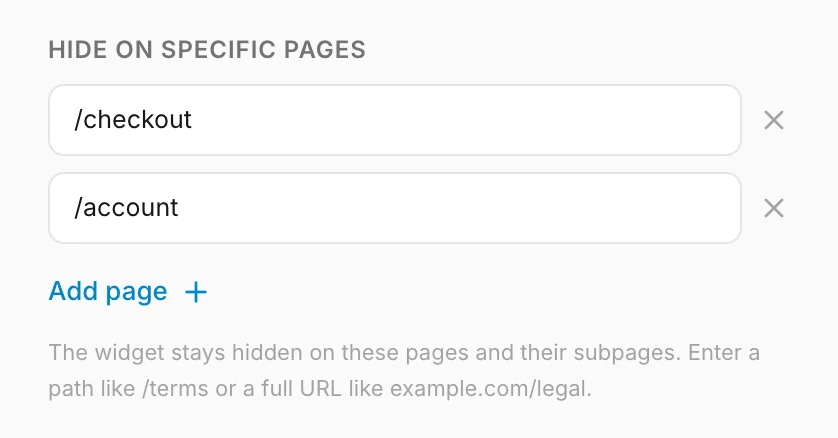
Hide on specific pages keeps the widget off pages where it would get in the way — a checkout, a customer account, a legal page. Click Add page and enter a page, up to 20 of them.
| You enter | The widget is hidden on |
|---|---|
/checkout |
/checkout and every page under it, such as /checkout/pay |
/legal |
/legal and /legal/privacy — but not /legalese |
shop.example.com/cart |
/cart and the pages under it, on that one website only |
example.com |
the whole of that website |
Capital letters, anything after a ? and a trailing / do not matter.
How other businesses use it
- A beauty salon picks the Friendly tone, adds "How much is a gel manicure?" as a starter and gives its booking phone number for hand-off.
- A tax advisor keeps Answer only from approved sources on, so the assistant never gives general tax advice, and asks every lead for a phone number.
- A furniture shop turns on catalog recommendations and hides the widget on
/checkout.