Import FAQs from your website
Let Konvuno read your website and suggest FAQs, pick the ones that are right, and know what to do when a scan does not work.
The fastest way to a well-informed assistant is to let Konvuno read your website. It goes through your public pages, writes questions and answers from what they say, and shows them to you as suggestions. You tick the ones that are right, and they go live.
A scan also drafts your business context — a short description of your business the assistant keeps in mind for every answer.
Start a scan
A business with no FAQs yet sees an invitation to scan right on the Knowledge screen:

Otherwise, click Add knowledge → Import from website.
- Type your website's address, such as
example.com— no need forhttps://. - Click Analyze website (on the empty screen) or Analyze.
- Wait while Konvuno reads your site. Crawling up to 20 pages for business details and FAQ candidates. This can take a minute.
You can leave the page while the scan runs — it carries on without you. While it reads, Knowledge in the sidebar shows a small spinner. When it is done, a message tells you, with a Review button, and a dot stays on Knowledge until you have looked at the results. Only one scan runs at a time.
Note
If you entered your website's address when you created your business, Konvuno started a scan right then and took you straight to it.
Review the suggestions
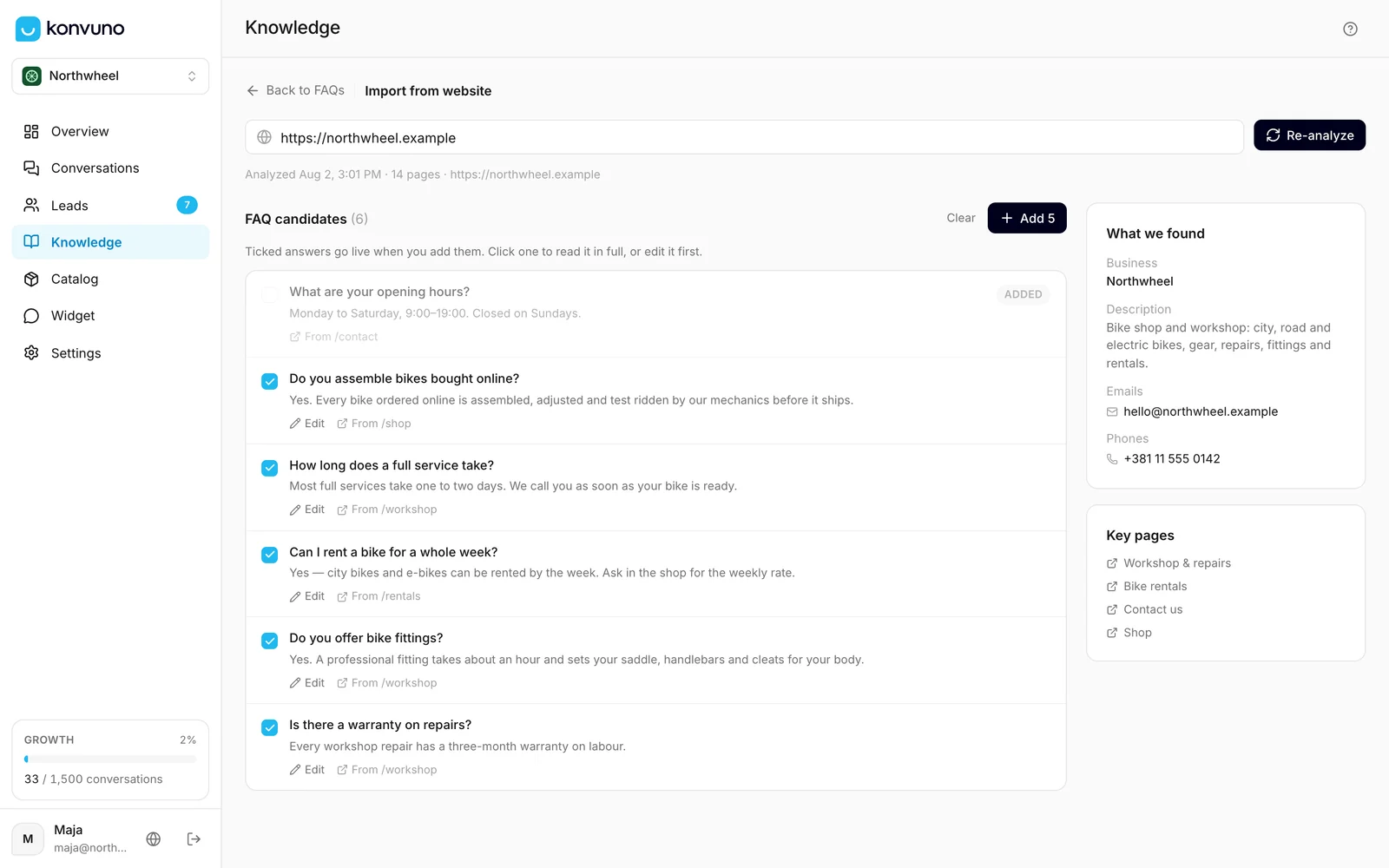
The results show FAQ candidates on the left and What we found on the right.
- Every suggestion starts ticked. Click one — or Show full answer — to read the whole answer, and untick those you do not want. Select all and Clear tick or untick them all.
- To correct a suggestion before it goes live, click Edit under it, change the question or the answer, and click Save. It is marked Edited, and your version is the one that is added.
- The line under each suggestion also names the page it was written from; click it to open that page.
- A greyed-out suggestion marked added is already one of your FAQs, so it cannot be added twice.
- Click the Add button — it shows how many suggestions you ticked.
You are taken back to your FAQ list, where the new FAQs are waiting. The message says whether they are answering visitors already, or will once your widget is published.
What an imported FAQ looks like:
- It is Active straight away — your ticks are the review, so read the answers before you add them. You can edit or disable any of them afterwards.
- It has no category, and it is labelled with the language your website declares for its pages. A site that declares none gets your dashboard language. Neither changes the answers; edit them if you like a tidy list.
- It belongs to a Website source named after your address. Scan the same address again and the new FAQs join that source instead of starting a second one. See Sources.
Tip
Konvuno writes the answers only from what your pages say — but your pages may be out of date. If a suggestion has an old price or old opening hours, correct it with Edit before you add it, or leave it out and write that FAQ yourself.
What we found lists the business name, description, email addresses and phone numbers Konvuno found, plus the most useful pages under Key pages. If your business profile has no support email or phone yet, Add to business profile saves the first ones found there — the assistant gives visitors the contact details in your profile. Nothing already in your profile is replaced. To also show them as buttons in the chat, add them to the widget's contact options.
What the scan reads
The scan starts at the address you enter and follows links to other pages of the same website,
looking first at pages such as "about", "services", "prices", "contact" and "FAQ" — named in any
of the dashboard's languages, so cjenik, ueber-uns or chi-siamo count too. It cannot read:
- pages that need a login, such as a customer account;
- other websites and subdomains — if your prices are on
shop.example.com, scan that address separately; - text inside images or PDF files, such as a menu or a price list uploaded as a PDF;
- text that only appears after the page has loaded in the browser. Some website builders work this way, and a scan of such a site finds little or nothing.
If a scan finds few suggestions, add the rest by hand or from a spreadsheet.
Your business context
Every scan also writes a new business context. It never replaces yours on its own: a Business context card under the suggestions shows the draft. Use this description switches it on, and Edit first opens it in the editor. If you already have one, Compare with yours shows both. The same draft also waits behind the Review new version button above your FAQ list. See Review a new version after a scan.
Scan again
After you change your website, click Re-analyze to scan it again. The new results replace the previous suggestions, and anything you already added is marked added. Every scan counts as a scan, whether it finds anything or not.
Free scans without a plan
Without a subscription, your business can run three scans for free. The page shows how many are left, such as "2 of 3 free scans left". A scan that fails counts too, because the work was done — except one that stopped before it finished (see below). When they are used up, the page says:
You've used all your free website scans. Upgrade your plan to scan again.
With a subscription you can scan again whenever your website changes. There is a daily limit that normal use never reaches; if you do reach it, the page says "You've reached the daily limit for website scans. Please try again tomorrow." See pricing for the plans.
Tip
Konvuno checks that what you typed looks like a website address, but it cannot tell whether it is your website. Check the spelling before you click — scanning someone else's site by mistake still uses a scan. When a scan cannot start, the message says why — a scan is already running ("A scan is already running for this business. Wait for it to finish."), scans are paused for a moment, or the address cannot be scanned. Nothing was scanned and nothing was used.
When a scan fails
If the scan could not finish, you see Analysis failed with the reason:
| The reason says | What to do |
|---|---|
| the website could not be reached | Check the address for typos and open it in your browser to make sure the site is online. |
| the website took too long to respond | Try again later — your site may be slow or busy right now. |
| the link is not a web page | Enter your homepage address rather than a link to a file or a download. |
| the website redirected too many times | Open your site in the browser and copy the exact address it ends up on. |
| the address cannot be scanned | Only public websites starting with http:// or https:// can be scanned. |
| the website returned an error, with a number | The page is missing (404) or blocked (403). A security service or firewall on your site may be blocking the scan — ask whoever runs your website, or add your FAQs from a spreadsheet instead. |
The analysis did not finish
Analysis didn't finish means the scan stopped without finishing. A slow website does not cause it: Konvuno waits for as long as a scan can run, which is half an hour. Click Try again to start a new scan.
A scan that stopped this way does not use up a free scan. The new try counts as one scan, like any other.
How other businesses use it
- A dental clinic scans its website and gets FAQs from its services and prices pages in a minute, then adds "Do you accept new patients?" by hand.
- A restaurant whose menu is a PDF gets only a few suggestions, so it types its dishes and allergens into a spreadsheet and uploads that instead.
- A software company scans
example.comand then its help centre onhelp.example.comseparately. - A hair salon unticks the suggestions with last year's prices and writes those FAQs again with the new ones.