The tour and the setup checklist
The short tour that shows you where to start, the checklist that tracks your setup, and the help menu that brings both back.
A new business gets two guides: a tour that walks you through the three screens to set up first, and a setup checklist on Overview that shows how far you are. The help menu at the top of every screen brings the tour back whenever you want it.
The tour
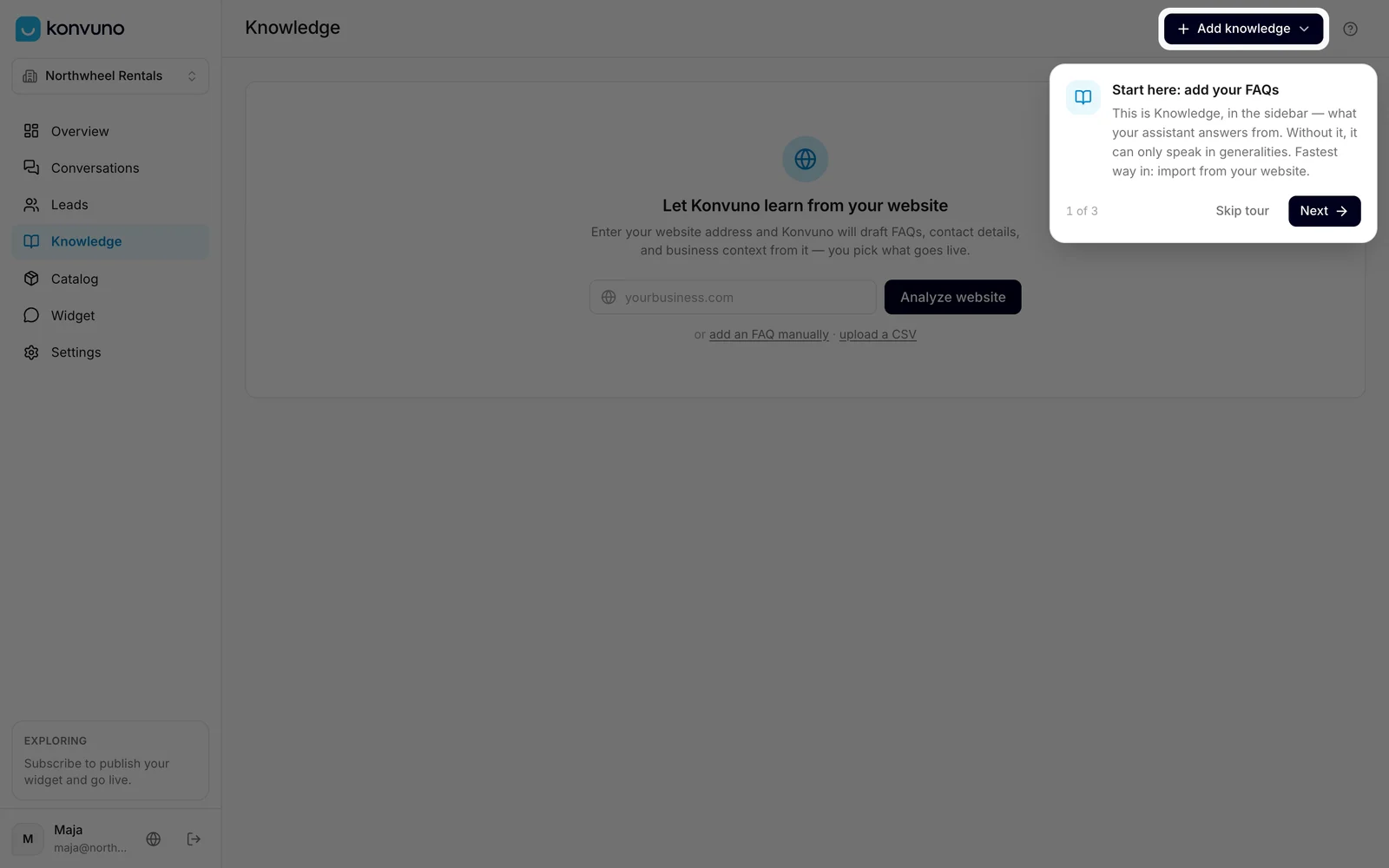
The tour opens by itself the first time you visit Overview in a business that is not live yet. It has three steps, each on the real screen, with the part to look at highlighted:
- Knowledge — where you add the questions and answers the assistant answers from.
- Catalog — where you list your products or services, so the assistant can recommend them.
- Widget — where you give the chat your colours, logo and greeting.
Click Next and Back to move through it. After the last step a closing card sums up what to do next; Got it closes it. On a keyboard, the arrow keys move between steps and Esc skips the rest of the tour.
The tour never locks the screen: you can click the highlighted button, type into a field or open another page while it is showing.
Two things keep it from opening by itself. It waits while a scan of your website is still running or waiting for you to review it — its first step would take you past it. And someone who has already taken the tour in another of their businesses is not shown it again when they add one.
Skip it, and take it again later
Click Skip tour whenever you like. Skipped or finished, the tour does not open by itself again for that business. To see it again, open the help menu and choose Take the tour, or click Take the tour on the setup checklist.
Note
The tour remembers you have seen it in this browser. If you open Konvuno on another computer before your business is set up, it may offer itself once more — skip it there too.
The setup checklist
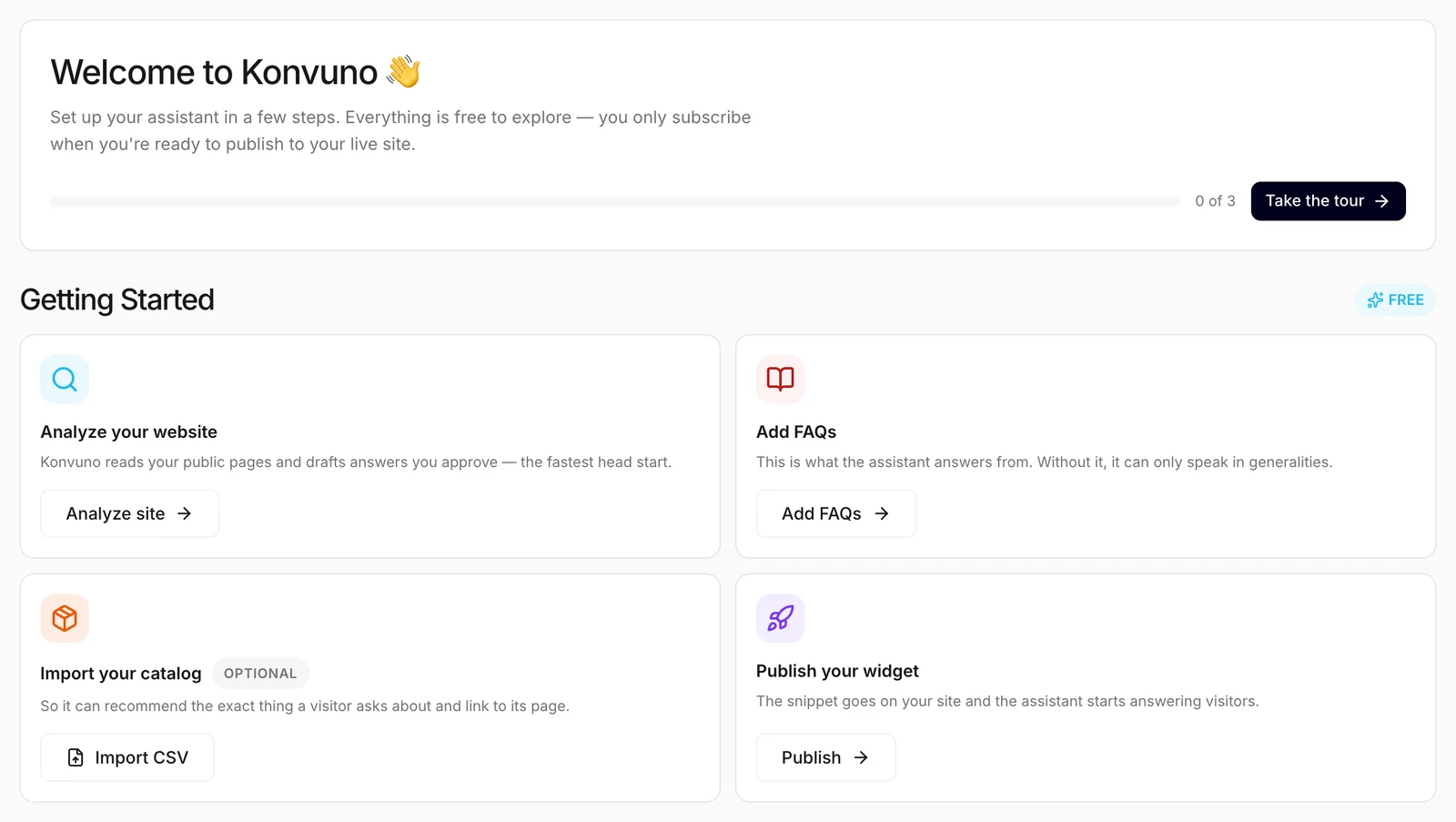
Until your widget is live, Overview shows a checklist instead of statistics. Each card takes you to the screen where the step is done, and ticks itself off as soon as it is:
| Card | Done when |
|---|---|
| Analyze your website | a scan of your website has finished and you have looked at what it found |
| Add FAQs | your business has at least one Active FAQ — drafts and disabled ones do not answer visitors, so they do not count |
| Import your catalog | your catalog has at least one product or service that is not archived |
| Publish your widget | the widget is published |
The Analyze your website card also follows the scan itself: it says when your site is still being read, how many suggested answers are waiting for you, or that the site could not be read, and its button takes you straight there.
Import your catalog is marked Optional: not every business sells products, so it does not count toward the progress bar. The other three do.
Once you publish the widget, the checklist makes way for your statistics: visitors, answered questions and leads. Publishing needs a subscription — until then you can do everything else on the list for free. See Go live in 15 minutes for the whole path.
The help menu
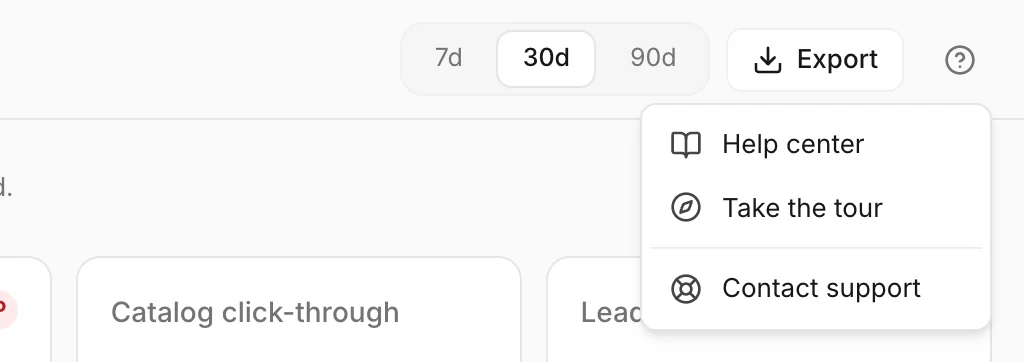
The question mark at the top right of every screen opens the help menu:
- Help center opens this help center in a new tab, at the page about the screen you are on.
- Take the tour starts the tour from the beginning.
- Contact support opens a form to write to us. See Contact support.
Owners and members see the same tour, checklist and help menu.
How other businesses use it
- A yoga studio owner follows the tour on day one, then uses the checklist over the next evenings to finish one card at a time.
- An IT services company skips the tour, and a new colleague takes it from the help menu a month later to learn the dashboard.
- A florist that sells only in the shop leaves the optional catalog card open and goes live with FAQs alone.