Missing answers and knowledge health
See which visitor questions your knowledge does not answer yet, turn them into FAQs in a few clicks, and check how much of your knowledge is ready to use.
The right-hand column of the Knowledge screen tells you what to do next: which questions your visitors ask that you have no answer for, and whether your FAQs are ready to use.
Missing answers
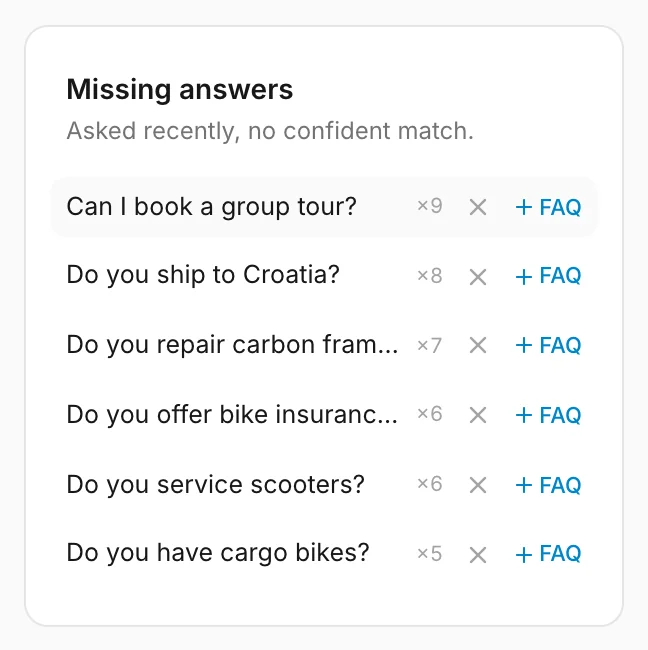
Missing answers lists questions from real conversations that the
assistant could not match to any of your FAQs or catalog items. The most-asked come first: ×8
means eight visitors asked it — or one visitor on several days. The list shows the six questions
asked most often; when you deal with one, the next moves up.
Each question appears exactly as the visitor typed it — in their language, sometimes with typos. Questions that differ only in capital letters or spaces count as one, and answering or dismissing it clears every way it was written.
What lands here, and what does not:
- A question the assistant answered from your business context is listed. The visitor got an answer, but an FAQ would give a more precise one.
- A question the assistant passed on to you as a hand-off request is not listed — a person is already taking care of it.
- Your own test chats in the widget's test mode, off-topic requests the assistant declined, and spam are left out.
- The same visitor asking the same question twice in a day counts once.
Overview lists these questions too, for the period you pick — see Questions without an FAQ.
Turn a question into an FAQ
- Click FAQ next to the question.
- The FAQ form opens with the question filled in and Status set to Active. Tidy up the wording if you like.
- Write the answer.
- Click Add FAQ.
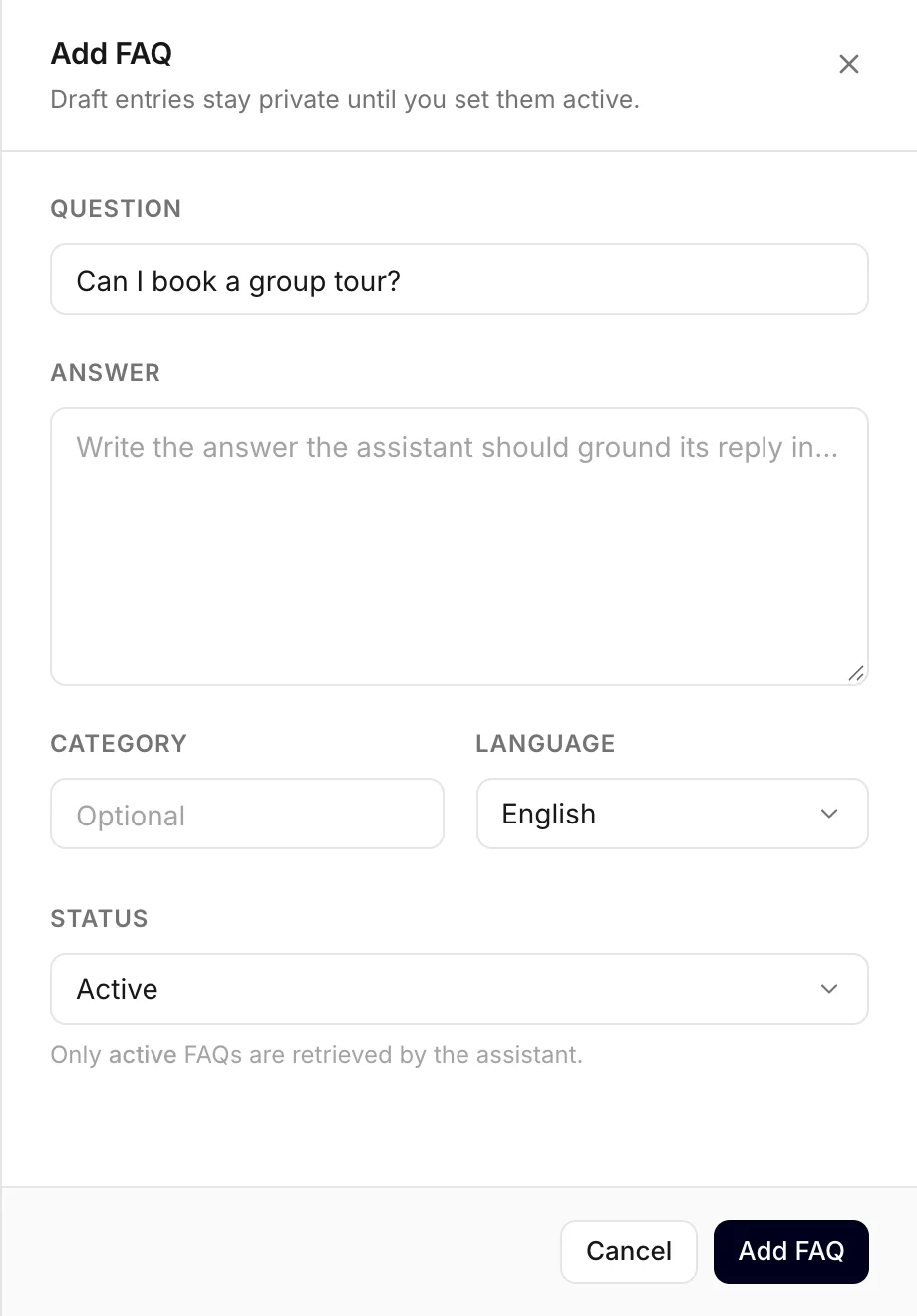
The question leaves the list as soon as you save, because the assistant can now answer it.
If you switch the status to Draft to finish the answer later, the question stays on the list until you set that FAQ live — a draft does not answer visitors.
Dismiss a question
Some questions you will never answer: something you do not offer, a joke, a one-off. Click the × next to the question. It is removed from the list; if a visitor asks it again later, it comes back.
Knowledge health
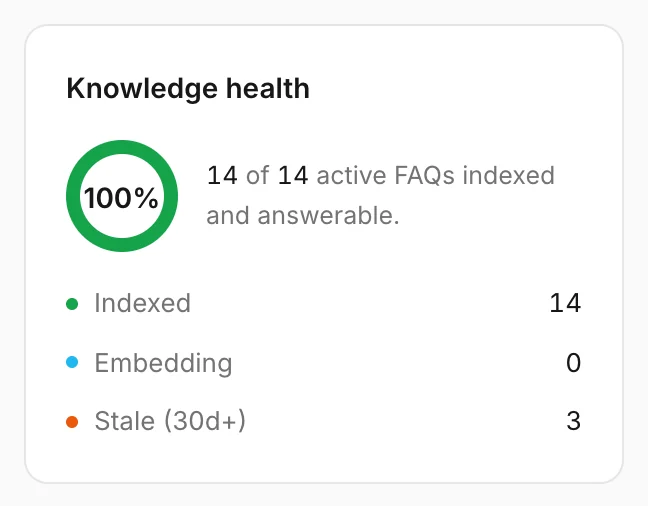
Knowledge health is a quick check of how ready your FAQs are.
The card counts only your Active FAQs — the ones the assistant answers from. Drafts and disabled FAQs are left out, so keeping some on purpose does not lower the numbers. When you have FAQs but none of them is active yet, the card says so instead.
- The percentage — how many of your active FAQs the assistant can use right now, because they are indexed.
- Indexed — active FAQs ready to be found.
- Embedding — active FAQs still being indexed, usually for a few minutes after you add or change them.
- Stale (30d+) — active FAQs nobody has changed for 30 days. Worth a quick check; see Stale answers.
- Failed — only shown when an active FAQ could not be indexed. See Indexing for how to fix it.
A ten-minute weekly routine
- Answer the top two or three Missing answers with new FAQs, and dismiss the ones you will never answer.
- Open the stale FAQs and check they are still true.
- Ask the assistant your new questions in the widget's test mode.
How other businesses use it
- A hotel sees "Can I bring my dog?" asked twelve times in a week and adds an FAQ with its pet policy and the extra charge.
- A pharmacy dismisses "Can I order prescription medicines online?" — its business context already explains that it cannot, and the assistant says so.
- An IT support firm finds visitors asking in German and English, and writes its new FAQ in the language most of them use.
- A yoga studio notices its percentage fall after adding ten draft class descriptions, and activates them once the new timetable is final.