Save, publish and take offline
How drafts work, how to put your changes on your website, how to undo them, and how to take the widget offline.
Nothing you change on the Widget screen reaches your website until you publish it. The buttons at the top of the screen control that.

What the status means
| Status | What it means |
|---|---|
| Draft — not published | The widget has never been published, or it was taken offline. Visitors see nothing. |
| Draft · unpublished changes | The widget is live, and you have changes your visitors do not see yet. |
| Published · live | Your website shows exactly what you see here. |
On a phone there is no room for the status: the ⋯ button next to Publish carries a dot — green when the widget is live and unchanged, orange otherwise. It opens a menu that names the status and holds Discard changes and Unpublish.
Save a draft
Click Save draft to keep your changes without publishing them. The draft is stored in this browser — it waits for you when you come back, but it is not shared with your teammates, and a different computer or browser will not see it.
Heads up
Changes are not saved automatically. If you leave the page without clicking Save draft or Publish, they are lost.
Publish
When you are happy with the preview, click Publish. You do not need to save a draft first.
- Your website picks up the new version on the next page load. Allow up to five minutes — browsers and networks keep a copy of the old one for a short while.
- Only the owner of the business can publish. For a member the button is disabled.
- Publishing needs an active subscription. Without one the button stays disabled and says "Subscribe to publish your widget and go live."
- If no domain is allowed yet, you get a reminder instead of the usual confirmation: the widget shows on no website until you add one. See Allow your domain.
Each publish replaces the previous version. There is no version history to go back to, so if you want to keep an old set-up, note it down before you change it.
Undo your changes
While the widget is live, Discard changes throws away everything you changed since the last publish and brings back the published version. It happens immediately, without asking — use it when an experiment did not work out.
A warning about an older draft
If you saved a draft and someone published a newer version since — for example, a colleague on another computer — you see a warning when you open the screen. Publishing your draft would overwrite their newer version. Click Discard changes to load the live version instead, or publish if your draft is the one you want.
Take the widget offline
To remove the widget from your website without deleting anything:
- Click Unpublish.
- Confirm with Take offline.
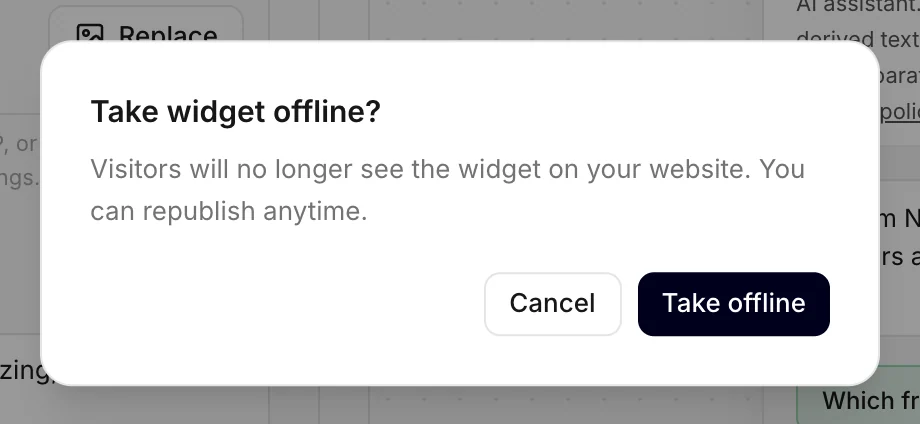
The widget disappears from your website on the next page load. Your settings are kept as a draft, so clicking Publish later brings it back exactly as it was. Only the owner can take the widget offline.
Note
The snippet can stay on your website while the widget is offline — it simply shows nothing. You do not have to remove it.
"Powered by Konvuno"
On some plans the chat shows a small "Powered by Konvuno" line at the bottom. It depends on your plan, not on a setting — see pricing for which plans leave it out. The preview shows it exactly when your website does.
How other businesses use it
- A shop preparing a winter sale saves the new greeting as a draft on Friday and publishes it on Monday morning.
- A clinic that closes for August takes the widget offline and publishes it again when it reopens — with every setting intact.
- A team of two agrees that one person publishes, so drafts on different laptops never overwrite each other.