What your visitors see
The chat from your customer's side — from the button in the corner of your website to an answer, a product card or a message to your team.
Everything you set up on the Widget screen ends up in front of your visitors. This section follows one visitor through a conversation, so you know exactly what your customers get when they click the chat on your website.
The pictures show the real widget on a demo business's website, exactly as a visitor sees it.
A visitor's journey
- A visitor opens a page of your website. A round button — the launcher — appears in the corner.
- If you turned on the proactive greeting, a short invitation pops up next to it after a few seconds.
- The visitor clicks the launcher. The chat opens with your welcome message and your suggested questions.
- They ask a question and get an answer from what you taught Konvuno — with links, and with product cards if you sell something. See How answers look.
- If they need a person, the assistant offers your contact form and your direct contacts. See Contact form and hand-off.
- You read the conversation under Conversations, and any contact details they left under Leads.
The launcher
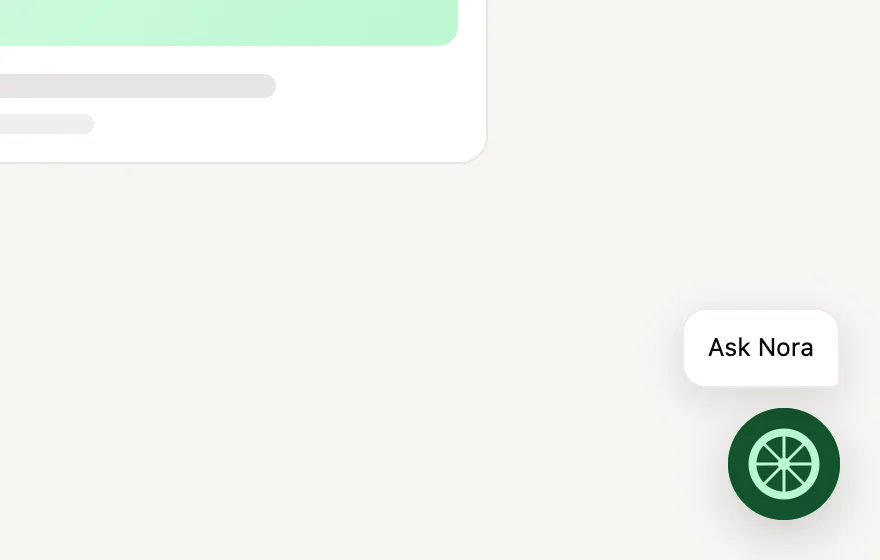
The launcher sits in the same corner of every page, on top of your website's content. It shows your logo on your brand colour, or the Konvuno mark if you have not uploaded a logo.
If you wrote a launcher text, it appears in a small speech bubble next to the button. Clicking the bubble opens the chat too, so the whole invitation is one big target.
You choose the corner and the text under Appearance, and the logo under Identity.
The proactive greeting
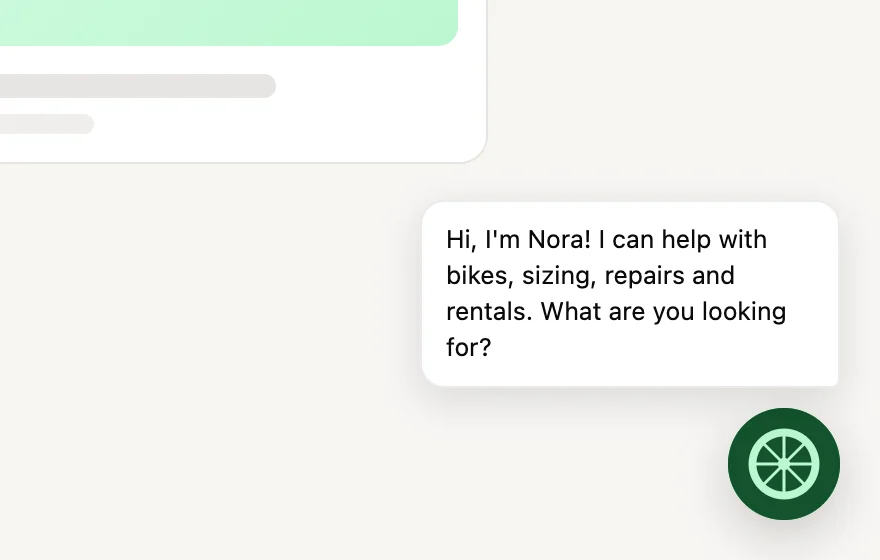
With the proactive greeting on, the speech bubble changes after the delay you picked: it now shows the start of your welcome message, in place of the launcher text. If you have no welcome message, it shows your launcher text or the assistant's name instead.
The greeting never opens the chat by itself — the visitor still decides. If the chat is already open when the delay runs out, the greeting is skipped.
The chat panel
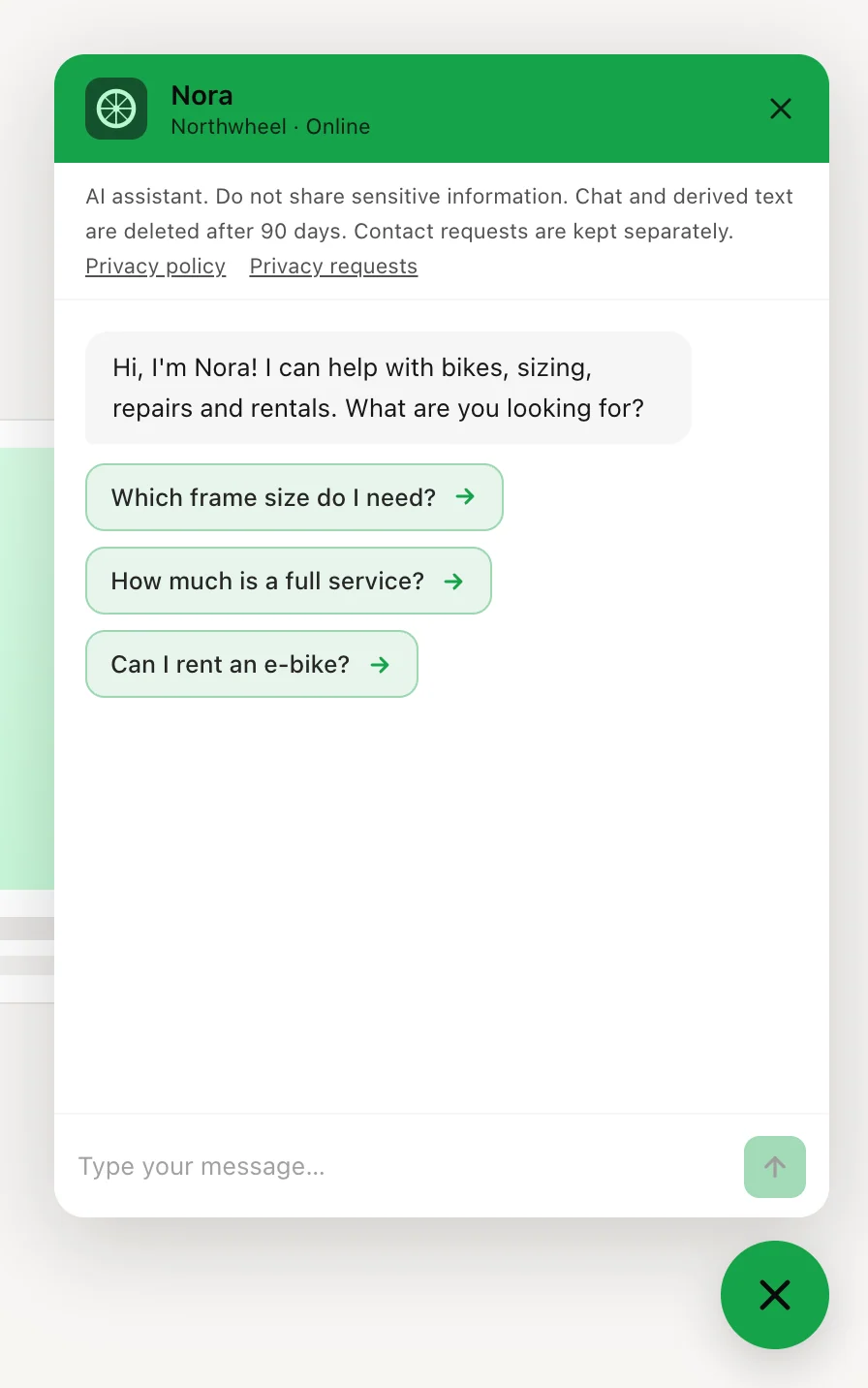
When the visitor clicks the launcher, the chat panel opens above it and the launcher turns into a × that closes it again. From top to bottom, the panel shows:
- The header — your logo, the assistant's name, and your business name followed by
Online
. The × on the right closes the chat. - The privacy notice — always there, in every conversation. See Privacy notice and consent.
- Your welcome message — the first bubble of every new conversation.
- Your suggested starters — ready-made questions the visitor can tap instead of typing.
- The message box, which reads
Type your message…
until the visitor types. Enter sends the message; Shift and Enter together start a new line.
On a computer the panel floats above the launcher, in the size you picked under Appearance. On a phone it fills the whole screen — see On phones. On some plans a small "Powered by Konvuno" line appears at the bottom; see Save, publish and take offline.
Closing the chat does not end the conversation. When the visitor opens it again, the same conversation is still there — see How long a conversation is remembered.
Where the widget does not appear
- On pages you hid it from. The pages you listed under Hide on specific pages show no launcher at all. If a visitor moves to one of them while chatting, the chat closes — the conversation is waiting for them when they are back on a page with the widget.
- Anywhere, if something is not set up. A widget that is not published, or a website that is not on your allowed domains, shows nothing. See The widget does not show on my website.
Tip
The quickest way to see all of this for yourself is the Test mode on the Widget screen: it runs the real widget, with your settings, without counting toward your plan. See Preview and test.
How other businesses use it
- A yoga studio uses the launcher text "Find your class" and a welcome message that lists what the assistant knows: timetable, prices and the first free lesson.
- A car repair garage turns on the proactive greeting with a 10-second delay, so visitors comparing service prices are invited to ask for a quote.
- A dental clinic writes a welcome message that also says what the assistant cannot do: "I can answer questions about treatments, prices and opening hours — for appointments, please call us."
- An online bookshop hides the widget on its checkout pages, so nothing distracts from paying.