Billing and usage
Choose a plan, understand what counts as a conversation, see what happens at your limit, and change plan, card or cancel through Stripe.
Billing & usage shows your plan and how much of it you have used this month. Payments run through Stripe, a payment provider: Konvuno never sees or stores your card details.
Only an owner can subscribe, change the plan, update the card or cancel. Members see the plan and the usage, but not the buttons.
For what each plan includes and costs, see pricing.
Before you subscribe
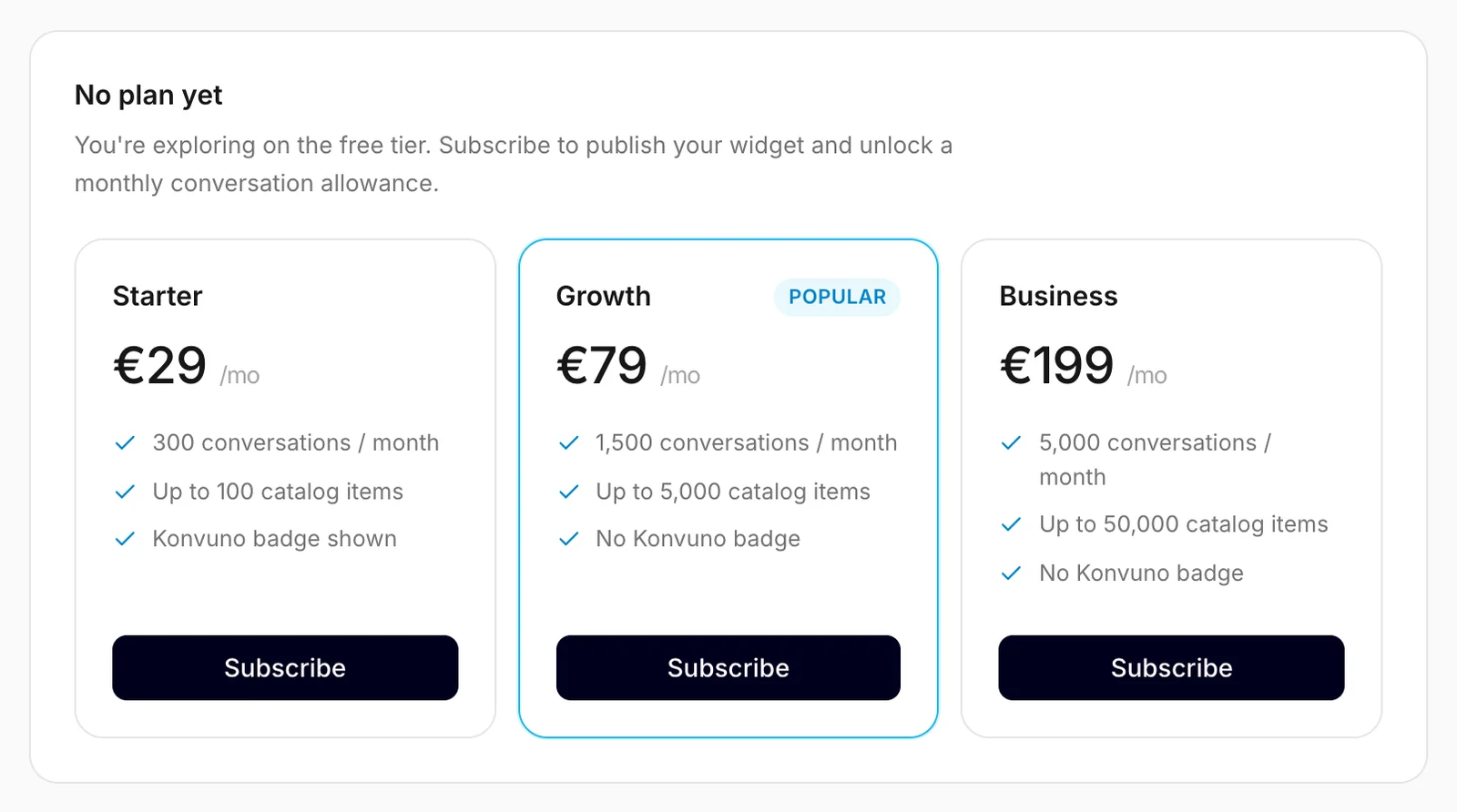
You can set up Konvuno completely without a plan: teach it your FAQs (with three free website scans), add up to 100 catalog items, design the widget and chat with it in the preview — you get 10 free test conversations. A plan is what lets you publish the widget on your website.
A member sees "Ask a business owner to choose a plan." instead of the plans.
Choose a plan
- Click Subscribe on the plan you want.
- Stripe's secure payment page opens. Enter your card and billing address. If you have a VAT number or a promotion code, you can add it there too.
- After paying you come back to Billing & usage, which shows "Activating your plan…" for a few seconds, then "Your plan is active."
You also get a welcome email. From now on you can publish your widget.
Note
Stripe confirms the payment in the background. If it takes longer than usual, the card says "This is taking longer than usual." with a Refresh button. Wait a minute and click it — do not subscribe a second time.
Every business has its own plan. If you run several businesses in Konvuno, subscribe for each one you want to publish.
Your plan and usage
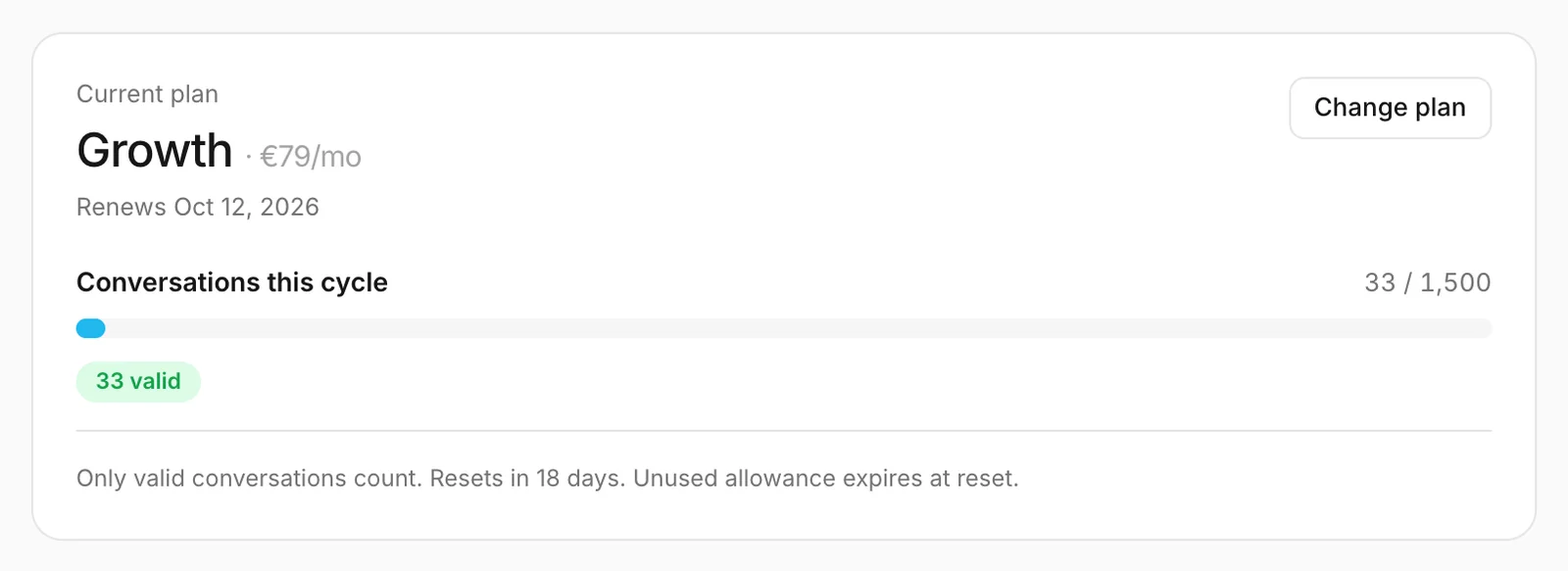
Once you have a plan, this card shows:
- the plan's name and monthly price, and the date it renews — or, when the subscription is cancelled, the date it ends. A member sees only when the current period ends, as only owners can see the subscription;
- Conversations this cycle — how many conversations you have used out of the ones your plan includes;
- how many of them were valid, and how many suspicious conversations were left out (they never count);
- when the count starts again. Only valid conversations count, and the ones you did not use expire at that point.
The small meter at the bottom of the sidebar shows the same count on every screen.
What counts as a conversation
A conversation is one visit's chat. When a visitor stops writing for 30 minutes, their next message starts a new conversation.
A conversation counts toward your plan once, the first time one of these happens:
- the assistant answers from your FAQs, your business description or your catalog;
- the assistant passes the visitor on to you — they asked for a person, or for something only you can do, such as a quote or a booking;
- the visitor sends you their contact details.
After that, every further message in the same conversation is free.
These never count:
- greetings and small talk without a real answer;
- off-topic questions the assistant declines;
- answers where the assistant says it does not know, if the visitor leaves no details;
- conversations Konvuno flags as suspicious — automated traffic, spam, attempts to trick the assistant;
- your own tests in the preview.
Tip
To see whether a conversation counted, open it under Conversations: one that counted carries Billed at the top, with the reason. A conversation can count without being Answered — when the visitor only left their details, for example.
When you reach your limit
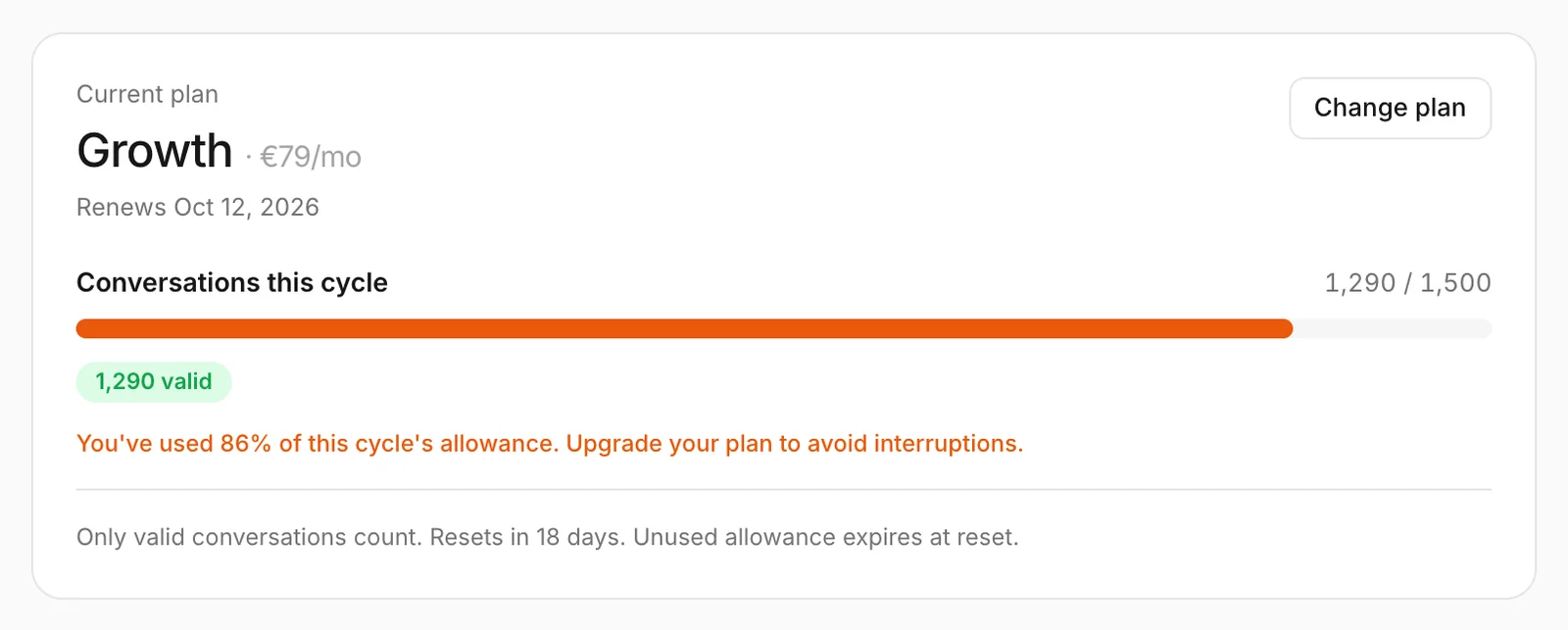
From 80% on, the usage bar turns orange and owners see how much is used, with a reminder to upgrade. When all of the month's conversations are used:
- New conversations pause. A visitor who
starts a chat sees
Our assistant isn't available right now. Leave your question and we'll get back to you.
- Conversations that already counted can carry on.
- Your widget stays on your website — you do not need to do anything to it.
Answers come back by themselves at the start of your next billing month, or straight away if you move to a bigger plan. Konvuno emails the account that registered the business as you get close to the limit and again when you reach it.
Change your plan
- Click Change plan.
- Stripe's billing page opens on the plan choice. Pick the new plan and confirm.
- Back in Konvuno, the card shows "Updating your plan…" until the change is through.
- Moving up applies straight away: you get the bigger allowance now, and Stripe charges the difference for the rest of the month.
- Moving down applies at the end of the month you already paid for. Until then, the card shows the plan you are moving to and the date.
Card, invoices and billing details
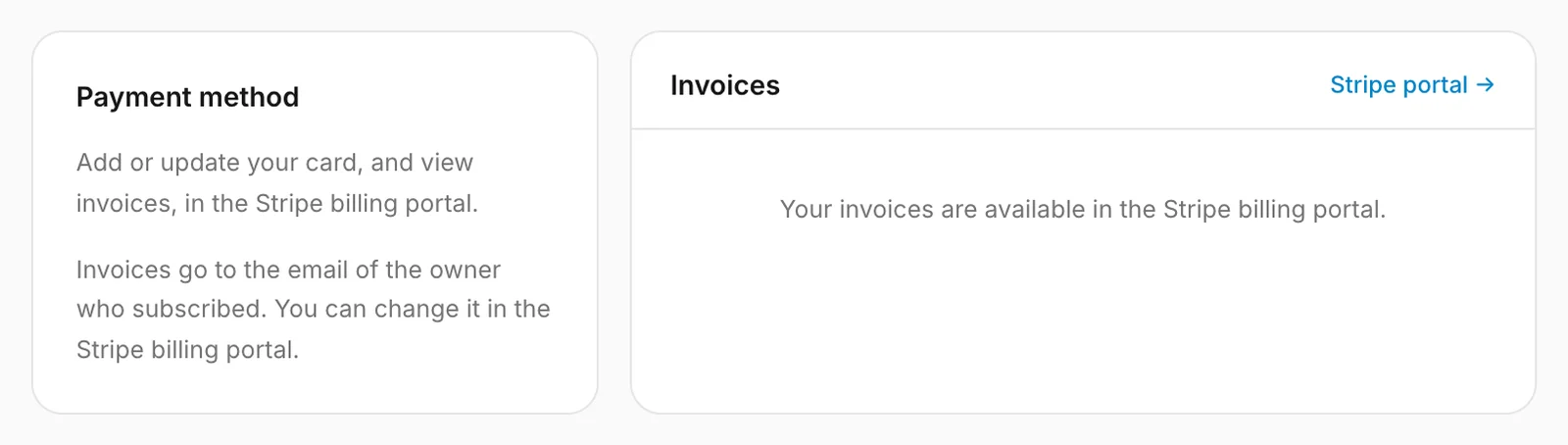
Manage in Stripe (top right) and Stripe portal both open Stripe's billing page, where an owner can:
- add or replace the card;
- download invoices and receipts;
- change the billing address, company name, VAT number or the email address invoices go to. Stripe sends invoices to the email of the owner who subscribed until you change it there.
When you are done, use the link on that page to return to Konvuno.
Cancel your subscription
- Click Manage in Stripe.
- On Stripe's page, choose to cancel the subscription and confirm.
Your plan stays active until the end of the month you already paid for; the date under the plan name changes from the renewal date to the day it ends. After that:
- the widget stays on your website but tells visitors it is unavailable;
- everything you set up — FAQs, catalog, widget, conversations and leads — is kept;
- you can subscribe again at any time, and the widget answers again straight away, without publishing it again.
To remove everything instead, see Delete a business.
If a payment fails

If Stripe cannot charge your card, a Payment failed banner appears at the top of Billing & usage with the date by which to fix it, and the account that registered the business gets an email.
- Click Update payment.
- Add a working card on Stripe's page. Stripe retries the payment.
Until that date your assistant keeps answering as normal. If the date passes without a successful payment, answers pause — visitors see the "unavailable" message — until the payment goes through.
If the subscription ends for good, the section shows Subscription inactive and the plans to choose from again. Your data is kept: subscribe again and the widget comes back without publishing it again.
How other businesses use it
- A seasonal ice-cream shop moves down to a smaller plan in October and back up in April.
- A law firm adds its VAT number and billing address in Stripe, so invoices go straight to the accountant.
- An online course creator gets the "almost at your limit" email during a launch week and upgrades the same day, so no visitor meets a paused chat.