Create your business
Name your business, let Konvuno read your website if you have one, and know what to expect on the first screens.
The first time you sign in, Konvuno asks you to create your business. It is your own workspace: everything you set up — answers, products, the widget, conversations and leads — belongs to it. It takes one screen.
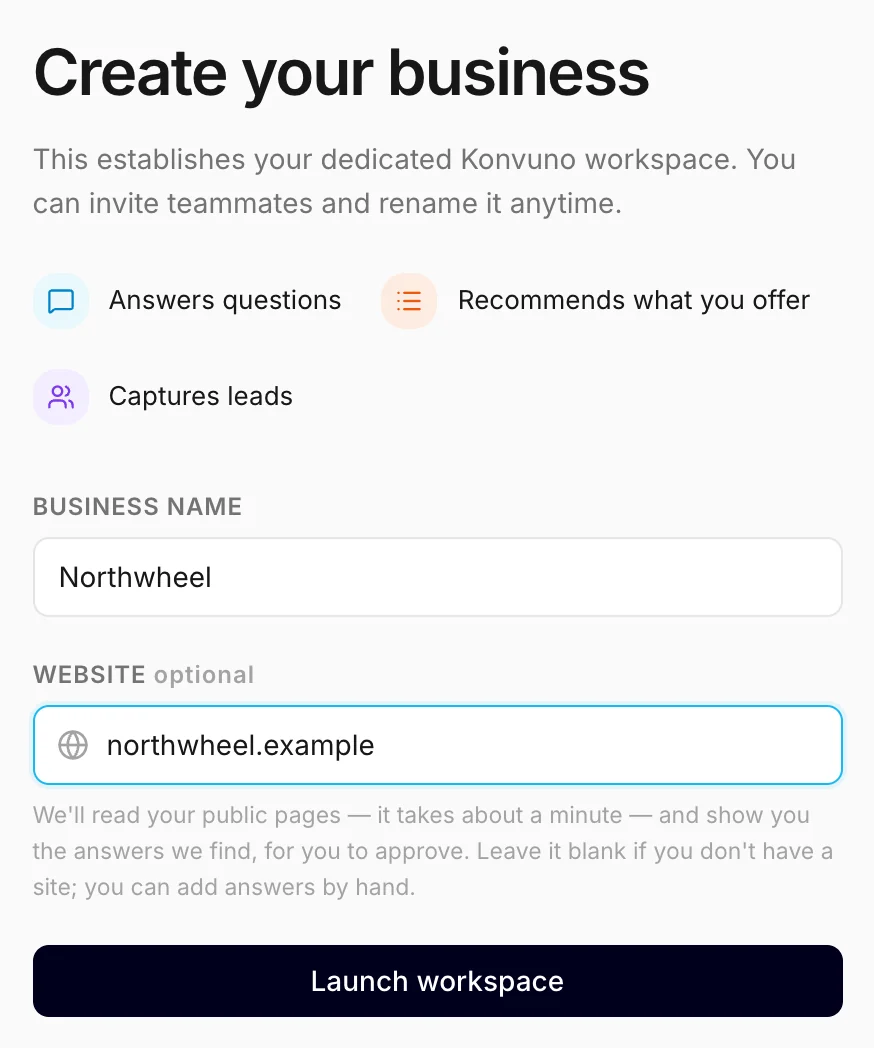
Business name
Type the name your customers know you by under Business name. It is shown to you in the dashboard, and the widget starts out with it as the business name visitors see. You can change it later in Settings — only the owner can.
Website (optional)
If your business has a website, type its address under Website, such
as yourbusiness.com — with or without https://. Konvuno then reads your public pages in the
background and drafts:
- questions and answers for your FAQ list,
- your contact details, and
- a short description of your business, which the assistant uses to answer questions your FAQs do not cover.
Nothing it drafts goes live until you have looked at it and approved it.
Konvuno also keeps the address: it becomes the website in your business profile, and its domain is added to the widget's allowed domains, so the widget will show on your site once you install it.
No website yet? Leave the field empty — that is all it takes to skip it. You can type your answers by hand, upload them from a file, or scan a website later under Knowledge.
Note
A business without a subscription can run a limited number of website scans, and this one counts. If the address is wrong, the scan fails and still counts — so check the spelling before you continue.
Launch your workspace
Click Launch workspace. Konvuno creates the business and makes you its owner. Where you land depends on the website field:
- With a website, you land on Knowledge, where Konvuno is reading your site. See below.
- Without one, you land on Overview, with a short tour of the three screens to set up first and a setup checklist that ticks itself off as you go.
Both are explained in The tour and the setup checklist. With a website, the tour waits until you have looked at what the scan found.
If you entered a website
The scan takes about a minute. You can watch it, or leave the screen and carry on: while it reads, Knowledge in the sidebar shows a small spinner and the setup checklist says how far it is. When it is done, a message tells you so, with a Review button.
Nothing the scan finds reaches your visitors until you approve it, all on one screen:
- Under FAQ candidates, read the suggested questions and answers. Click one to read the whole answer, or Edit to correct it first. Tick the ones you want and add them — they are live straight away. See Review the suggestions.
- Below them, the Business context card shows the description of your business that Konvuno drafted. Use this description switches it on; Edit first opens it in the editor. See Review a new version after a scan.
- If your pages list an email address or a phone number, Add to business profile under What we found saves them for the assistant to give visitors.
If the scan could not read your site, Knowledge says why, with your address already filled in, so you can fix it and try again. See When a scan fails.
Tip
Running more than one business, such as two shops or a shop and a café? Create the first one here, then add the others from the business switcher. See Several businesses.
How other businesses use it
- A dentist enters the practice website and gets draft answers about opening hours, insurance and emergency appointments to review.
- A new bakery without a website leaves the field empty and types its ten most common questions by hand.
- A consultancy with a one-page site enters it anyway — even a short page gives the assistant a first description of the business to work from.