Connect a product feed
Connect the Google Merchant or Facebook product feed your shop already publishes, so your catalog keeps up with your shop by itself.
Many online shops already publish a product feed: one address that lists every product with its price, stock and photo, made for Google Shopping or a Facebook and Instagram shop. Give that address to Konvuno, and your catalog follows your shop from then on — no plugin, no password, no permission to grant.
A feed works with almost any shop platform, which makes it the first thing to try if your shop is not on WooCommerce — or if the WooCommerce connection does not work on your shop.
Before you start
- You need to be the owner of the business in Konvuno, and have an active subscription.
- One shop can be connected at a time — a feed or WooCommerce.
- The feed must open in a browser without a login. Test it: paste the address into a new browser tab. You should see a long list of products (XML or CSV), not your shop's home page.
Find your feed's address
Look in your shop's admin for product feed, Google Shopping feed, Merchant Center feed
or Facebook catalog feed — it is often under marketing, sales channels or integrations. Some
platforms have one built in; on others, a feed plugin or app creates it. The address usually ends
in .xml, .csv, .tsv or .txt.
- WooCommerce — feed plugins such as Product Feed PRO or CTX Feed create a feed and show its address once you have set it up. You can also connect WooCommerce directly — see Connect your WooCommerce shop. In the plugin, turn on the option to include product variations: without it, a product with sizes or colours is left out of the feed altogether.
- Your shop already sends products to Google Merchant Center with a scheduled fetch — the address Google fetches is in that feed's settings in Merchant Center. That is the one to use.
- Your shop was built for you — ask whoever maintains it for the Google Merchant feed URL. Most shop systems can produce one.
Note
Some shops send products to Google or Facebook directly, without a feed address anyone else can read. If yours works that way, a feed plugin or app is the way to get one.
Connect the feed

- On the Catalog screen, under Sources, click Connect on the Product feed tile.
- Paste your feed's address.
- Click Connect.
Konvuno first reads the start of the feed to check that it really is a product feed. If it is, the connection is created and the first import starts: "Importing your catalog…" shows under the card, and a message tells you how many items were imported when it is done. A large shop can take a few minutes — you can leave the page meanwhile.
If the connection is refused, check that:
- the address opens a list of products in your browser, not your home page or a login screen;
- the feed actually has products in it;
- no other shop is connected to this business already.
Once it is connected
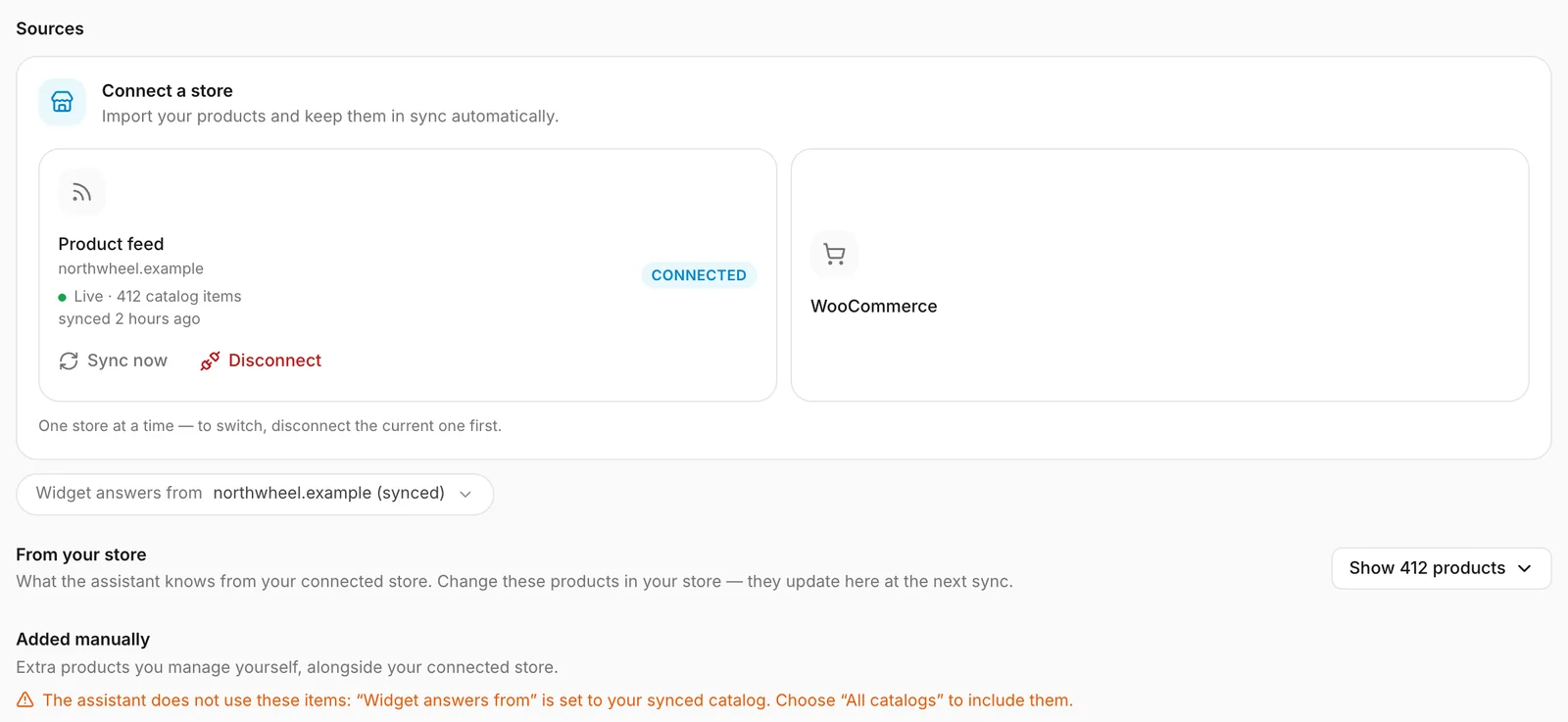
The Product feed tile now shows your shop's address, Connected, how many catalog items it holds, and when Konvuno last imported the whole feed. A green dot means the last read went well.
To see what the assistant knows from your shop, open From your store below the tile and click the button that shows how many products there are. The list is read-only and has its own search. You change your shop's products in your shop; the table further down, headed Added manually, is for items you add yourself. See Your shop's products in Konvuno.
After the first import, the assistant answers from your shop's catalog — or, if you already have items under Added manually, from both. See Which catalog the assistant answers from.
What Konvuno reads from the feed
- the title, description, brand and product type (as the category);
- the price, and the sale price while it is lower than the price;
- the availability — in stock, out of stock, preorder or backorder. Preorder and backorder count as available, because the visitor can still order. A product with no availability at all is treated as in stock, as Google does;
- the product link (without tracking tags such as
utm_source, so a visit from the chat is not counted as a Google Shopping visit) and main image; - size, colour and material, and the item group ID that joins the sizes and colours of one product together — the assistant then sees one product with several options. If the feed has no size or colour field, Konvuno takes each option from the variant's link, the way WooCommerce feed plugins write it, or from what the variant's title adds to the product's name.
Stock quantities are not read. Each option in the feed counts as one row toward your plan — see Items and your plan.
How it stays up to date
XML (Google Merchant, RSS, Atom) and CSV feeds are supported. Konvuno re-reads the feed a few times a day and only fetches it again when it has changed.
- A new product in your shop appears in Konvuno at the next read.
- A changed price or stock status is updated at the next read.
- A product that is no longer in the feed is removed from Konvuno at the next read.
A change reaches the assistant within a few hours. To bring one in straight away — say, after you fixed a price — an owner can click Sync now on the tile. See Sync now.
When something goes wrong
If a read fails — your shop was down, the feed moved, the plugin was switched off — the tile shows Error, and a Sync error box appears under the card, saying what went wrong — for example that the link is not a product feed, or that the address could not be read. Konvuno retries automatically every few hours. Your products stay in Konvuno as they were after the last good read, so the assistant keeps answering in the meantime.
Once you have fixed the cause, click Reconnect (owner only) to read the feed again straight away.
If your plan cannot hold everything in the feed, you see Catalog too large for your plan instead. Nothing is imported until it fits: upgrade under Settings, then click Retry import. See Items and your plan.
Change or disconnect the feed
To stop using the feed, click Disconnect on its tile and confirm. Only the owner can do this.
- Everything Konvuno imported from the feed is removed from your catalog. Items under Added manually stay, and the assistant goes back to answering from them.
- Nothing changes in your shop, and the feed itself keeps working for Google or Facebook.
To switch to a different feed address, disconnect first, then connect the new one. You can connect the same feed again at any time — it is imported afresh.
How other businesses use it
- A cosmetics shop on Shopify already had a feed app for Google Shopping, pasted its address, and had 800 products in Konvuno the same afternoon.
- An electronics retailer on a custom-built shop asked its web agency for the Merchant Center feed URL — a two-minute job for them.
- A bookshop on WooCommerce whose hosting blocks the WooCommerce connection uses a feed plugin instead.
- A sports shop lists its bike servicing by hand next to the feed, and sets the assistant to answer from All catalogs.