Members and roles
Invite your team, decide who is an owner, remove people or leave a business — and see exactly what owners and members can each do.
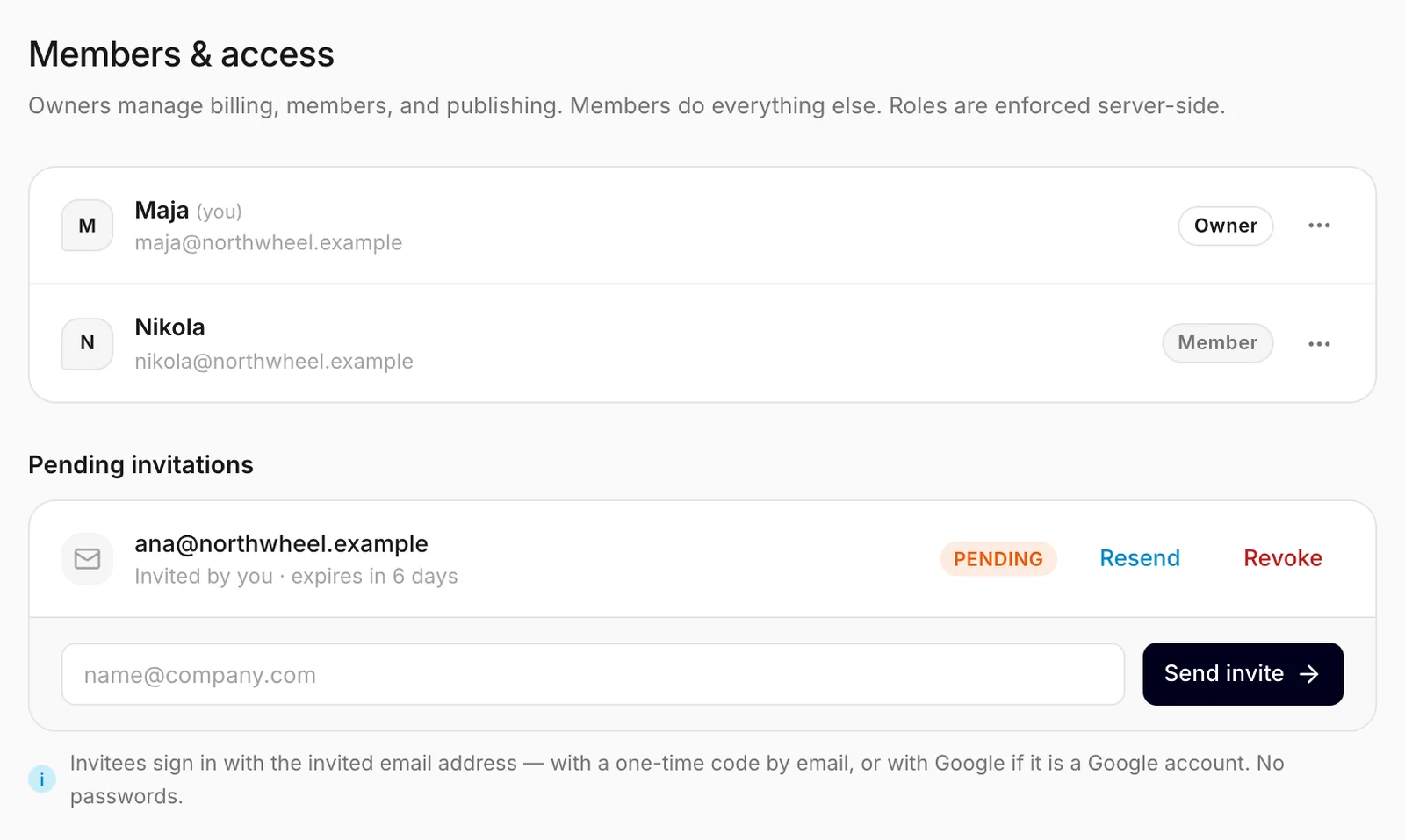
Members & access lists everyone who can sign in to this business, and the invitations still waiting for an answer. There is no limit on how many people you invite.
Owners and members
Every person on the team has one of two roles, shown next to their name:
- Owner — runs the business account: the plan and payment, the team, publishing the widget, exporting data and deleting the business. A business can have several owners, and always has at least one.
- Member — does the day-to-day work: FAQs, the catalog, the widget's settings, conversations and leads.
The person who creates a business is its first owner. Everyone you invite joins as a member; you can make them an owner afterwards.
Who can do what
| Action | Owner | Member |
|---|---|---|
| See every screen, including the Overview and the plan's usage | Yes | Yes |
| Add and edit FAQs, the business description, website scans | Yes | Yes |
| Add catalog items by hand or from a CSV file | Yes | Yes |
| Connect, reconnect or disconnect a store or product feed | Yes | No |
| Read and tag conversations; manage and delete leads | Yes | Yes |
| Change the widget's settings, save a draft, test it, manage allowed domains | Yes | Yes |
| Publish the widget or take it offline | Yes | No |
| Edit the business profile | Yes | Yes |
| Rename the business | Yes | No |
| Invite people, resend or revoke invitations | Yes | No |
| Change someone's role, remove someone | Yes | No |
| Leave the business | Yes* | Yes |
| Subscribe, change plan, update the card, cancel | Yes | No |
| Export all of the business's data | Yes | No |
| Delete the business | Yes | No |
| Delete your own account | Yes | Yes |
* As long as another owner stays behind.
These rules are checked by Konvuno's servers, not only hidden in the dashboard — a member cannot get around them.
Invite a teammate
Only an owner can invite.
- Under Pending invitations, type your teammate's email address in the box.
- Click Send invite.
- They get an email from Konvuno with a button to accept the invitation.
The invitation shows in the list with a PENDING badge until it is accepted. It is valid for seven days — the list shows how long is left.
Your teammate does not need a Konvuno account first. They click the button in the email and sign in with the same email address the invitation was sent to — with an email code, or with Google if that address is a Google account. Signing in with a different address does not work: Konvuno shows "This invitation was sent to a different email address. Sign in with the invited address to accept it."
Tip
Invite the address your teammate actually reads, such as their work email. A shared inbox like
info@ works too, but then everyone who can read that inbox can sign in.
Resend or revoke an invitation
Next to each pending invitation, an owner sees two buttons:
- Resend sends the same email again — useful when it landed in spam — and gives the invitation a fresh seven days.
- Revoke cancels the invitation, so its link stops working.
An invitation that has run out shows "expired". Click Resend to send it again with a new seven days. Typing the same address into the invite box does the same thing: Konvuno sends the invitation it already has instead of making a second one.
Change someone's role
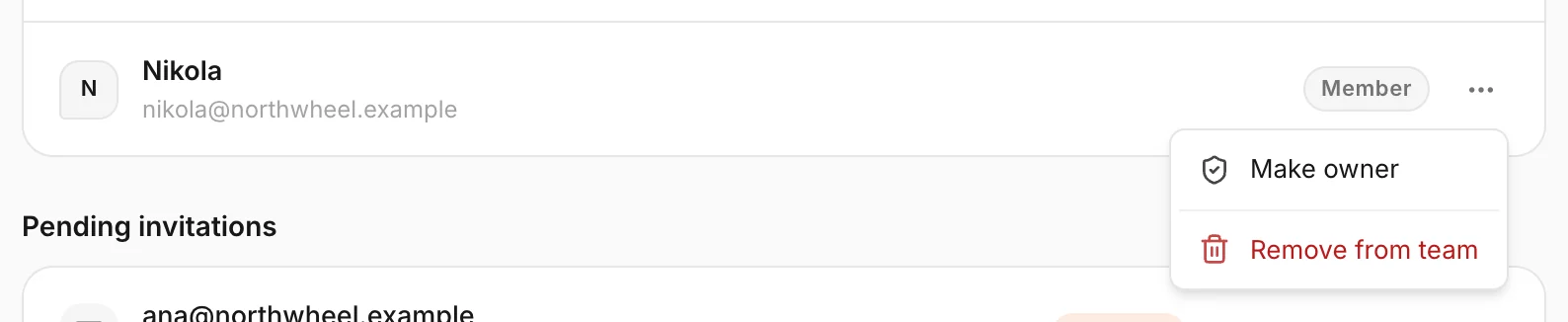
- Click ⋯ at the end of the person's row.
- Choose Make owner, or Change to member for an owner.
The change applies straight away. Only owners can change roles, and nobody can change their own role — ask another owner to do it.
Remove someone from the team
- Click ⋯ at the end of the person's row.
- Choose Remove from team.
- Confirm with Remove.
They lose access to this business immediately. Everything they did stays — their FAQs, notes and lead updates are part of the business. You can invite them again at any time.
Leave a business

- Click ⋯ on your own row (the one marked (you)).
- Choose Leave business.
- Confirm with Leave.
You lose access straight away and need a new invitation to come back. If this was your only business, Konvuno takes you to the screen for creating one.
Heads up
The last owner cannot leave — a business always needs one. Make someone else an owner first, or, if nobody should keep the business, delete it instead (see Delete a business).
What a member sees
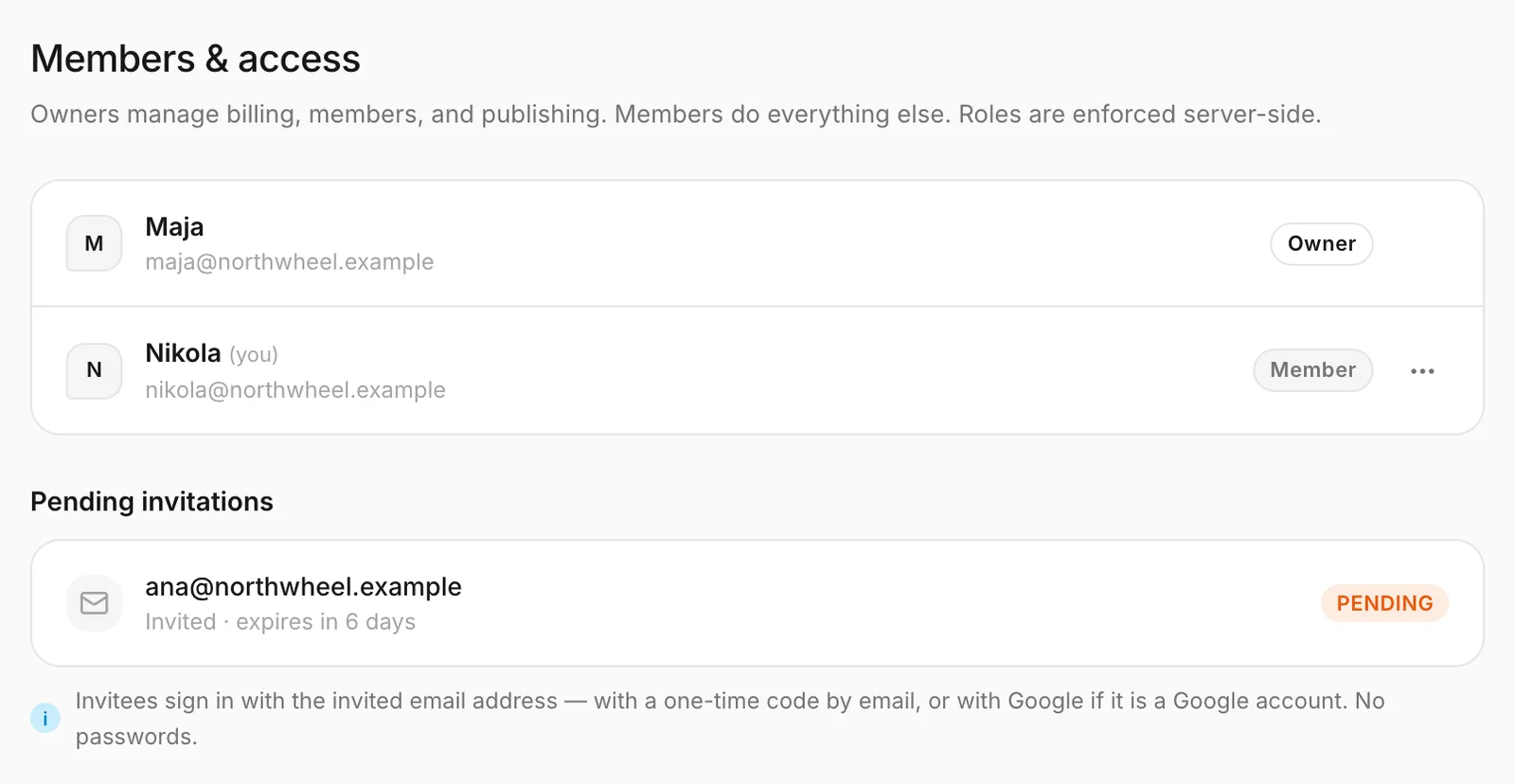
A member sees the whole team and the pending invitations, but not the buttons to manage them — with none pending, the box says "No pending invitations." The only thing in a member's menu is Leave business, on their own row.
How other businesses use it
- A dental practice makes the practice manager an owner, so billing does not depend on the dentist being available.
- A web agency is invited as a member by its client, builds the widget and the FAQs, and leaves publishing to the client.
- A shop removes a seasonal employee at the end of the summer — the FAQs they wrote stay.
- A consultancy revokes an invitation sent to a typo address and invites the right one.