Upload and export FAQs as a CSV file
Bring an FAQ list in from a spreadsheet, and download yours to edit, share or keep as a backup.
If your questions and answers already live in a spreadsheet, you do not have to type them again. Save the sheet as a CSV file and upload it. The same format works the other way round: export your FAQs, edit them in Excel, Numbers or Google Sheets, and bring them back.
Prepare your file
One row per FAQ, with a first row that names the columns:
| Column | Required | What goes in it |
|---|---|---|
question |
Yes | The question, the way a customer would ask it. |
answer |
Yes | The answer. |
category |
No | A label for your own sorting, such as Delivery. |
language |
No | A two-letter code: en, sr, hr, de, es, fr or it. Leave it empty to use the default language you pick when uploading. |
For example:
question,answer,category,language
Do you deliver on weekends?,"Yes, on Saturdays between 9:00 and 14:00.",Delivery,en
Can I pay by invoice?,"Yes, for business customers.",Payments,en
Good to know:
- The columns can be in any order, and they may have other names — Konvuno recognises
questionandanswerin English and in the dashboard's other languages, and you can match any column by hand while uploading. - Commas, semicolons and tabs between the columns all work, so a file from any spreadsheet program is fine.
- An answer that contains a comma must sit in quotes, as in the example. Spreadsheet programs do this for you when they save the file.
- Save the file as CSV UTF-8 (Excel lists it under that name). Otherwise letters such as č, ß or é, and the € sign, can arrive garbled.
- The language can also be written out or as a longer code —
Croatian,Deutsch,sr-Latnall work. A value Konvuno does not recognise gets the default language you pick when uploading. The language is only a label and does not change the answers.
Upload the file
- Click Add knowledge → Bulk upload.
- Click Choose a CSV file and pick your file — or open Or paste CSV text and paste the rows straight from your spreadsheet.
- Check Map columns. Konvuno matches the columns by name; for any it could not match, pick the right column yourself. Question and Answer are required.
- Choose Import as — the status every uploaded FAQ gets. It starts on Draft; pick Active if the answers are ready to use.
- Choose the Default language for rows without a language, or with one Konvuno does not recognise. It starts on your dashboard's language.
- Check the preview. It shows how many rows are ready and how many will be skipped, with the reason for each skipped row — usually an empty question or answer.
- Click the Import button — it shows how many FAQs will be added.
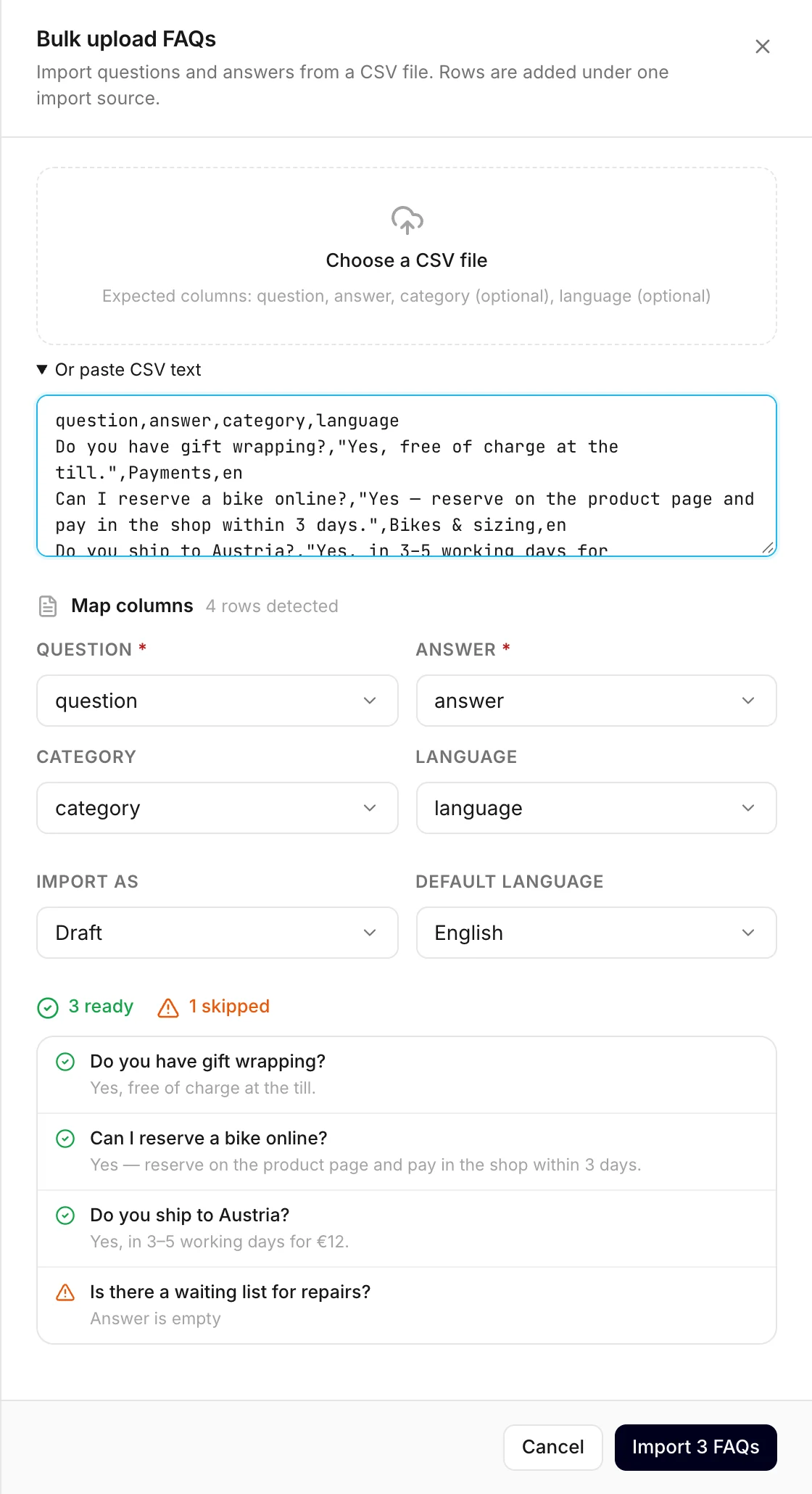
Skipped rows are simply left out. Fix them in your file and upload just those rows again.
FAQs you already have
Konvuno compares each row with the FAQs you already have, by its question and language. Capital
letters and extra spaces do not count, so Do you ship abroad? and do you ship abroad? are the
same question.
- A new question becomes a new FAQ with the status you chose in Import as.
- A question you already have updates that FAQ's answer and category from the file. Its status stays as it was, so a live FAQ stays live.
- A row that matches an FAQ exactly is left alone, and so is a question that appears a second time in the same file.
Uploading the same file twice therefore changes nothing the second time. When the file had questions you already have, the message after the upload says how many FAQs were added, updated and left unchanged.
Every upload that adds new FAQs becomes one CSV import source, named after the file, so you can find, filter or remove everything it brought in. FAQs it only updated keep their original source. See Sources.
If an upload stops halfway — a lost connection, for example — the message tells you how many FAQs made it. Upload the same file again: what already arrived is recognised and left alone.
Export your FAQs
Click Export CSV at the top of the Knowledge screen — it appears once you have at least one FAQ. The file contains:
- the FAQs you ticked, if you ticked any;
- otherwise every FAQ in the list as it is filtered and searched right now — clear the search and filters first to export everything.
The file has the same four columns as the upload template — question, answer, category and
language — and is named with today's date, such as faqs-2026-09-23.csv. The status is not
included.
The file opens with the right letters — č, ß, é, € — in Excel, Numbers and Google Sheets.
Edit many FAQs in a spreadsheet
- Filter the list to the FAQs you want to change, and click Export CSV.
- Edit the answers and categories in your spreadsheet program, and save the file as CSV UTF-8.
- Upload the edited file. The FAQs you changed are updated in place; the rest are left alone.
Changing a question in the file makes it a different question: Konvuno adds it as a new FAQ and keeps the old one. To reword a question, edit that FAQ on the Knowledge screen instead.
Note
To protect your spreadsheet from hidden formulas, an answer that begins with =, +, - or @
is exported with an apostrophe in front, such as '+381 11 555 0142. You do not need to remove
it: Konvuno drops that apostrophe again when you upload the file.
How other businesses use it
- An accounting firm copies the 40 questions it keeps in a Word table into a spreadsheet and uploads them in one go.
- An online shop selling in Austria and Italy writes its FAQs in German and Italian and marks
each row
deorit, so the list shows at a glance which language each answer is in. - A language school exports its FAQs every term before changing prices, as a backup.
- A marketing agency that sets up assistants for clients keeps a starter CSV of common questions and uploads it for each new client as drafts.