Preview and test the widget
See how the widget looks on a computer and a phone, and chat with the real assistant before your visitors can.
The panel on the right of the Widget screen has two modes. Switch between them with the Appearance / Test buttons above it.
Appearance: see the design
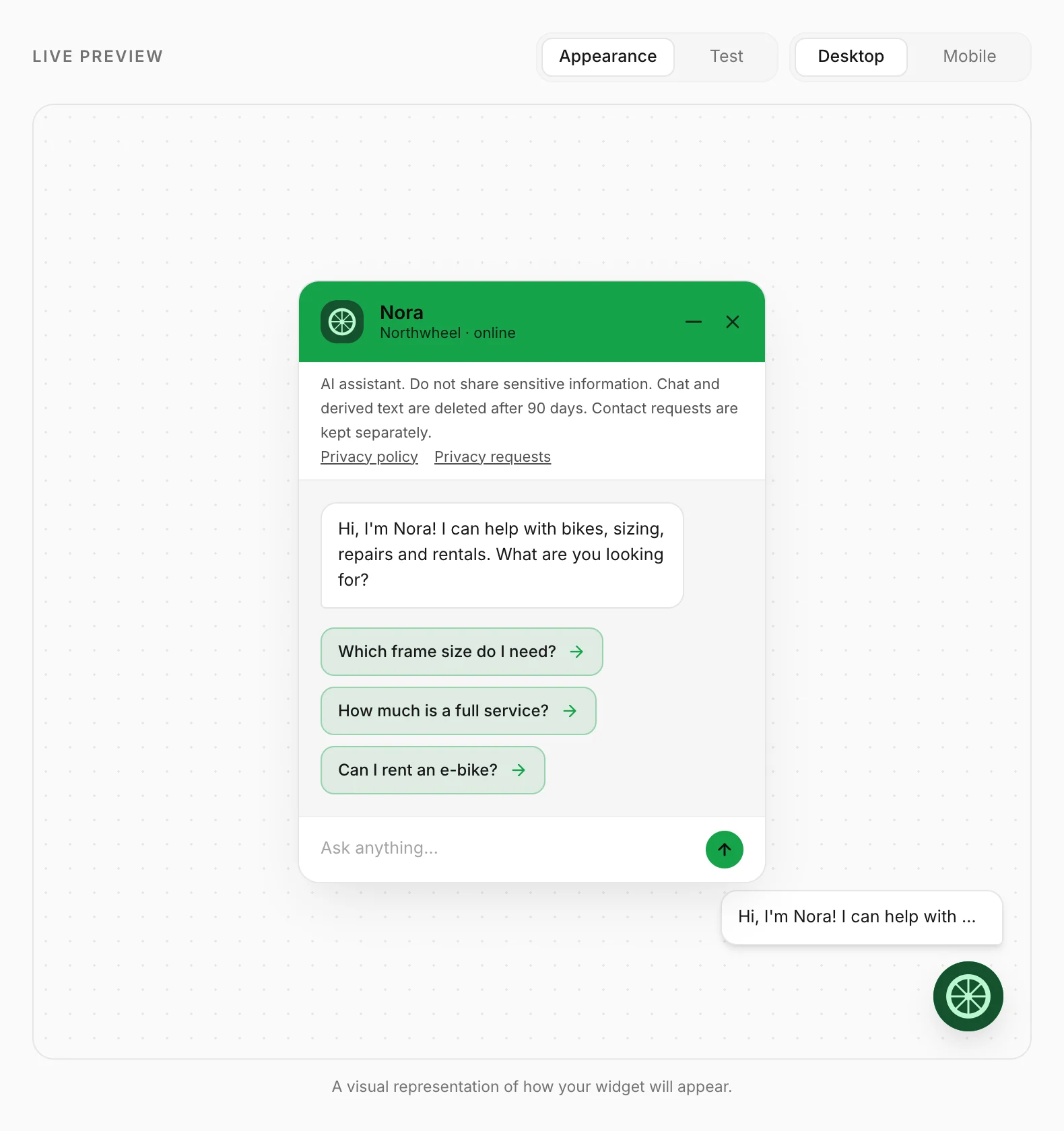
Appearance is a picture of your widget that redraws as you type — the colour, logo, greeting, suggested questions and the launcher in the position you chose. Switch between Desktop and Mobile to see both. It does not talk to the assistant, so you can click around as much as you like.
What the picture shows matches your website: the privacy notice at the top of the chat, up to six suggested questions, and "Powered by Konvuno" only on plans that include it. With the System theme it follows your own computer's light or dark setting, as the widget follows each visitor's. With Proactive greeting on, the bubble beside the launcher shows your greeting, as visitors see it once the delay has passed. The picture is in your dashboard's language; visitors see the widget in theirs.
Test: chat with your assistant
Test loads the real widget and connects it to your assistant, so you can ask it the questions your customers ask and see exactly what they would get.
- Click Test above the preview.
- Wait for "Starting your assistant…" to finish.
- Ask a question — try one of your FAQs, then one you have not answered yet.
Test conversations are safe:
- They never count toward your plan's conversations and are left out of your statistics.
- They appear under Conversations with a Preview badge, so you can read them back.
- If you fill in the contact form, nothing is saved and nobody gets an email.
You can test before you have published anything, and members can test as well as owners.
Tip
Test after every change to your FAQs. If an answer is wrong or missing, fix the FAQ under Knowledge, then ask again — this is the fastest way to a good assistant.
Good to know
- Test mode takes your settings once, when it starts. After changing something, switch to Appearance and back to Test to test the new version.
- Everything comes from what you are editing, not from the published version: the look, the greeting, the suggested questions, the contact options, and the assistant's name, tone, custom instructions, answer length, language, catalog and Answer only from approved sources settings. You do not have to save or publish to test a change.
- Closing the widget with its × returns the panel to Appearance.
Before you subscribe
Without a subscription you get 10 free test conversations. A conversation counts once the assistant gives its first answer; the follow-up questions in the same conversation are free. The counter under the preview shows how many you have used. With any plan, testing is unlimited.
How other businesses use it
- A hair salon tests "can I book for Saturday?" and discovers the assistant does not know the opening hours — one new FAQ fixes it.
- An IT support company tests in German and English to check the widget switches language with the visitor.
- A bakery asks the same allergen question three ways to make sure every wording finds the right answer.