Settings
Where to find your business details, your team, your plan and your data — and which of them only an owner can change.
Settings, the last item in the sidebar, holds everything about your business that is not the assistant itself: who you are, who works with you, what you pay and what Konvuno keeps.
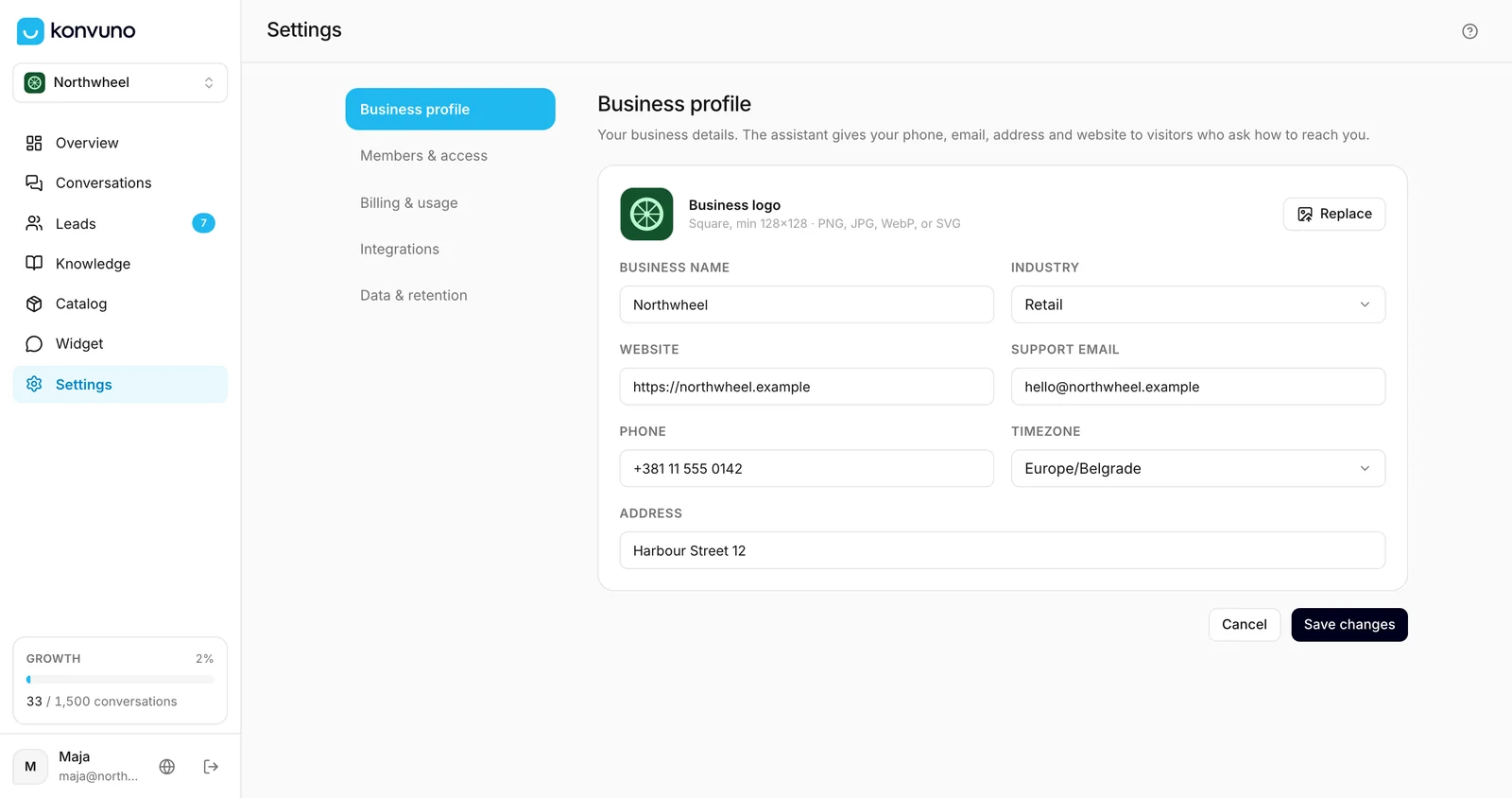
The five sections
Pick a section in the list on the left:
| Section | What you do there |
|---|---|
| Business profile | Your business name, industry and contact details and the email for new leads. See Business profile. |
| Members & access | Invite teammates, change their role, remove them — or leave a business yourself. See Members and roles. |
| Billing & usage | Choose a plan, see how many conversations you have used, change plan, update your card or cancel. See Billing and usage. |
| Integrations | Send every new lead to Zapier, Make, your CRM or your own server. See Send leads to other tools. |
| Data & retention | How long Konvuno keeps your data, export all of it, delete the business or your account. See Your data. |
The address in your browser remembers the section — for example, a link ending in
/settings?section=billing opens Billing & usage directly. That is handy when you send
a colleague to the right place.
One business at a time
Settings belong to the business selected at the top of the sidebar. If you run more than one business in Konvuno, each has its own profile, team, plan and data: switch business in the sidebar first, then open Settings.
Your dashboard language is not in Settings at all. It is yours, not the business's, and it follows you across every business on this browser: pick it with the globe button next to your name at the bottom of the sidebar. See Change the dashboard language.
Owners and members
Everyone on a team is either an owner or a member. Members can do almost everything, but some settings are for owners only — the business name, the team, the plan and payment, exporting all data and deleting the business. Where a setting is owner-only, a member sees it greyed out or does not see the button at all. The full list is in Who can do what.
How other businesses use it
- A family-run restaurant has one owner who handles billing, and a member account for the manager who keeps the FAQs up to date.
- A marketing agency sets up one business per client, invites the client as a member, and keeps billing with the agency's owner account.
- A physiotherapy clinic with two partners makes both of them owners, so either can change the plan or publish the widget while the other is away.